
Do you have products that can be built up or broken down in a manufacturing process? Maybe you have 100g bags and 1000g bags on the shelf. To deconstruct (1) 1000g bag and transform it into (10) 100g bags simply use the manufacturing module.
The same goes for producing items. If you use ingredients or parts to manufacture a larger product and want to keep track of all inventory levels use the manufacturing module.
Notes:
- Products must be listed with a profile in the inventory module prior to being built.
- Products must be received into inventory and have an on hand prior to being manufactured.
Steps:
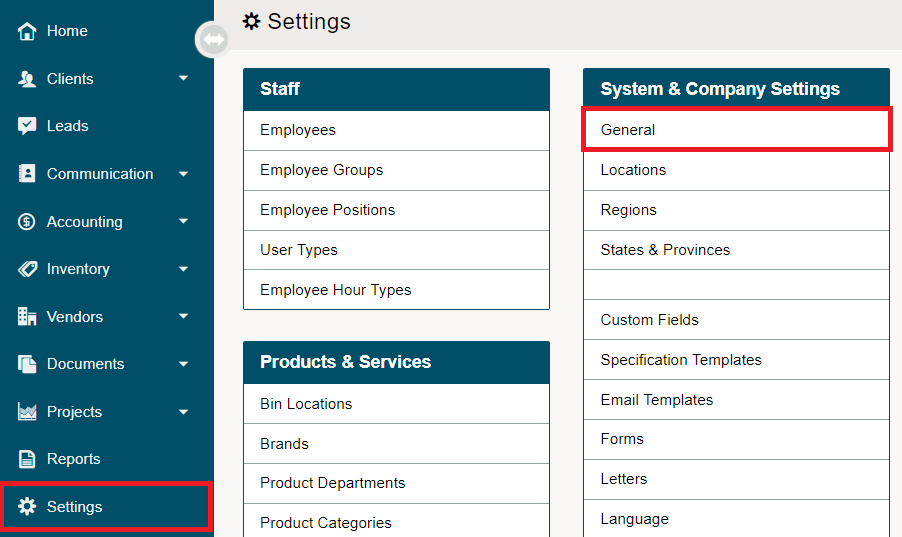
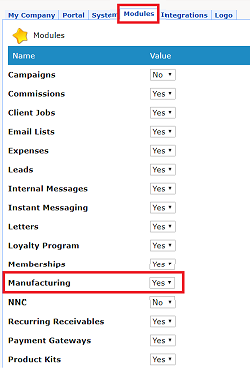
Be sure that the Manufacturing Dashboard is turned on inside of the General System Settings.
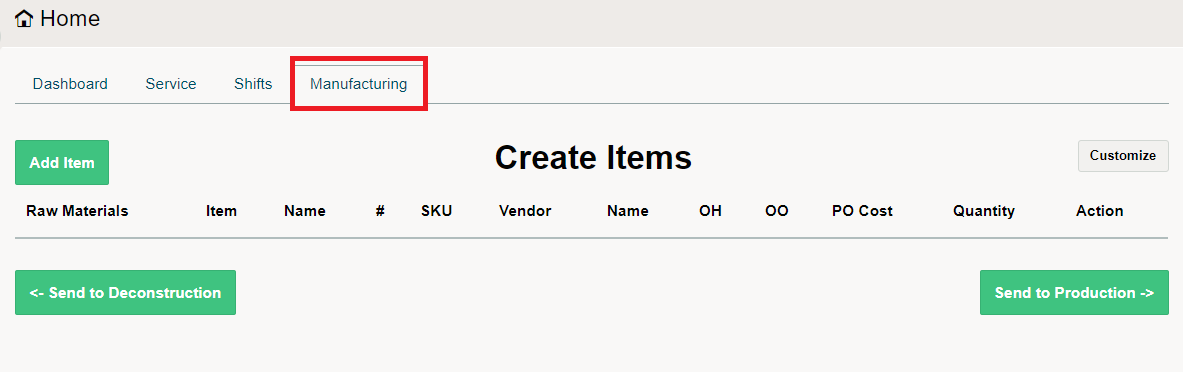
Locate the Manufacturing dashboard from the Home Module.
Send to Production
Need to use multiple other products to 'build' a new product? Use production.
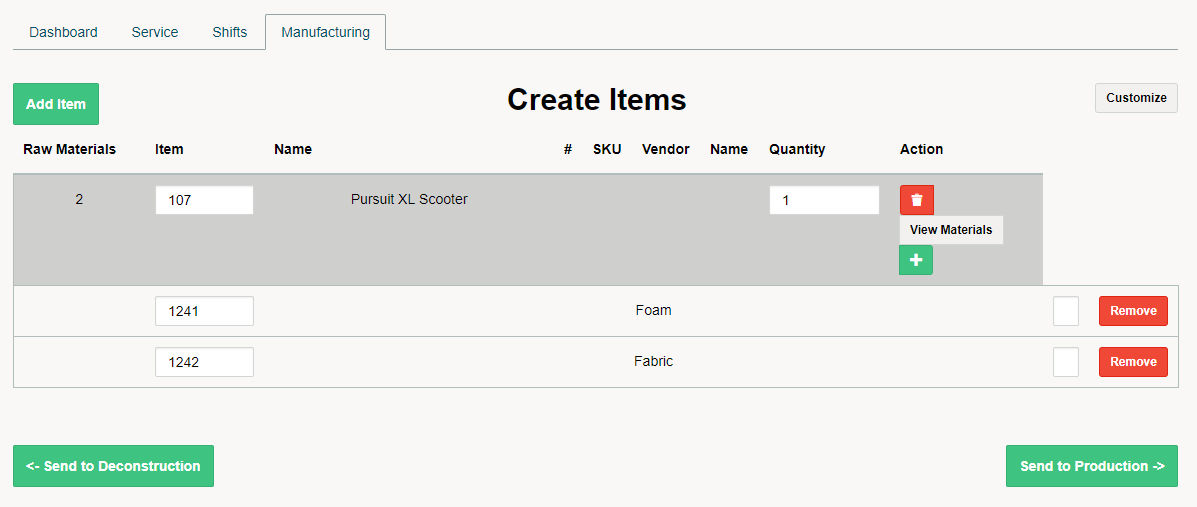
Type in an item number or name and select the quantity you would like to produce.
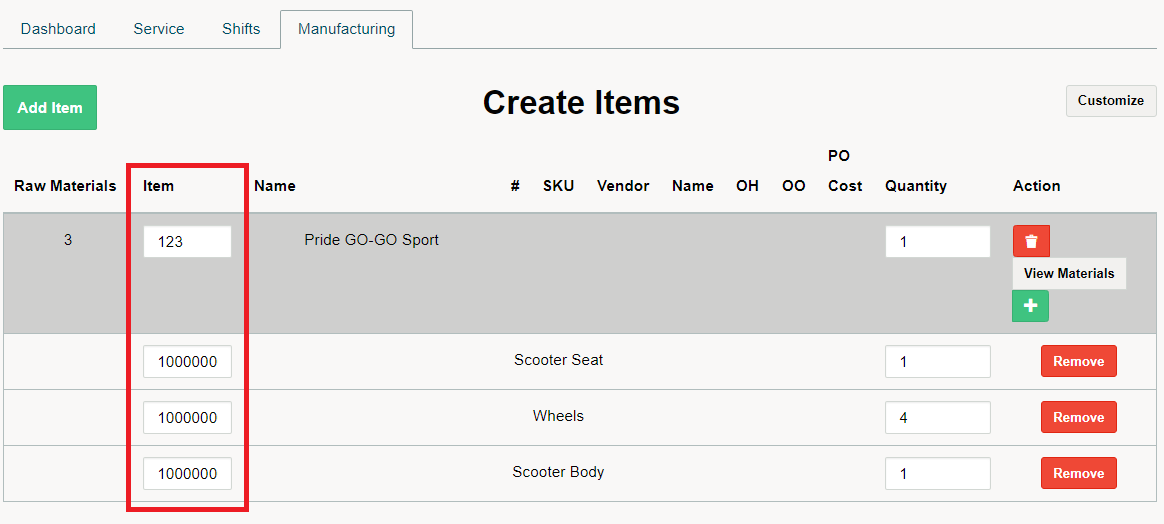
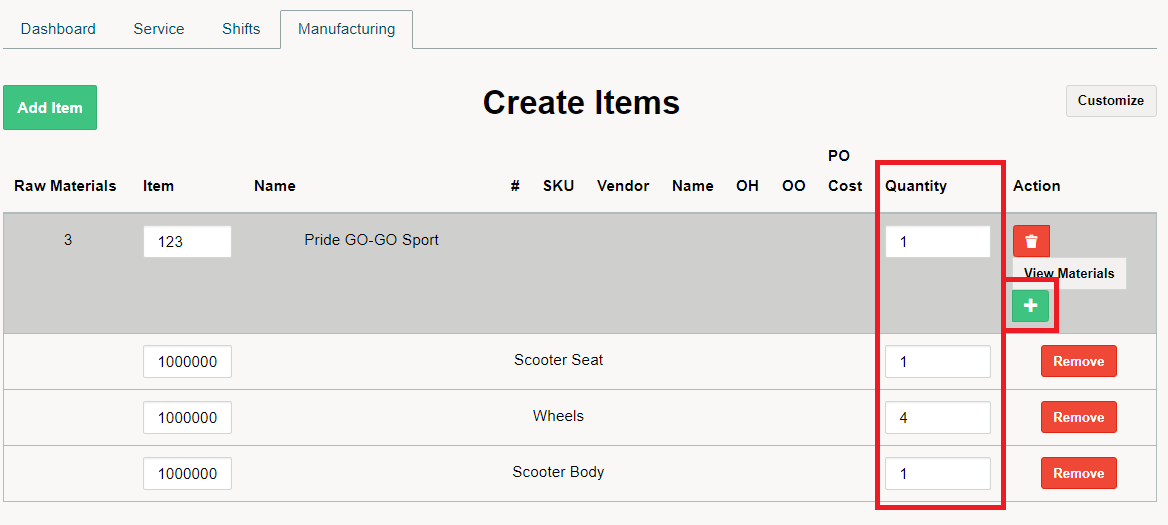
Click on the green [+] to select the item number or name of the raw materials used to produce the product. Type in the quantity of each of the raw materials used.
Click on the [Send to Production] button to take the raw materials out of inventory and place them into the base product
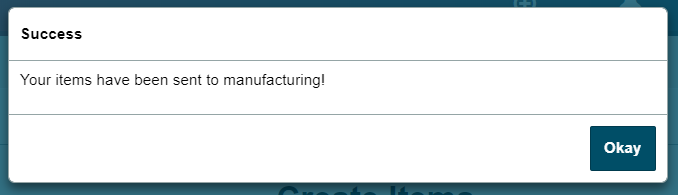
You will see a success message and the item levels will have been adjusted in inventory.
Send to Deconstruction
Want to send one product to be deconstructed to become multiple other products? Use deconstruction.
Type in an item number or name and select the quantity they break down to produce.
Click on the green [+] to select the item number or name of the raw materials used to produce the product. Type in the quantity of each of the raw materials used.
Click on the [Send to Deconstruction] button to take the raw materials out of inventory and place them into the base product
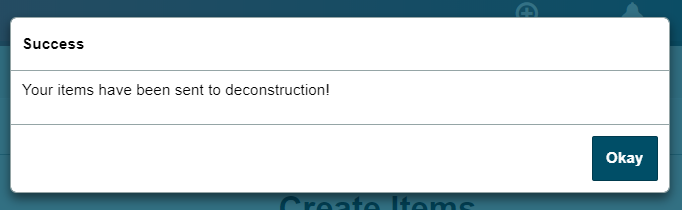
You will see a success message and the item levels will have been adjusted in inventory.
Customize Columns
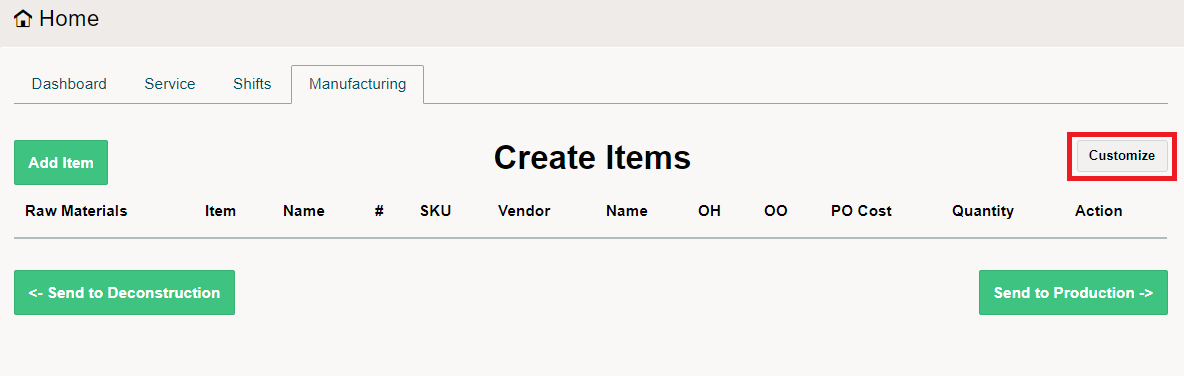
To set additional data columns such as the On Hand or On Order use the customize tool. Click the customize button in the top right-hand corner.
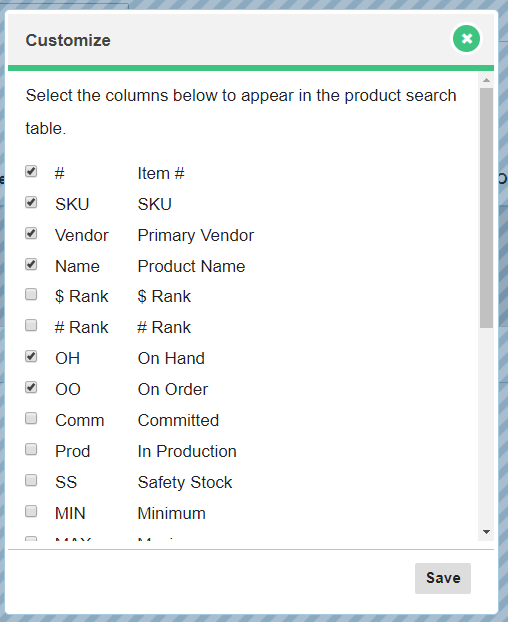
In the pop-up screen click on the checkbox of the additional columns that you would like to see while manufacturing. Then click the [Save] button at the bottom of the window to apply the columns to the Manufacturing Dashboard. Be sure not to check off too many boxes as the columns may become overcrowded.
Comments
0 comments
Please sign in to leave a comment.