
All products must belong to a Category, and Categories belong to Departments, all on a one-to-one basis. Before you can create Product Categories, you first need to create Product Departments.
Examples
Departments
- Wheelchairs
Categories
- Power Wheelchairs
- Manual Wheelchairs
- Tilt Wheelchairs
Products
- Drive Rebel Wheelchair
- Drive Silver Sport Wheelchair
- Helio A7 Wheelchair
Steps
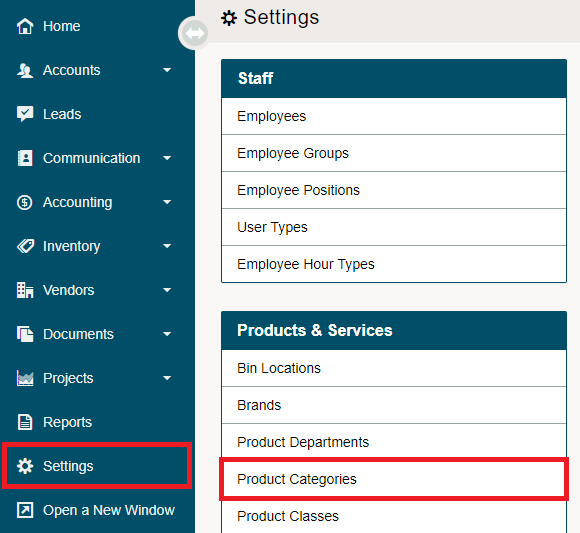
Choose System Settings, then choose Product Categories under the Products & Services Heading.
3. Choose 

Fill out the fields to create the category.
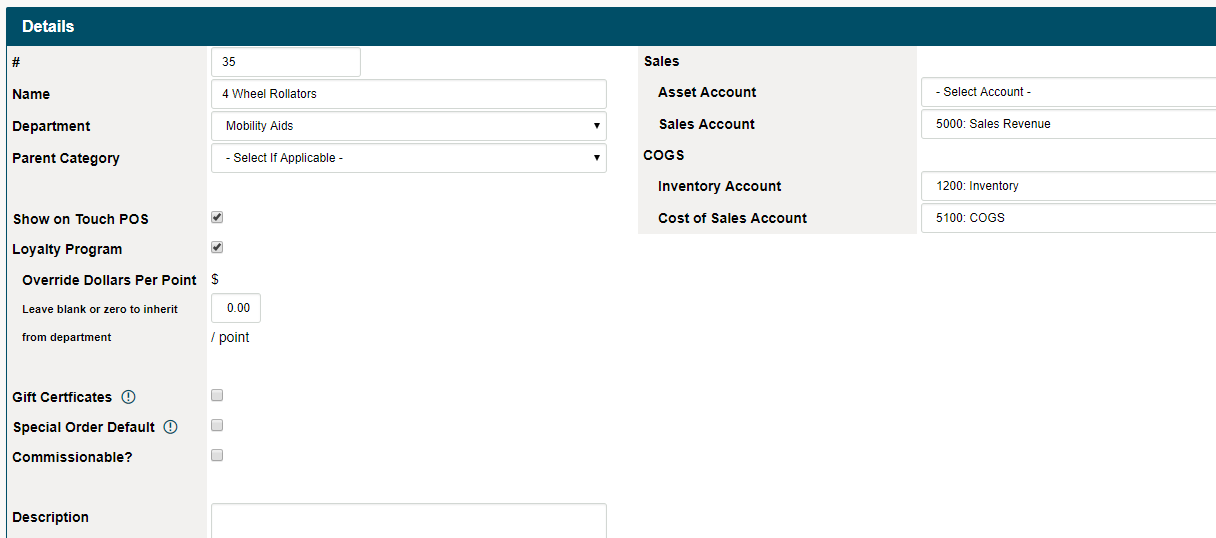
Product Category Details
#: Number of the Category
Name: Name of the Category
Department: Select the Department the Category belongs to from the drop-down list
Parent Category: Select the Parent Category (only if applicable)
Show on Touch POS: Select if the Category is to show on Touch POS
Loyalty Program: Select if the Category is to be included in a Loyalty Program. This takes it one step beyond departments as some departments may not have loyalty points but certain categories in that department have loyalty points. Leave blank or (0) to inherit the loyalty points from the department.
Gift Certificates: Select if this is a Gift Certificates Category, not to be used for regular product categories.
Special Order Default: Select if this is a Special Order Category, Only (1) Special Order default category can be set. If you check this box, it will deselect any other category that has this box checked.
Commissionable: Select if this Categories products and services are Commissionable. If they are to be the same as the department they are listed in do not change the commissionable rate under categories.
If a department does not have commissions but select categories under it do, please add the additional commissionable rates.
The departmental commission rate will always override the categories commissions rate.
Learn more about Commission Rates
Type a description of the Category
Select the (Asset Account / Sales Account) from the Sales drop-down on the right-hand side
Select the (Inventory Account / Cost of Sales Account) from the COGS drop-down on the right-hand side
Comments
0 comments
Please sign in to leave a comment.