
First, you'll need to download MEHDapp from the Apple Store or from Google Play Store. Access the store directly from your phone.
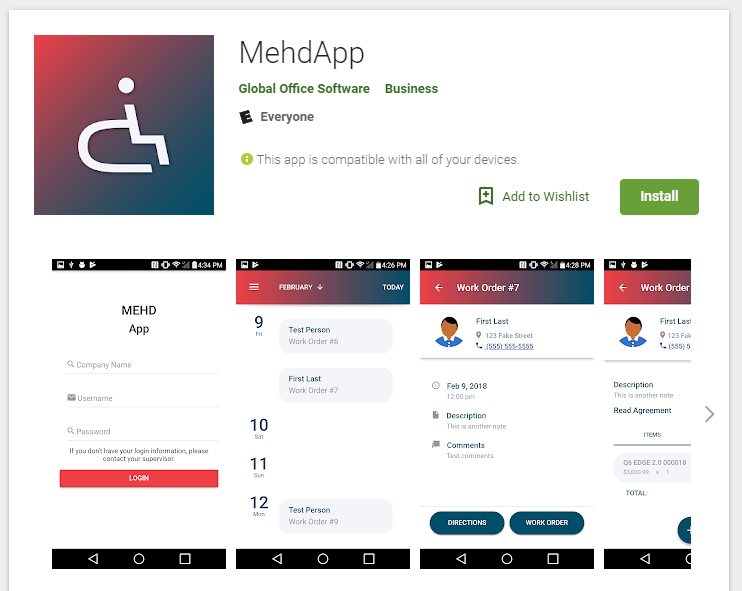
Download MEHD App
itunes Store
MEHD App: https://itunes.apple.com/us/app/mehdapp/id1349396730?mt=8
Google Play Store
MEHD App: https://play.google.com/store/apps/details?id=com.mehd.mehdapp
Log In to MEHDapp
Once MEHD App is downloaded to your phone, click on the app to access the login screen.
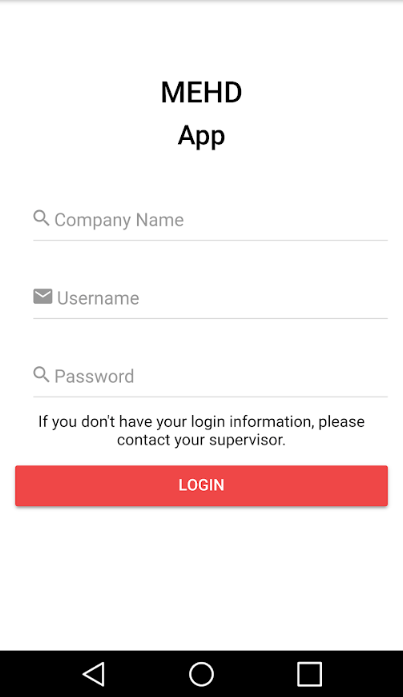
Company Name: The prefix to your mehdapp.com (XXXX.mehdapp.com).
Username: The username you use to login to MEHD on the internet.
Password: The password you use to login to MEHD on the internet.
To login, enter the login information supplied by your administrator.
Save Website to Phone Home Screen
Having a responsive interface means that users can also login to their MEHD account through an internet browser on their phone such as Chrome or Safari.
What this means is that an app like icon will appear on your home screen and will open this link in Safari without having to go to Safari first. Now that mobile devices are so popular, you really save time by saving websites to your home screen.
Apple
The process of saving a website shortcut to the home screen on your iPhone is really easy and takes about as much time as it would to save a regular bookmark. Follow these simple steps:
- Open up Safari on your iOS device.
- Navigate to the website that you want to save as a home screen shortcut
- Tap the Share button on the menu bar. It’s an icon on the right side that’s a box with an arrow sticking out from it.
- Tap on Add to Home Screen.

Name the Icon (MEHD) and finalize by clicking on 'Add'. A new icon with a direct link to the website should now appear.
Comments
0 comments
Please sign in to leave a comment.