
Use the transactions import to import all of your past transactions into GO Business / MEHD.
This is a great import if you need to keep track of the assets attached to a customer. Simply import the
Example:
In Joannie's old POS system she had a list of transactions and needs to have all the transactions imported to her GO Business / MEHD system due to the fact that she would like to know which products have been sold to customers so when her service team is onsite with a customer they will know the product t
Joannie will also be able to report on the products that have previously been sold to customers, and in case of a product recall, she can inform the customer right away.
Note: Prior to importing transactions, the following must be completed.
- Locations must be set up
- Customer must have a profile with customer #
- An employee who sold a product must have a profile with employee #
- Product/Service must be set up in the system with item #, this also means that departments and categories must be set
Steps:
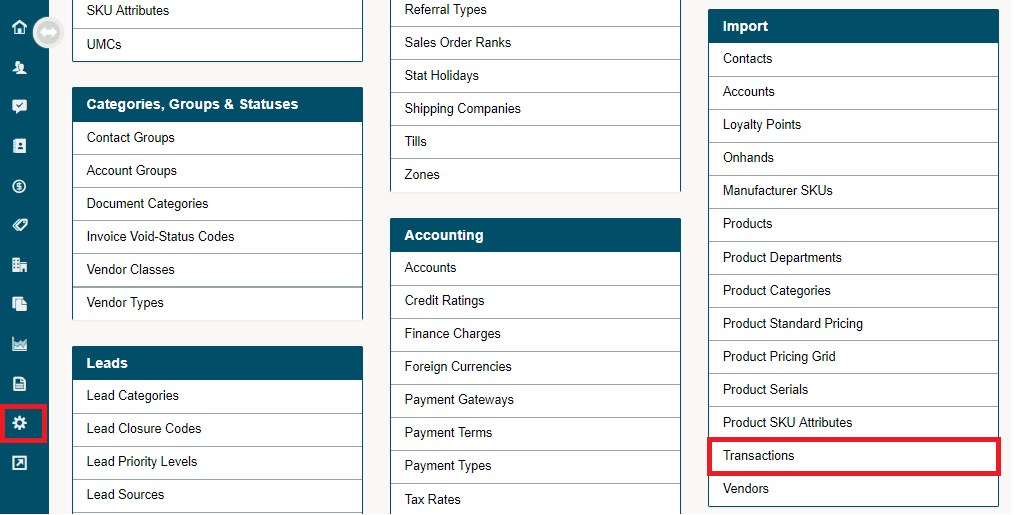
Go to the System Settings module. Under the Import heading click on Transactions.
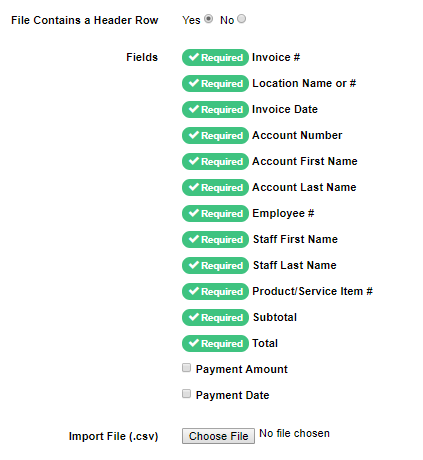
A new window will appear. You will be able to view the list of columns headings that can be imported.
Click on the [Get Import Template] button. Download the Microsoft Excel file.
Fill out the columns with the required information and save the file as a CSV. Then at the bottom of the Transaction Import page, click the [Choose File] button and select the CSV file.

Finish by clicking the [Upload] button.

Import Notes:
- Import file must be saved as CSV
- Import file must include the required fields to properly import
Comments
0 comments
Please sign in to leave a comment.