
Actions are used to build an action plan. Multiple actions can be grouped to create part of an Action Plan, which is then used inside of a customers profile.
Note: Actions must be set up prior to setting up Action Plans. Action plans should also be set on a per employee basis as the actions related to the tasks must be assigned to an employee. The action/task will have a default employee, in which the action can be changed to an alternate employee in the customer's profile.
Example
Service Call Template (Action Plan)
- 30 Day Call (Action)
- 1 Year Call (Action)
View Actions
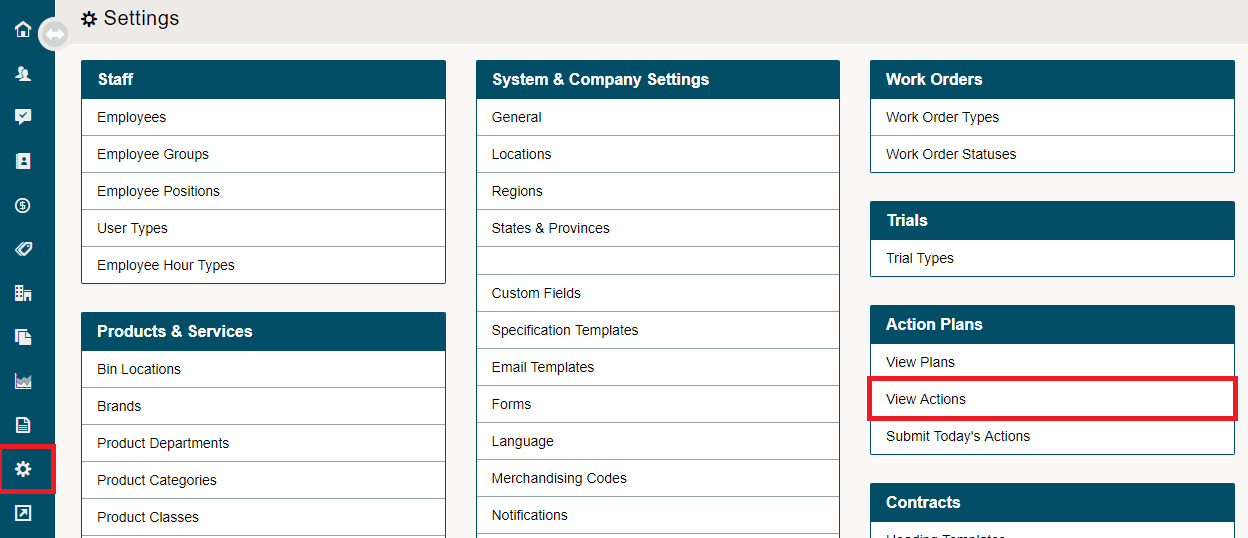
Go to Settings, under the Action Plans heading click on View Actions.
Click on the [New Action] button in the top right corner.
Set up your Action(s) with details. and click the [Save] button.
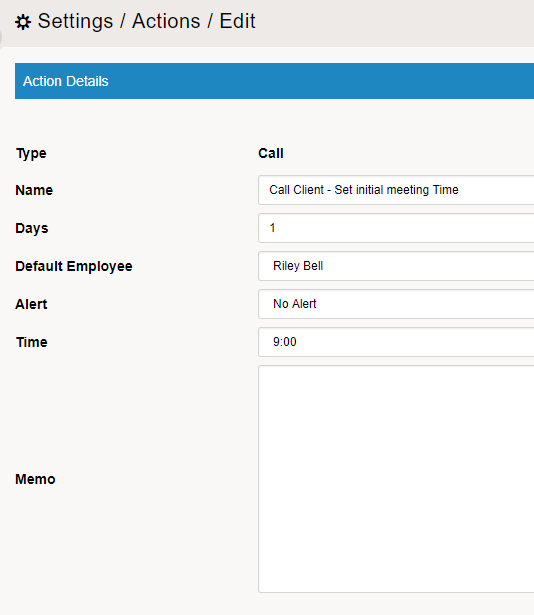
Type: Appointment, Call, To Do, Email
Name: Name the action
Days: The number of days the action should come after the last actionable item. If you would like to see multiple actionable items appear on the same day, type in (0) in the 'days' field.
Default Employee: The employee who should be assigned the action/task by default. This can be changed inside of the customer's action plans in their profile.
Alert: The time increment in which an alert will be sent to the employee's dashboard (15, 30, 45, 60...)
Time: The time at which the action/task should appear to be done on the scheduled day (9:00 AM, 1:00 PM, etc.)
Memo: Any additional notes that need to be seen by the attached employee to the action/task they will be completing.
After all the actions are completed you can then set up an Action Plan. Click here to learn how to set up an Action Plan.
Comments
0 comments
Please sign in to leave a comment.