
Actions are used to build an action plan. Multiple actions can be grouped to create part of an Action Plan, which is then used inside of a customers profile.
Action Plans are the branch in which the Actions sit under.
Note: Actions must be set up prior to setting up Action Plans. Action plans should also be set on a per employee basis as the actions related to the tasks must be assigned to an employee. The action/task will have a default employee, in which the action can be changed to an alternate employee in the customer's profile.
Example
Service Call Template (Action Plan)
- 30 Day Call (Action)
- 1 Year Call (Action)
View Plans
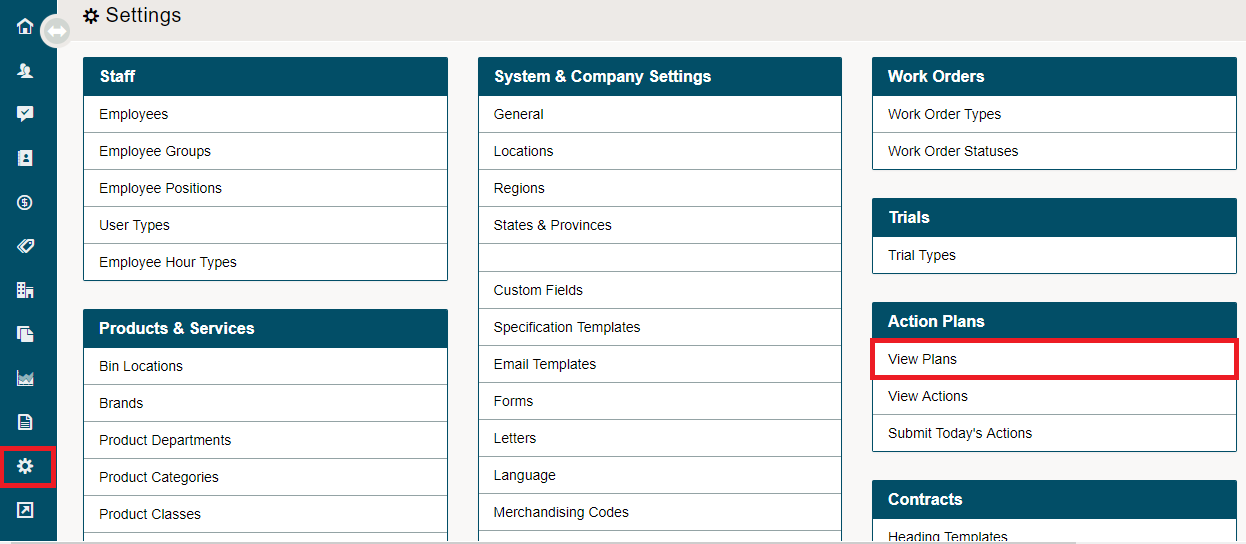
Go to the System Settings module, then click on the View Plans button under the Action Plans header.
Name the Action Plan along with adding a description to give context to the employees that will be attached to the Action Plan. Next actions by clicking on the [Add Action] button. Each action will appear at the bottom of the list of actions so be sure to add actions in the correct order.
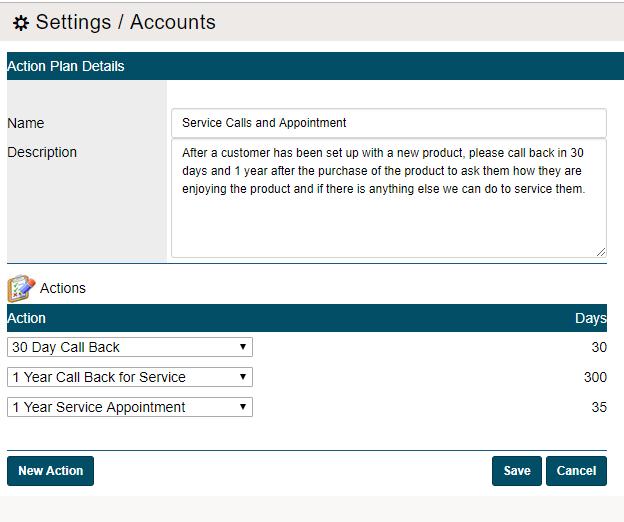
Finish by clicking on the save button. Now the new Action Plan will be able to be viewed and edited in the Action Plan list along with having the ability to add the Action Plan to a customer.
Note: The amount of days listed beside the action is the number of days after the last action that the next action will appear. In this case (30+300+35 = 365) therefore the Service appointment will be listed for 1 Year from the initial set up of the Action Plan.
Click here to learn how to set up Actions for an Action Plan
Click here to learn how to add Action Plans to a Customers Profile
Comments
0 comments
Please sign in to leave a comment.