
Automation of tasks helps your employees stay on track with future tasks. Think of tasks such as emails, or calls that must be sent out to customers (1 month, 3 months, or 1 year) after they purchase a product or receive a service.
Action plans are direct reminders about those exact tasks that are assigned to employees. By creating an action plan Calls and To Do's can be assigned directly to your employee's dashboard for reminders of their tasks they need to accomplish that day.
Learn more about action plans below.
View Plans
Plans are the combination of multiple Actions.
Example:
- 1st Contact
- After Sales Follow Up
View Actions
Actions are the (steps or tasks) within an overall Plan.
Example:
- 1st Contact (3 Days Total)
- 1st Contact (Call) - 1 Day
- List Customers Needs (To Do) - 1 Day
- Customer Quote (To Do) - 1 Day
- Sales Follow Up (365 Days Total)
- 1 Month Client Satisfaction (Call) - 30 Days
- 1 Year Service Call (Call) - 335 Days
How to set up an Action Plan
View Actions
Click here to view how to set up Actions in depth
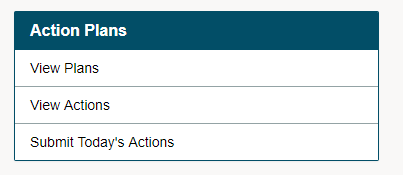
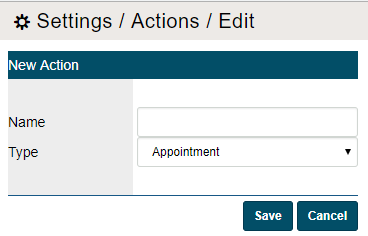
Go to Settings, under the Action Plans click on View Actions.
Set up your Actions.
View Plans
Click here to view how to set up Action Plans in depth
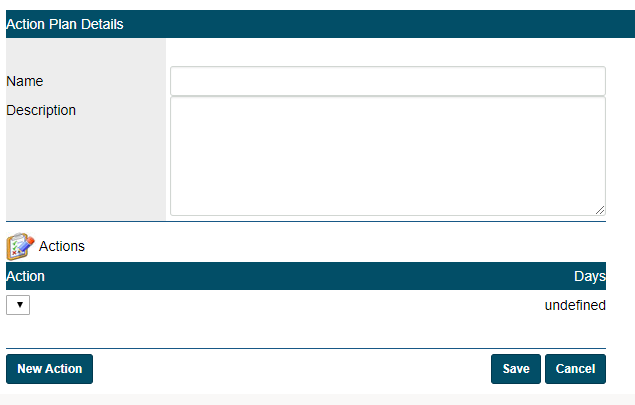
Go to Settings, under the Action Plans click on View Plans.
Name your plan, and give it a description. Add actions that you have created by click on the New Action button and selecting the action from the drop-down menu.
Add Plans & Actions
Click inside of a Customers Profile.
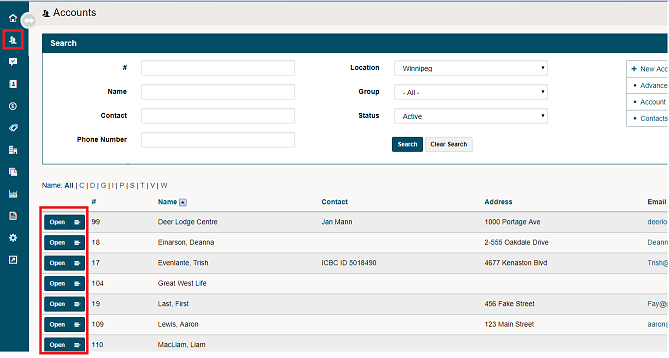
Navigate to the Correspondence Tab and then to the Action Plans Tab.
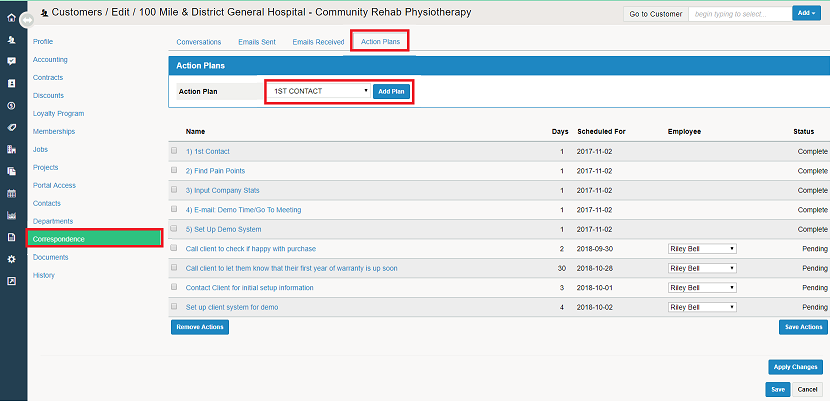
Select the Action Plan you wish to execute (1st Contact or Sales Follow Up). A List of the added Actions will appear with the day they are scheduled for, and the ability to assign which employee has the task.
Save the actions.
The actions will now appear as (Calls or To Do's) on the set employees dashboard on the correct date.
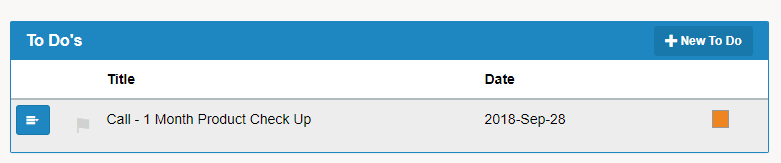
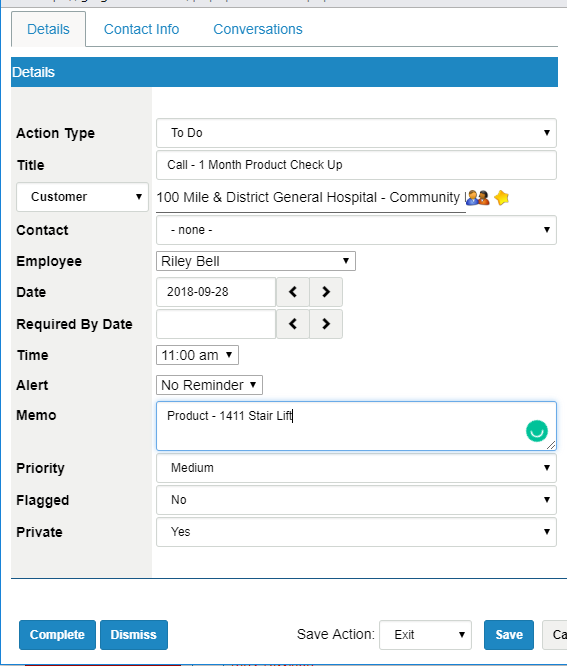
If they complete the task the status in the Customers profile will change to Complete.
Click Here to use Analytic Reporting on Actions
Comments
0 comments
Please sign in to leave a comment.