
Track actions and close them as they are completed.
To do’s entered in the system will appear on their respective lists show on each employee's dashboard.
Actions
1. Go to your dashboard
2. Click New To Do
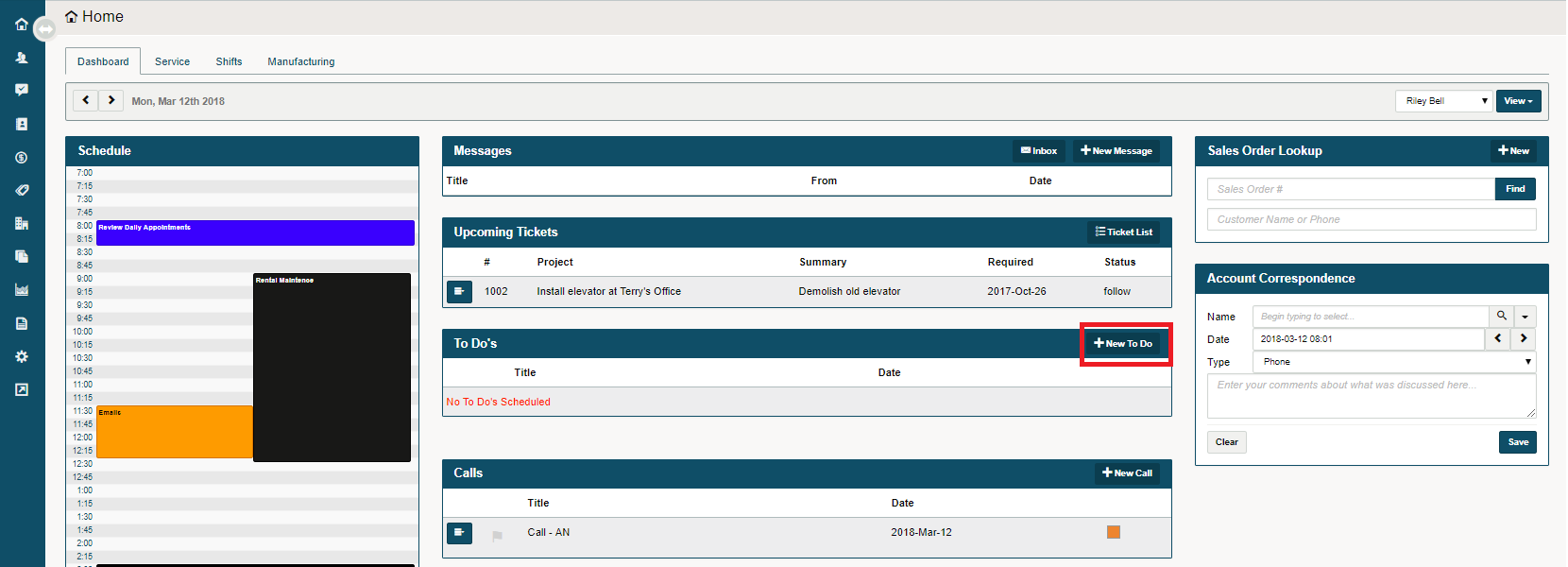
3. Enter the details of the To Do
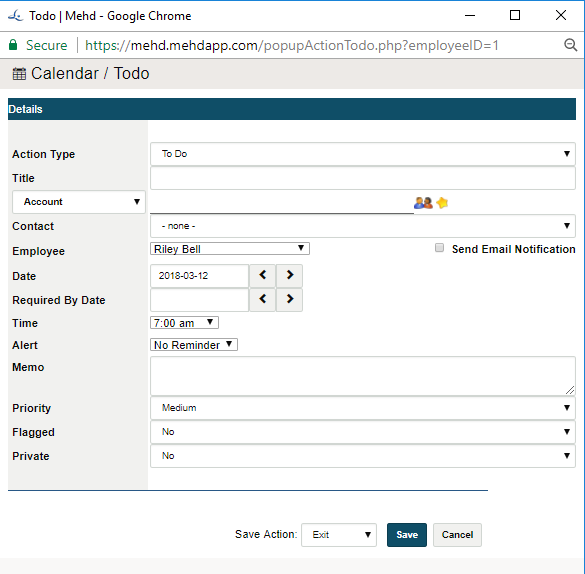
a) Give your To Do a title to reflect the context of the task
b) Select the (Account / Contact / Vendor) by changing the drop-down list on the left-hand side. Then type out the name of the (Account / Contact / Vendor) and select from the type ahead dropdown list.

If no (Account / Contact / Vendor) is created yet OR - you cannot find the (Account / Contact / Vendor) select the drop-down arrow on the right-hand side.

c) If there is a Contact specific to the Account, select the contact from the drop-down list.
d) To add the correct employees to the To Do, select the employee's name from the drop-down list
e) To send a reminder to your employee, select the checkbox to the left of Send Email Notification
f) Select the correct date the To Do is to take place on, and the Required By Date
g) Select the time the To Do is to take place on
h) If your employee is to be alerted before the To Do, select a reminder time from the drop-down
i) Add notes to the Memo section pertaining to the To Do. This allows your employee to know what they will be accomplished throughout the To Do.
j) Priority - Select from your companies set priority levels
k) Flagged - Select if the To Do is to be flagged
l) Private - Select yes if the To Do is to be viewed by users with higher security levels
4. Finalize adding the To Do to the selected employee's dashboard by clicking on save. The To Do will now be scheduled under their dashboards To Do's section.
Comments
0 comments
Article is closed for comments.