
Track actions and close them as they are completed.
Calls entered in the system will appear on their respective lists show on each employee's dashboard.
Actions
1. Go to the to your dashboard
2. Click New To Do or New Call

3. Enter the details.
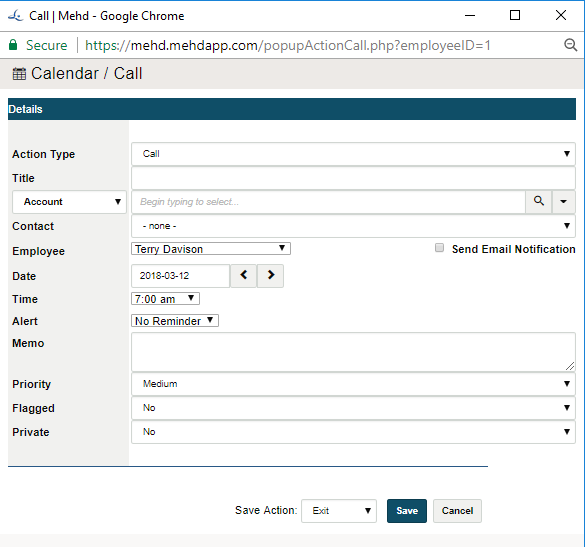
a) Give your call a title to reflect the context of the call
b) Select the (Account / Contact / Vendor) by changing the drop-down list on the left-hand side. Then type out the name of the (Account / Contact / Vendor) and select from the type ahead dropdown list.

If no (Account / Contact / Vendor) is created yet OR - you cannot find the (Account / Contact / Vendor) select the drop-down arrow on the right-hand side.

c) If there is a Contact specific to the Account, select the contact from the drop-down list.
d) To add the correct employees to the call, select the employee's name from the drop-down list
e) To send a reminder to your employee, select the checkbox to the left of Send Email Notification
f) Select the correct date the call is to take place on
g) Select the time the call is to take place on
h) If your employee is to be alerted before the call, select a reminder time from the drop-down
i) Add notes to the Memo section pertaining to the call. This allows your employee to know what they will be talking about on the call.
j) Priority - Select from your companies set priority levels
k) Flagged - Select if the call is to be flagged
l) Private - Select yes if the call is to be viewed by users with higher security levels
4. Finalize adding the call to the selected employee's dashboard by clicking on save. The call will now be scheduled under their dashboards Calls section.
Comments
0 comments
Article is closed for comments.