
Does your company have documents for training? Documents for product pamphlets? Documents that need to be shared with customers?
Use the document module to store, categorize, access remotely and set security restrictions on folders and individual documents.
Overview
Steps
Go to the Documents Module located on the left-hand menu to access your documents.
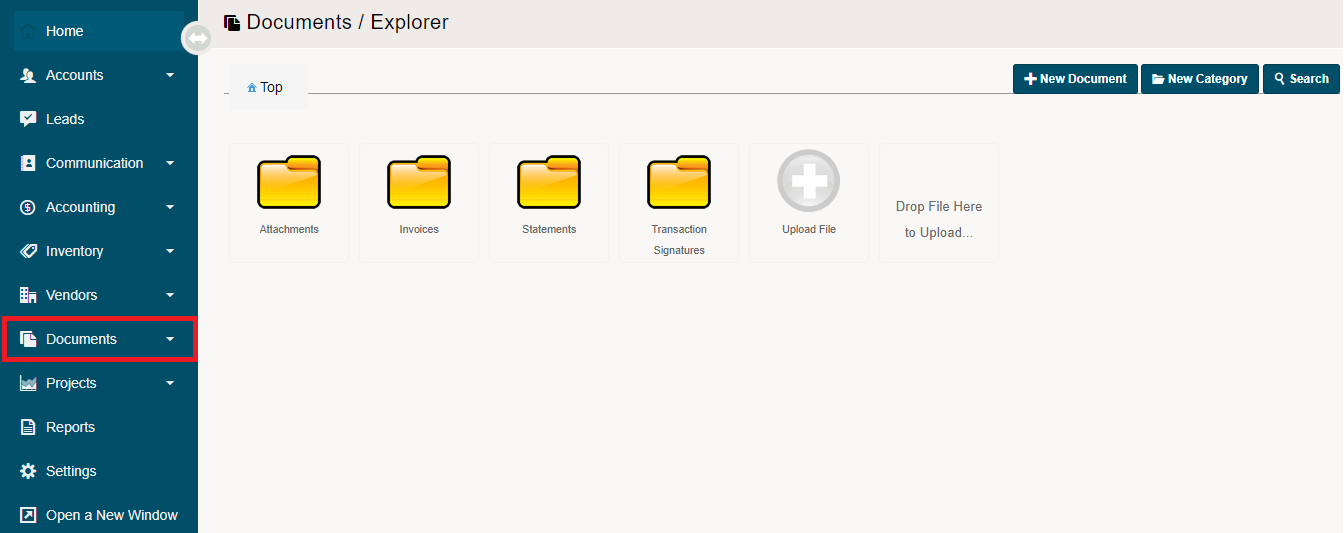
Use the tabs located in the top right-hand corner to access functions located within the Document Module.

Add Document
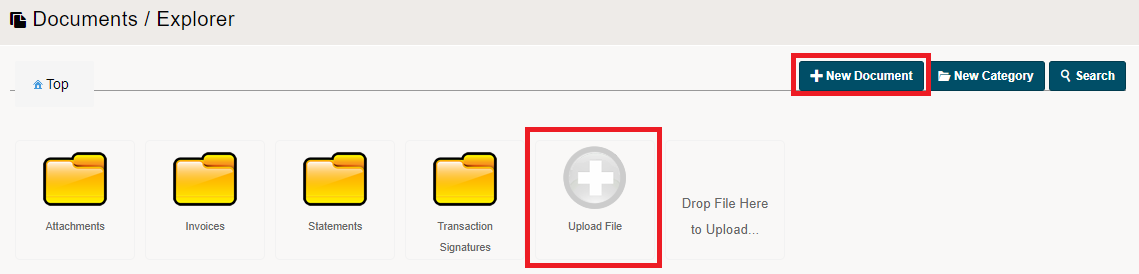
To add a New Document, click on the [+ New Document] OR click on the (+) Upload File button.
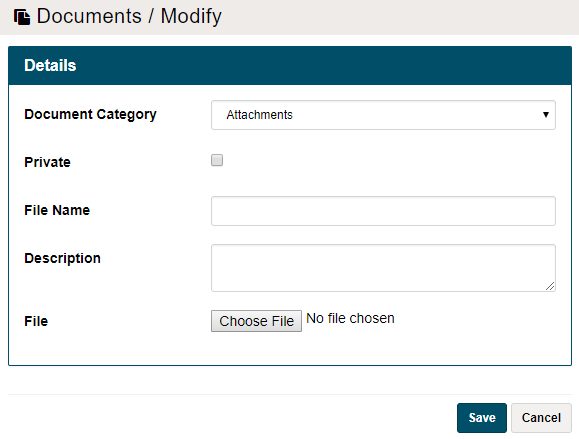
Fill out the information listed when uploading a document.
Document Category: Where the file will be listed under in the folder structure.
Private: Can only yourself see the document.
File Name: Name of the file
Description: Add a short description to
File: Choose the file from your local computer. Files can be (JPEG, PNG, GIF, PDF, EPS, AI, CSV, MS Word, MS Powerpoint, MS Excel)
Add Document Category
Click on the [New Category] button. Then fill out the information to set up the new category.

To learn more about setting up new document categories click here.
Search Documents
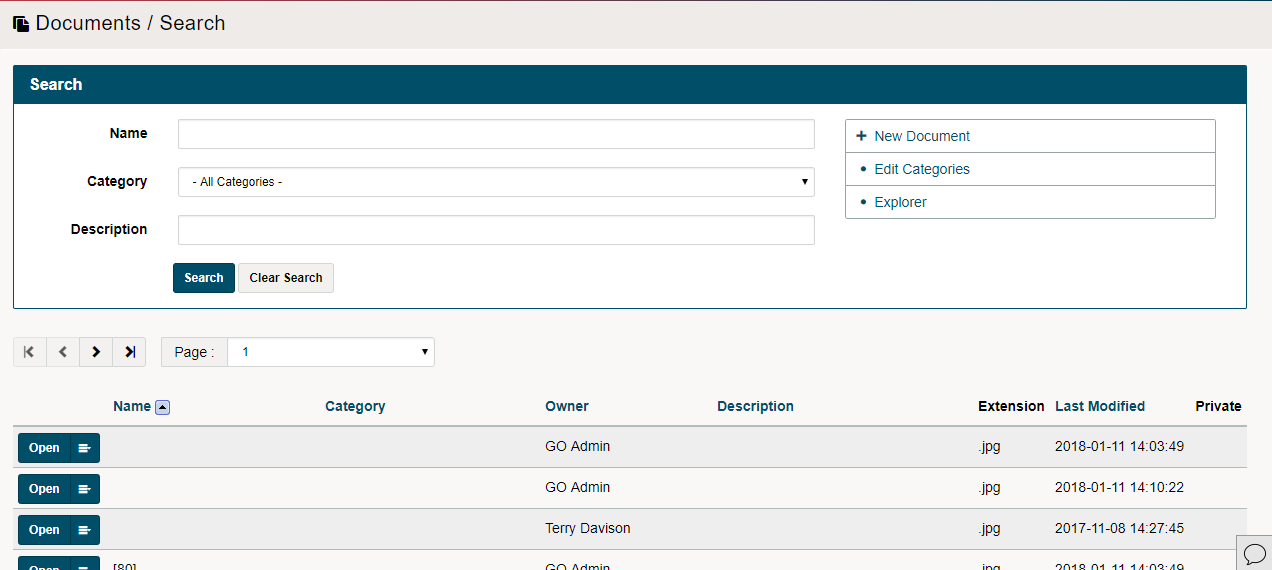
Use the [Search] button to navigate directly to the documents you would like to find. Use the Search bar to navigate between the exact Name, then select Category or the Description of the document.
You can also use the columns to sort documents further by Owner, Extension, or Last Modified.
Comments
0 comments
Please sign in to leave a comment.