
Does your company have multiple locations in which inventory may need to be sent from one location to another to fulfill inventory levels or Sales Orders?
Use Transfers to send, receive, and keep track of shipments and receiving of products.
Example:
Mary notices that her location is sold out of brown loveseats, and phones the other location.
Martin at the other location lets Mary know that he has 5 brown loveseats in stock and will transfer 2 brown loveseats to her location using the Inventory Transfer inside of their MEHD / GO Business system.
A transfer request is made inside of the system, the loveseats are packed up and shipped to Mary's location, and when Mary receives them, she receives the transfer. Inventory Onhands at both locations are automatically adjusted.
Steps - Creating:
Go to Inventory.
Under the Transfer Heading, choose New Transfer.
Or if you choose Transfers, a list of Inventory Transfers will be populated, and in the top right corner click on the [+ New Transfer] button.

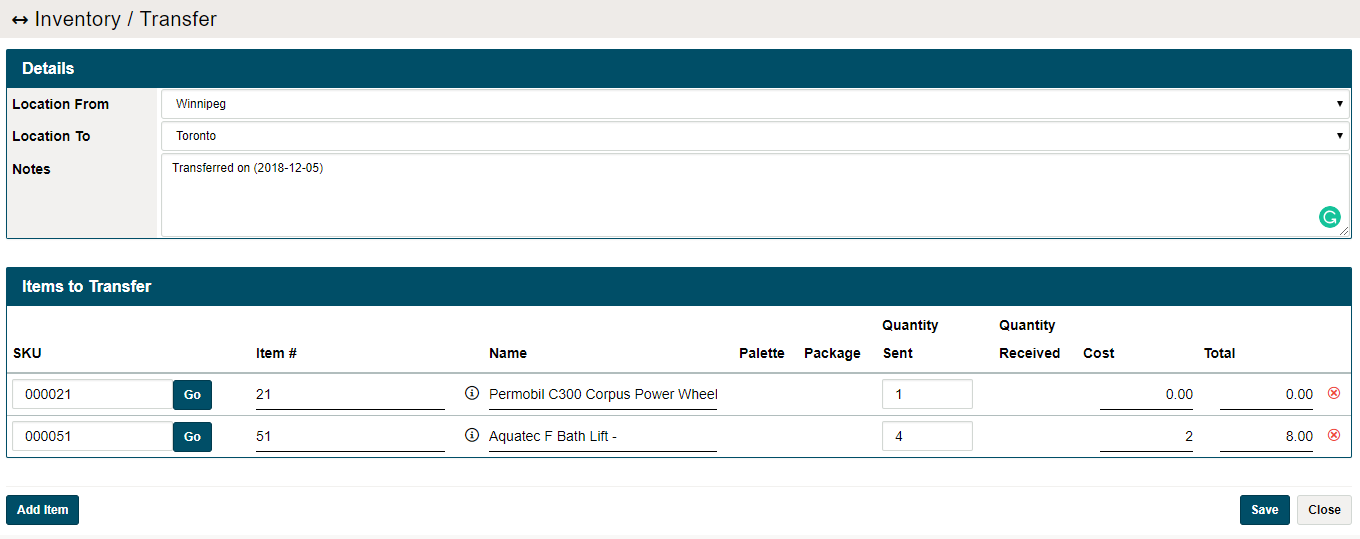
A new transfer screen will populate in which you can select the "Location From" and "Location To," along with the items and any additional notes.
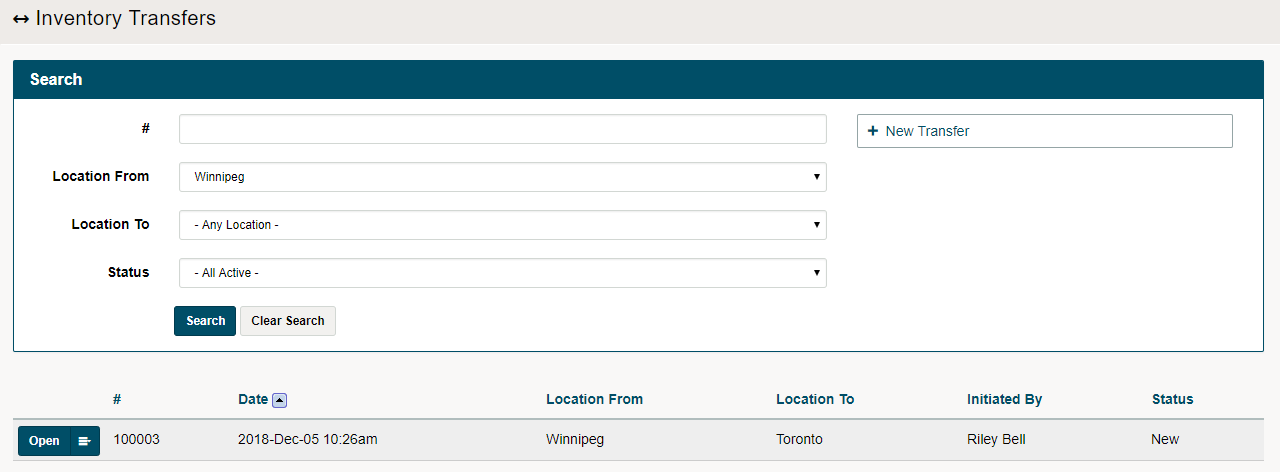
The new Inventory Transfer will now be populated. Be sure to adjust the Location From, Location To and Status search functionality to see the complete list of inventory transfers.
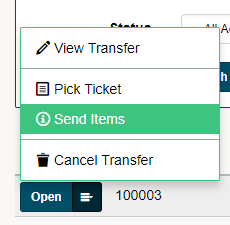
Click on the blue edit button to the left of the transfer to open the option menu.
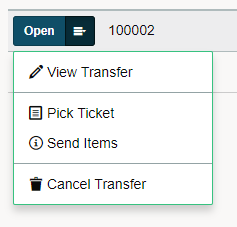
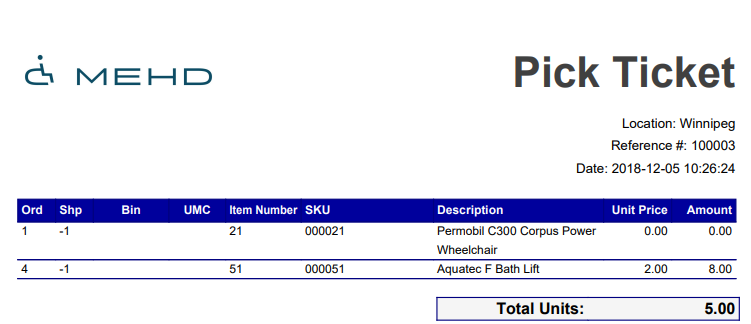
Click on the Pick Ticket to print a PDF of the items that are to be transferred. This should help while searching through the warehouse for the select items.
Steps - Sending:
To send the items click on Send Items in the menu of the Inventory Transfer.
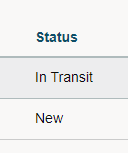
The Status of the transfer will then switch to In Transit.
Click here to learn how to receive items into inventory when completing an Inventory Transfer.
Comments
0 comments
Please sign in to leave a comment.