
Need to make a refund for products at a POS till - follow along!
Example
Margo purchased serval items from Val's furniture warehouse a week ago and has come back to the store for a refund on one of the products.
Val inspects the product and sees that it meets the requirements on the refund policy.
If Val has an invoice for the product, Margo goes directly to the POS touch screen and in the Advanced Tab, types in the Refund Transaction #. If Val did not have the receipt for the product, Mago could simply find the payment information inside of Val's customer profile.
Steps
In the Touchscreen POS, click on the Advanced Tab on the right-hand side of the screen. Then in the Refund Transaction field, type in the number of the transaction (listed on the invoice/receipt). If the customer cannot find the receipt for the product, search inside of their customer profile for the transaction number.
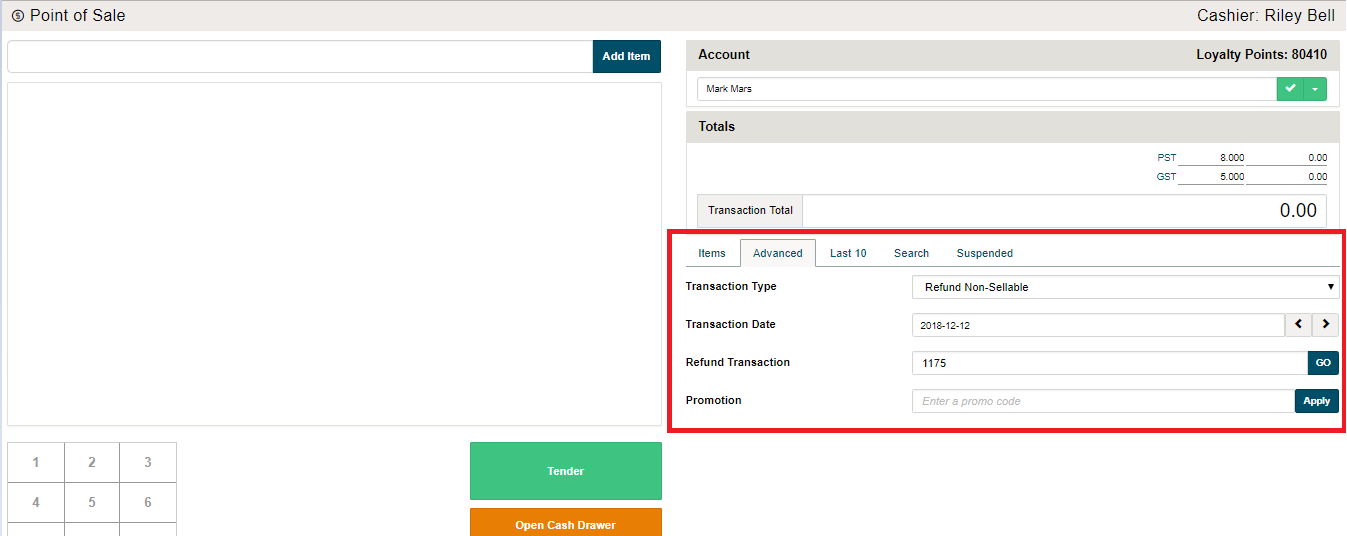
A pop-up will appear asking the user if they are sure that they would like to refund the transaction? Click on OK to bring up the transaction.
All of the products on the transaction will be displayed. Click on the (X) button of the products you wish not to return. Adjust the item quantity that are to be returned. If the customer had 10 of 'Product A' and was returning 4 of 'Product A', then the quantity should be listed as (4).
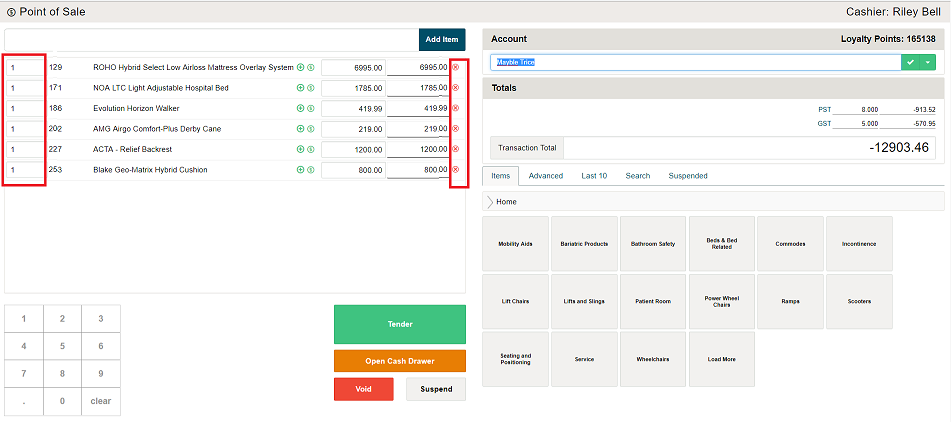
Click on 'Tender' and the refund amount of products shown.
At this time, if your payment gateway/payment terminal is not connected type in the amount on the pin pad of the terminal and pass to the customer.
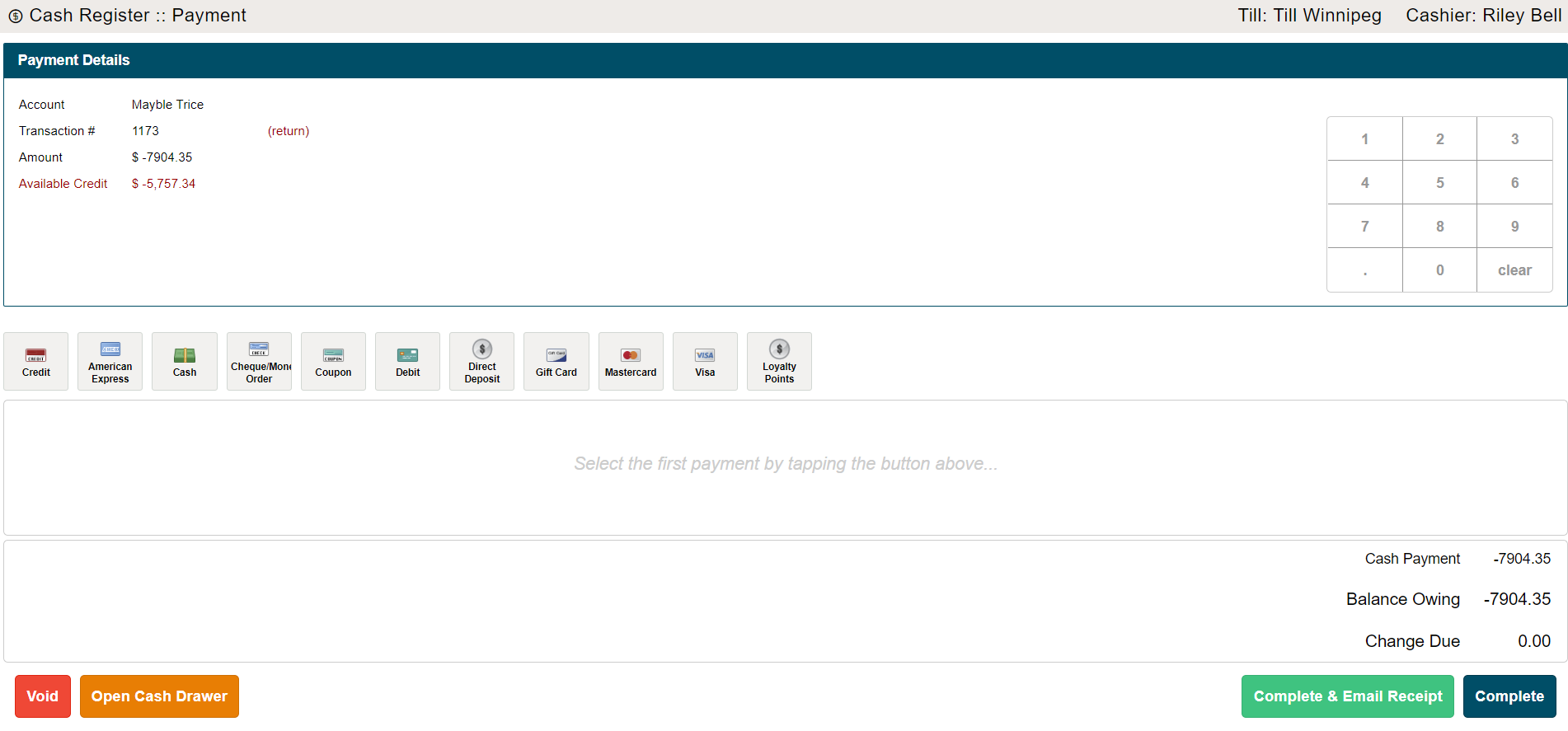
A new screen will appear with the amount that is to be returned to the customer. Select the type of payment method.
If the customer paid by Visa or Master Card then type in the last four digits of the card and the authorization number.
If the terminal is not connected to MEHD / GO Business the user will manually have to type in the amount of the refund.
Finish by completing the transaction or Complete & Emailing the Receipt to the customer (they will need to have an email in their customer profile).
On a customers account it will now show as a negative payment against the total amount they have paid.
Comments
0 comments
Please sign in to leave a comment.