
Often there are several reasons why an employee or a manager might void an Invoice.
Deleting Vs Voiding
When you delete an invoice, the record will be erased out of the system and you may not have it for your future reference. Also, your invoicing sequence will get disturbed.
On the other hand, when you mark the invoice as void, it will *NOT BE* removed from the system but will be automatically excluded from all reports. Also, the invoicing sequence will not be disturbed.
Examples
- Write-Offs
- Training
- Duplicate Invoice
- Customer Changed Mind
Reasons you would Void an Invoice
There are several occasions when you would like to void an invoice, probably due to the following reasons-
- Let’s say your customer had placed an order and you had raised an invoice for it. Later for some reason, he/she decides to cancel the order and haven’t yet paid for it. Now you have to remove the invoice, instead of deleting the invoice you can mark it as void and keep it for your future reference.
- Voiding will be of immense help during audits as in this case records are not removed and can be readily referred to.
- Voiding can also come in handy in cases where you have to make a lot of changes in the invoice. Instead of making changes on the invoice, you can mark it as void and proceed to create a new invoice. Here you can very well maintain a reference between your old and new invoices.
- When you want to keep track of all invoices that you have issued, maintain a sequence and don’t want the sequence to be disturbed by deleting an invoice in-between.
- Voiding and maintaining the void invoices will help you track down customers who make too many cancels.
- Write-Offs on bad Accounts Receivable.
If you enter a sales invoice in error, you can’t delete it, instead, you can mark it as void. Voiding an invoice removes the values but it remains listed in your Sales Invoices so the invoice numbers remain sequential and you can view it if required.
Steps
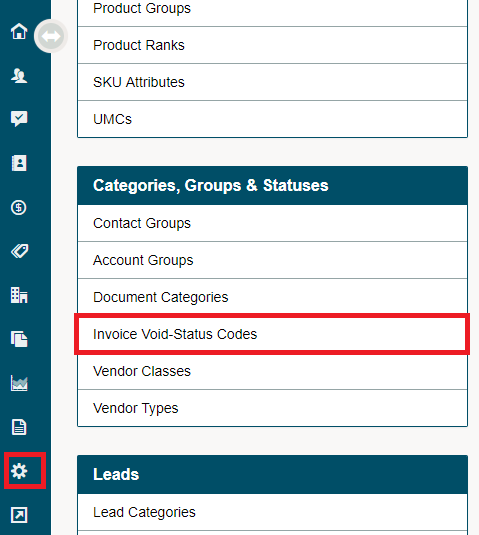
Go to the System Settings module on the left-hand menu then click on the Invoice Void-Status Codes under the Categories, Groups & Statuses heading.
Click on the [+ New Invoice Code]

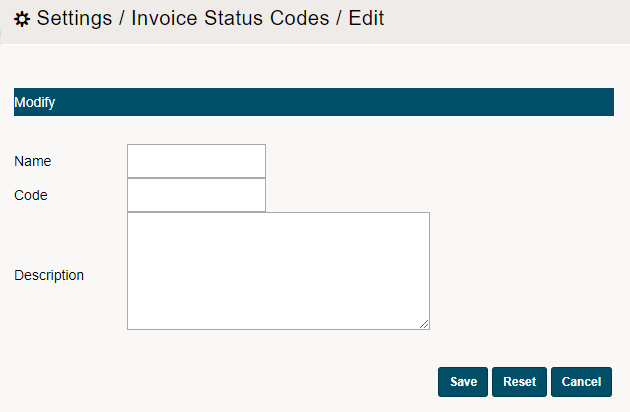
Add a Name, Code, and a Description to the Invoice Void-Status.

Comments
0 comments
Please sign in to leave a comment.