
Product Ranks are used to order products in the list of overall inventory and collect numerical data.
Higher ranking products can get more preferential shelf space when creating a Planogram.
Think of it as having two vendors that have products compete for shelf space, and the product with the higher Product Rank would receive the preferential shelf space.
Steps
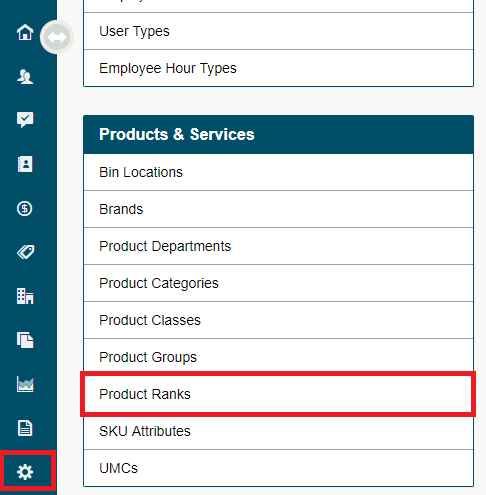
Go to the System Settings in the left-hand menu, then click on the Product Ranks under the Products & Services Header.
Create a [+ New Rank].

Product Rank Details
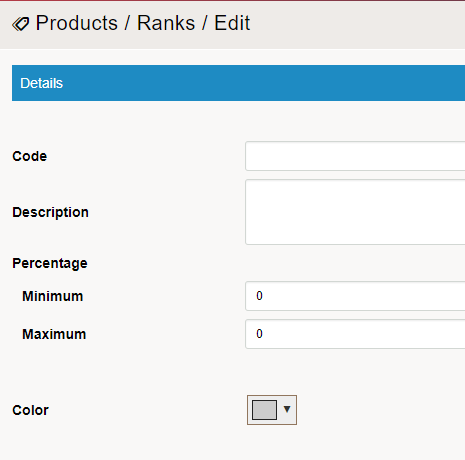
Code: Name the Product Rank
Description: Give a brief description of the product rank.
Percentage Minimum: Select a numerical value of the minimum percentage
Percentage Maximum: Select a numerical value of the minimum percentage
Colour: Select a colour for the Product Rank.
Inside a Products Profile
Navigate to the product list by clicking on the Inventory Module, then on Products.
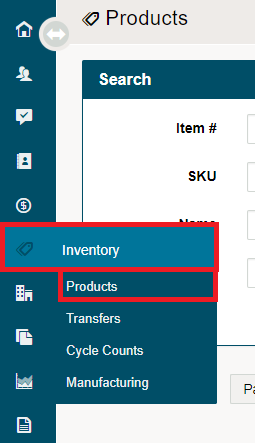
Open the Products profile you wish to view the Product Rank for.

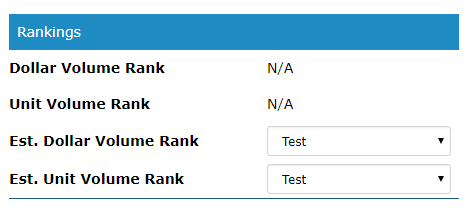
On the right side of the Product Details, you will see a group of fields under the Rankings heading. Be sure to select the (Estimated Dollar Volume Rank, and the Estimated Unit Volume Rank). Both fields have a drop down that lists the Product Rank types you have created in System Settings.
Comments
0 comments
Please sign in to leave a comment.