
What is Advanced Search?
Advance search (customers) allows users to write their own queries to search for a 'group' of customers that fall into the parameters of their search.
Overview
- Example of an Advanced Search
- Steps
- Types of Filters
- Exporting from Advanced Search
- Saving Custom Search
Example of an Advanced Search
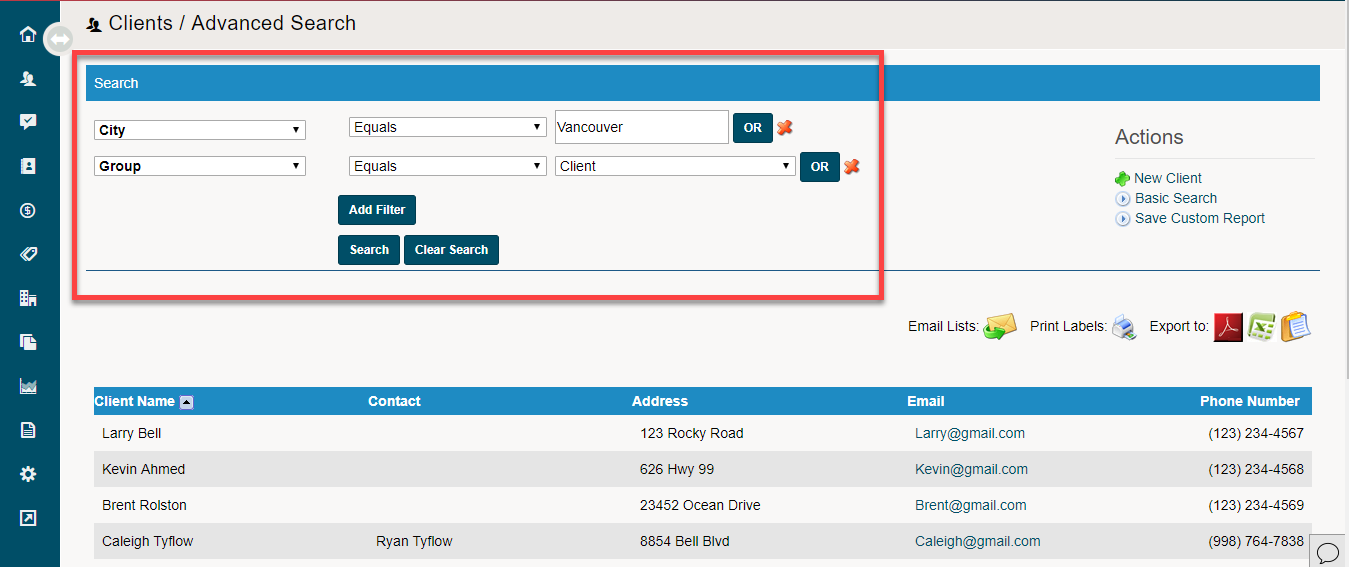
Search: All 'Clients' in 'Vancouver'
Steps
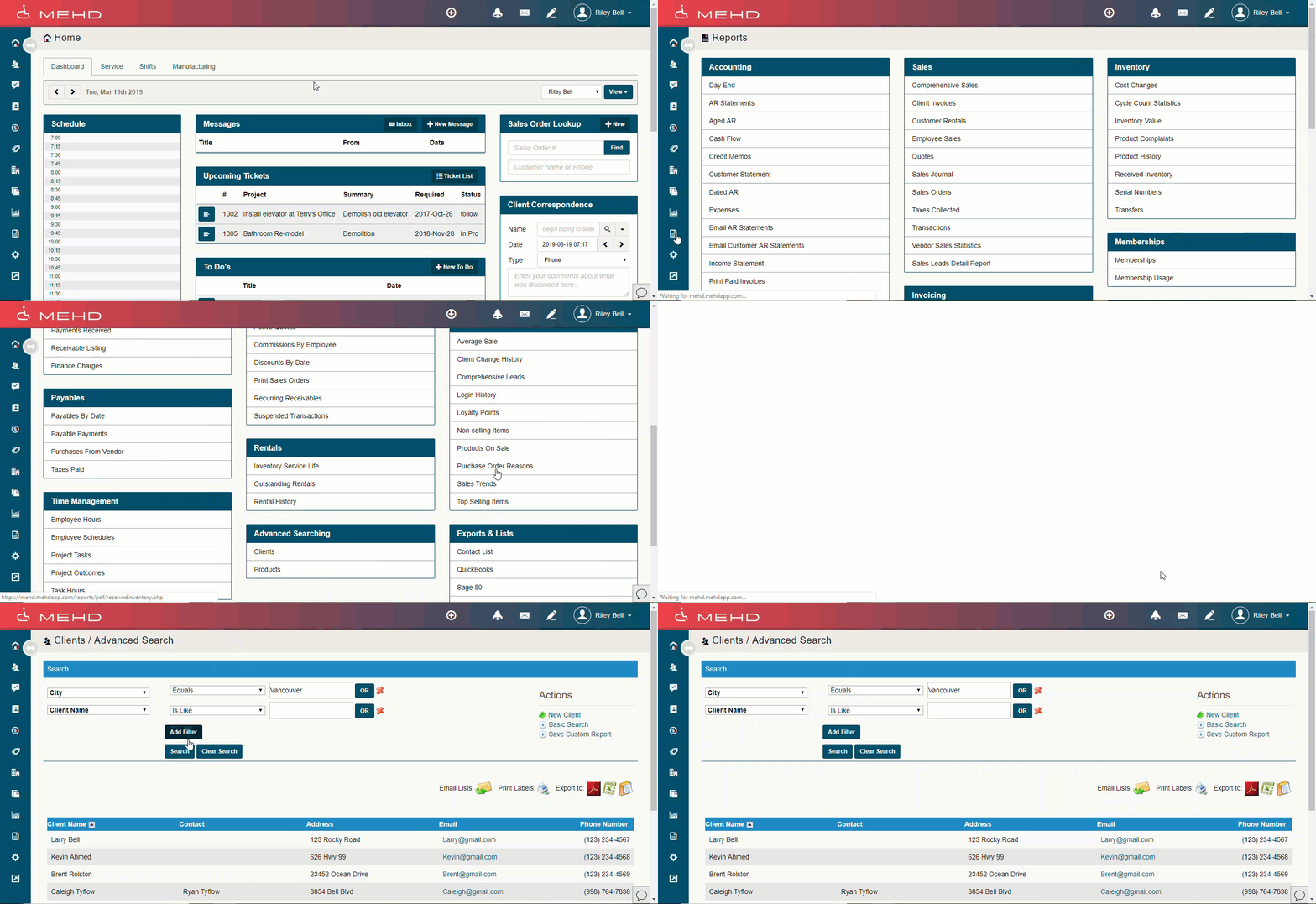
Step 1: Start by opening the Customer Module on the left-hand toolbar. Next, click on the advanced search button in the top right corner or the screen.
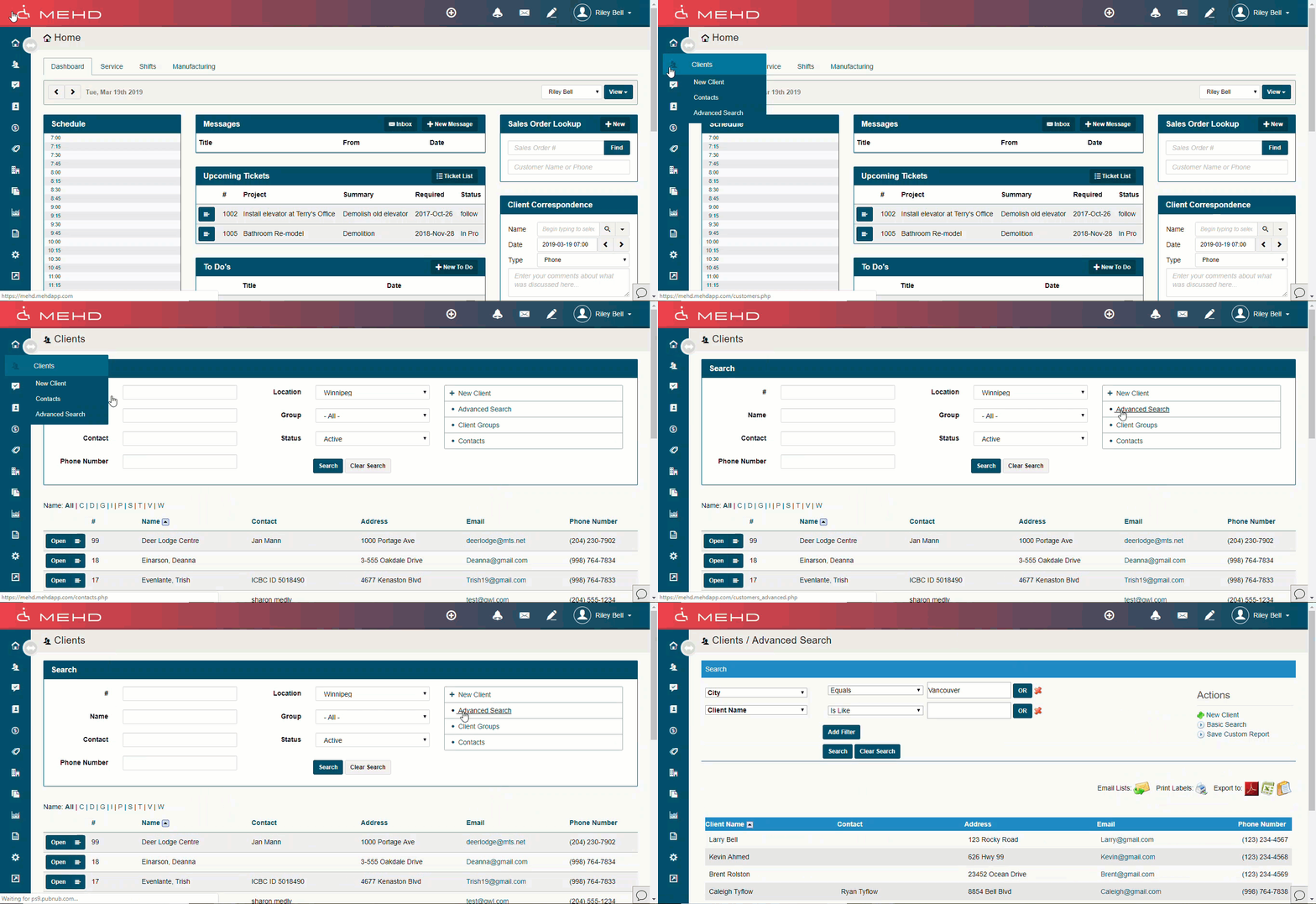
Step 2: A new page will open where you will start writing your advanced search. Add as many filters you would like to use in your search.
Finish by clicking on the 'Search' button.
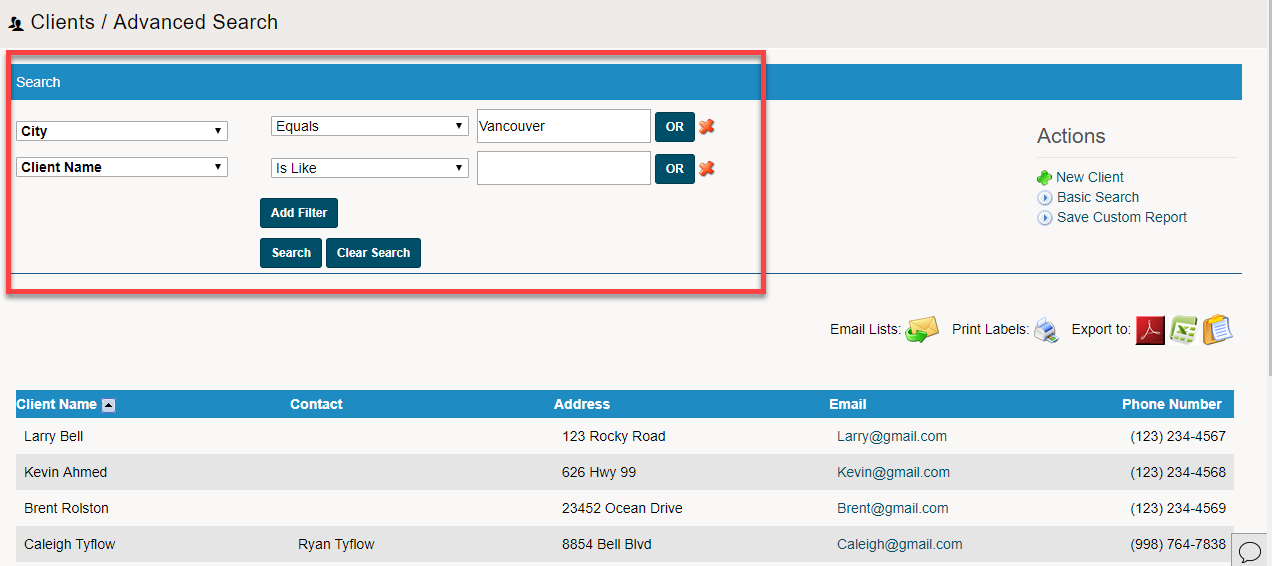
TIP: To search for all customers, set a filter to search Customer Name, Greater Than or Equal To, and leave the search box blank.
You can export your search as a PDF or Microsoft Excel file.
Types of Filters
Filter Statements:
| Is Like | Sounds Like | Equals | Not Equal |
| Less Than, Equal To | Less Than | Greater Than, Equal To | Greater Than |
OR Statements:
An 'OR' statement allows you to set two parameters such as 'Equal to X' 'OR' 'Equal to Y'. In this case, the OR statement would look for all values of 'X' and 'Y'.
Exporting from Advanced Search
Advanced Search will export to:
- MailChimp - Email List
- Microsoft Excel
- CSV
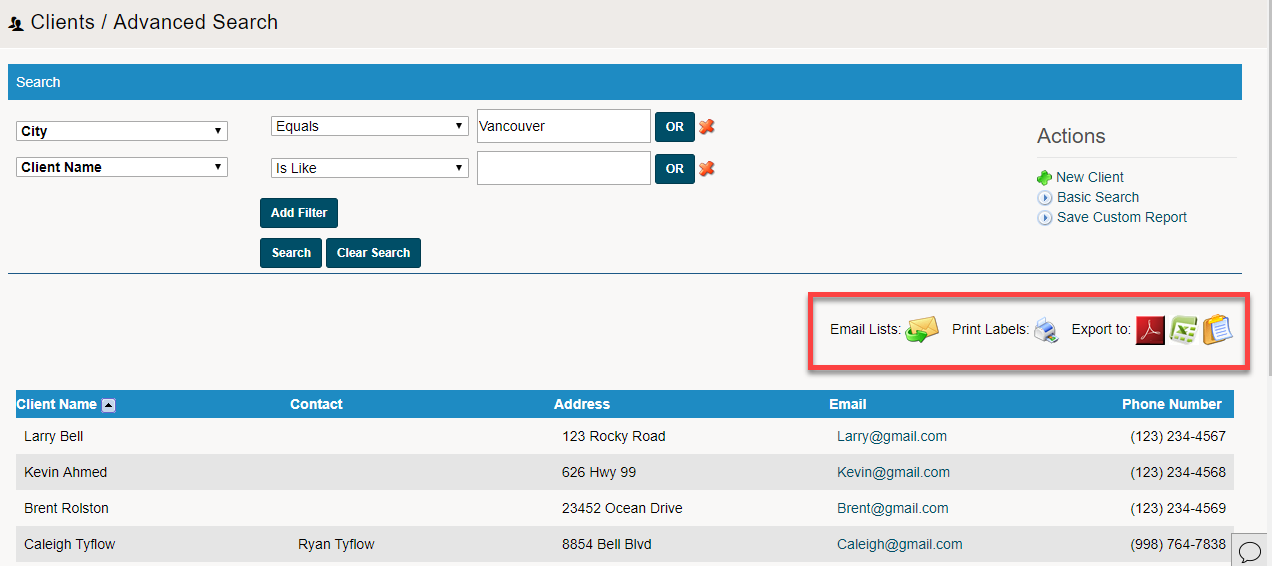
Step 1: To export your Advanced Search, click on the icon you wish to export to on the right-hand side of the page.
Saving Custom Search
Step 1: If you would like to use the same 'Advanced Search' again, but updated with any additional customers that fit within the parameters you will want to use the 'Save Custom Search'.
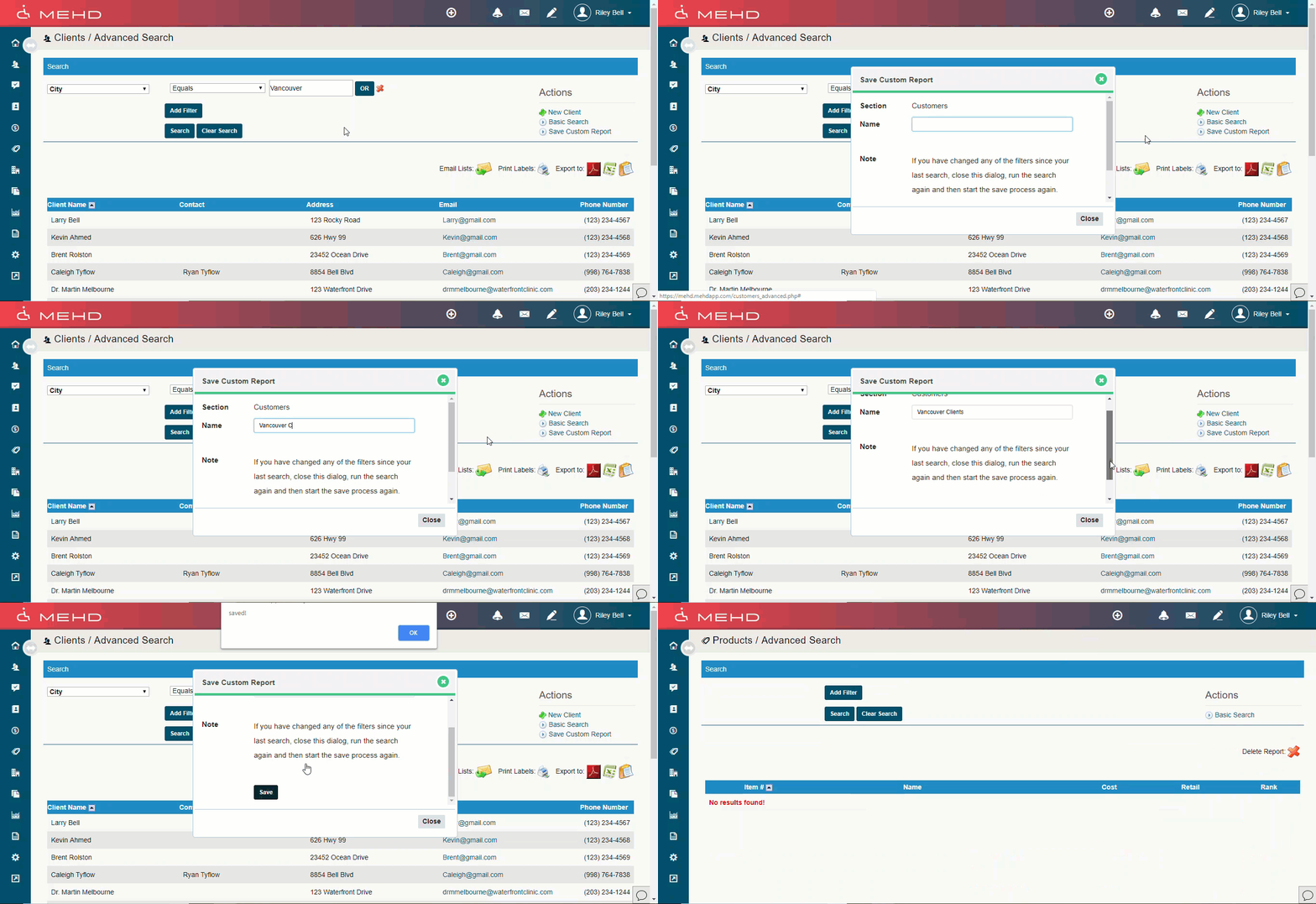
Step 2: After you have named and saved your 'Custom Report', go to the 'Reporting Module' and find your 'Custom Report' saved in the bottom right-hand corner.
Comments
0 comments
Please sign in to leave a comment.