
Work orders are tasks or jobs for a customer, that can be scheduled or assigned to someone. Such an order may be from a customer request or created internally within the organization. Work Orders may also be created as follow-ups to Inspections or Audits. A work order may be for products or services and charged to the customer.
Example
Bruce needs his wheelchair tire fixed and calls up Regan's Home Mobility Service. Bruce books an appointment with Regan, in return Regan writes up a work order for the amount of labour and parts that will go into the Work Order for Bruce.
Using her GO Business / MEHD system, Regan fills out additional information on the Work Order and confirms with Bruce as to when she will be coming by to fix the wheelchair.
After the work is complete, Regan sends Bruce the invoice of the Work Order. Bruce is ready to pay the full amount as Regan transfers the Work Order to an invoice in her GO Business / MEHD system and takes payment.
Another happy customer, and another successful Work Order.
New Work Order - Quick Create Button
Click on the (+) Quick Create Button followed by Work Order

A New Work Order Screen will appear. Fill out a Customer, Products, and any additional name, finishing by clicking on the Save button.
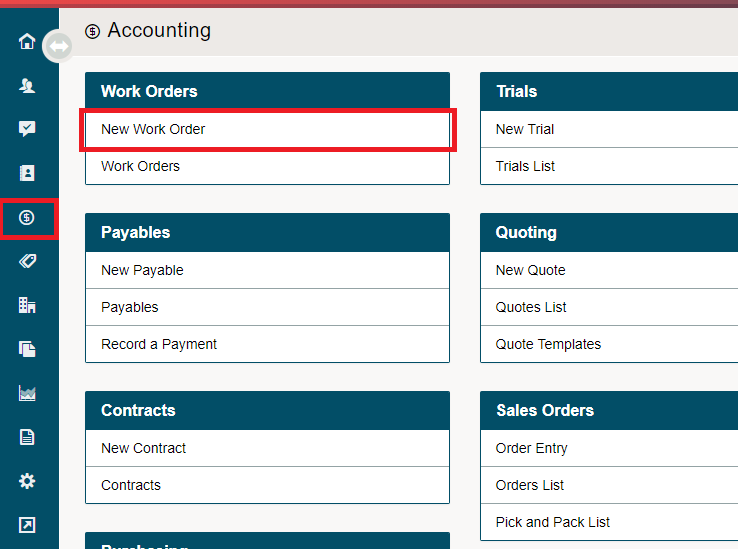
New Work Order - Accounting Module
Go to the Accounting Module, then under the Work Orders Heading, choose New Work Order.
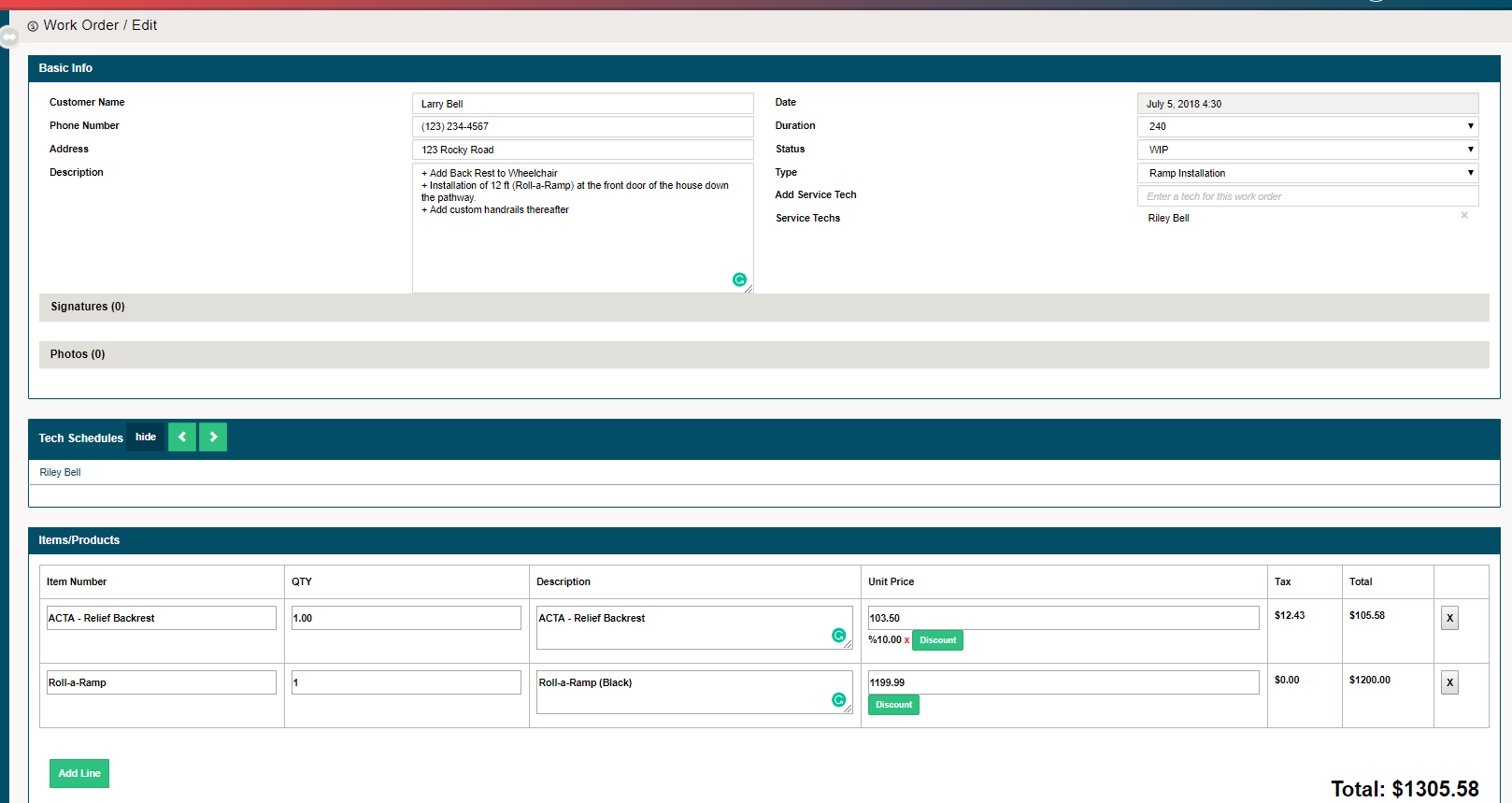
A New Work Order Screen will appear.
Basic Information
Start by filling out customer information. By typing in the name of an existing customer you will be able to auto-populate the address and phone number of the customer.
Fill out the description of the Work Order as those details will relay to your MEHDapp.
The duration of a Work Order will be pre-populated from the 'default schedule duration' in general system settings.
Adjust the Status and Type of Work order through the drop-down fields. Those drop-down fields can be adjusted through Work Order settings.
Finish the set up of initial information by listing all employees needed on the work order. This may include any salespeople, service managers or service techs.
Additional Information and Products
Find the Employees schedule posted once they have been added to the work order. From there you can adjust the time at which the work order will occur.
Photos and signatures will be populated through the mehdapp and saved to the work order. If you would like to check the history of Work Orders simply search them through the customer's profile.
Lastly, adjust the products on the Work Order and Save.
Comments
0 comments
Please sign in to leave a comment.