
Work on a job site doesn't always go as planned. The customer might want a different fixture, or the product that you were to install is too big for the space so with verification from the customer you change for a smaller product.
To keep track of this all use the 'Comments' section inside of Work Orders.
Steps - Inside GO Business / MEHD
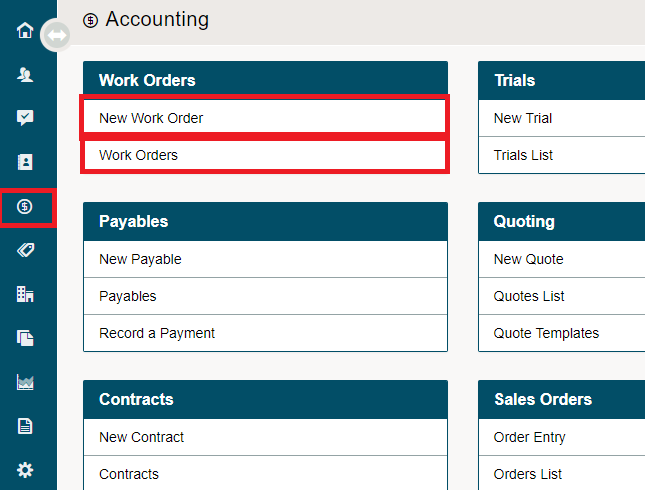
Go to the Accounting Module in the Left-Hand Menu.
Click on Work Orders List.
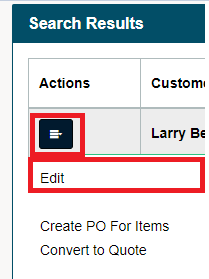
If you are choosing an existing Work Order, be sure to select the blue button beside the Work Order followed by clicking on 'Edit' in the contextual menu.
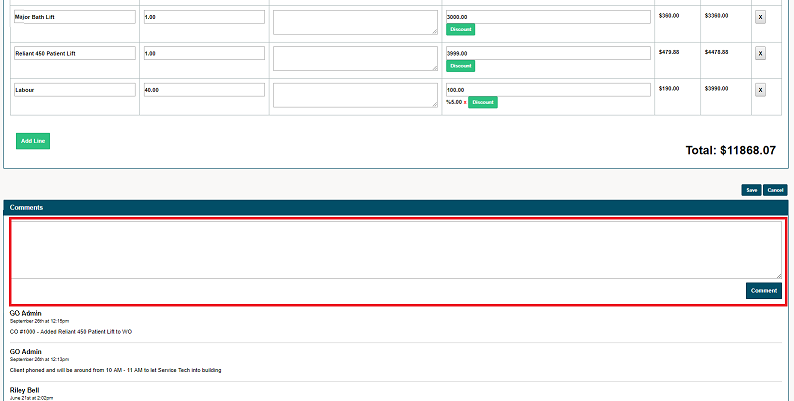
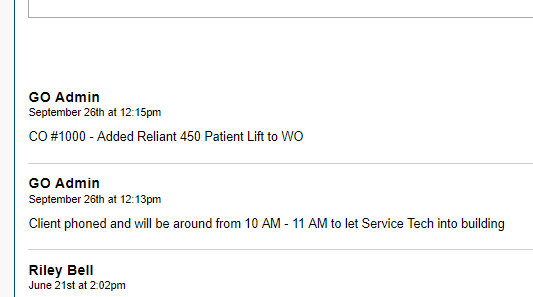
Navigate to the bottom of the Work Order where you will see a full Comments Section. In this Comments Section, add any additional information and details that the Service Tech or Installer might need onsite, such as Change Orders.
Steps - Inside MEHD App
Open MEHD App on your phone.
Click on the menu button in the top left-hand side, followed by clicking on Work Orders.
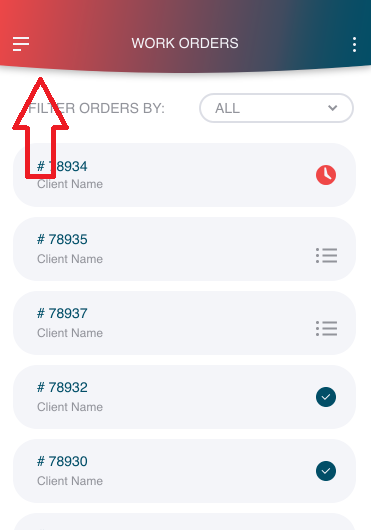
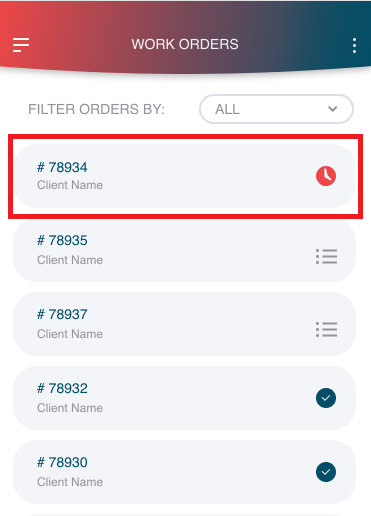
A list will appear with all of your assigned Work Orders. Click on the Work Order you want to add a comment to.
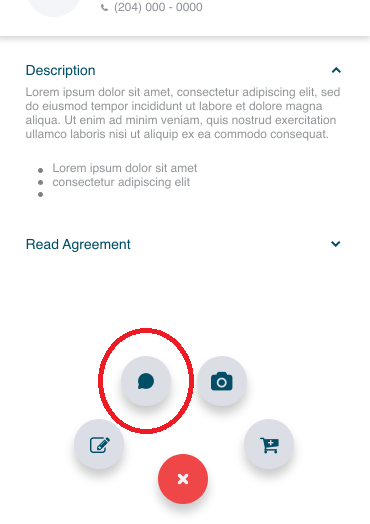
Click on the (+) button on the bottom of the Work Order followed by the comments bubble. You can now type in additional comments.
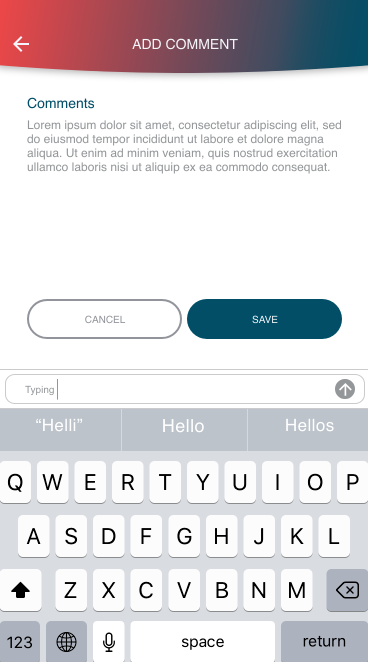
Type in your comments and click on Save.
All comments are saved in the App and GO Business / MEHD system with a timestamp and username.
Comments
0 comments
Please sign in to leave a comment.