
Your system is designed to use Customer Discounts, Sales, and Promotions to offer your customer the best deal. However, on top of those discounts, you may choose to offer an additional discount.
Example:
For example, you may be selling some items 25% off (by using Sales or Promotions), and if anyone spends $500 on one transaction (before taxes and shipping), you'd like to offer them an additional 10% off. To give them that extra 10% off, use Additional Discounts.
Additional Discounts requires the sub-total to be equal to or greater than a set threshold. If we continue with the above example, that threshold is 500.00.
Steps - Set Up System Settings:
Go to Settings and Under the Promotions Heading, choose Additional Discounts.
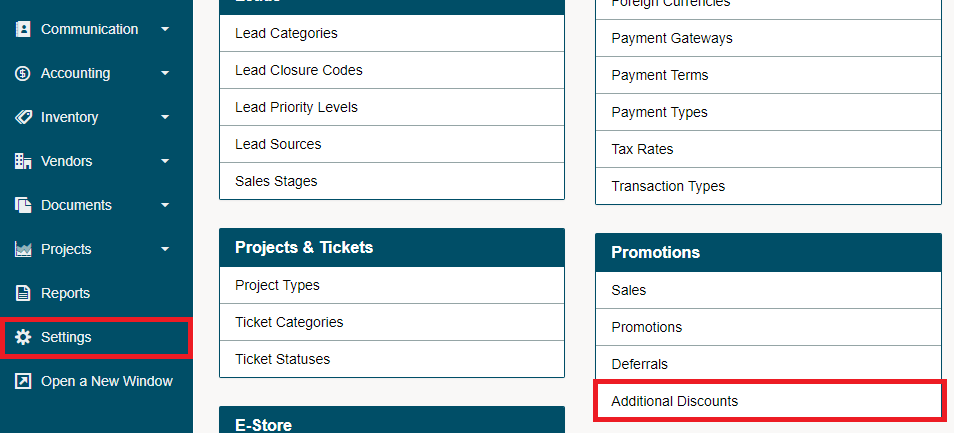
Choose the New Additional Discount button in the top right corner.


- Name: Give the discount a Name.
- Start Date: Set the date the additional discount will become active
- End Date: Set the date the additional discount should stop being active, or choose "No End."
- Value: Not Available with this type of additional discount
- Value Type: Set to Percent Off
- Compatibility: Set to Ignore Other Discounts or Include with other Discounts
- Minimum Subtotal: The threshold the subtotal must meet to activate the discount
- Status: Inactive/Active
Choose Save
Comments
0 comments
Article is closed for comments.