
Your system is designed to use Customer Discounts, Sales, and Promotions to offer your customer the best deal. However, on top of those discounts, you may choose to offer an additional discount.
Example:
For example, you may be selling some items 25% off (by using Sales or Promotions), and if anyone spends $500 on one transaction (before taxes and shipping), you'd like to offer to include with their order a free additional item. To give them that extra item, use Additional Discounts.
Additional Discounts requires the sub-total to be equal to or greater than a set threshold. If we continue with the above example, that threshold is 500.00.
Steps 1 - Set Up in System Settings
Go to Settings and Under the Promotions Heading, choose Additional Discounts.
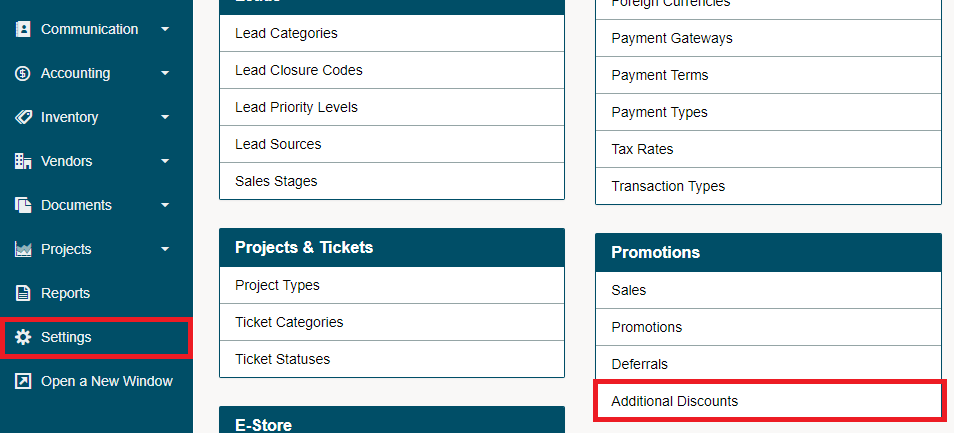
Choose the New Additional Discount button in the top right corner.

Fill out the details of the additional discount.

- Name: Give the discount a Name.
- Start Date: Set the date the additional discount will become active
- End Date: Set the date the additional discount should stop being active, or choose "No End."
- Value: Not Available with this type of additional discount
- Value Type: Set to Reward Item
- Compatibility: Set to Ignore Other Discounts or Include with other Discounts
- Minimum Subtotal: The threshold the subtotal must meet to activate the discount
- Status: Inactive/Active
Choose Add Item on the right side of the page. Enter the item number of the product you want to give away and choose Go. Choose Save.
Step 2 - Create An Invoice
When creating an invoice and meeting the requirements of the 'Additional Discounts - Reward Item', the item(s) will automatically be applied to the invoice.
The product will default to have a unit price of $0.00.
Comments
0 comments
Please sign in to leave a comment.