
Now that you have finished 'Part 1' it's on to 'Part 2'. This is where we get into some of the system settings that will adjust the critical features within your MEHD / GO Business system.
Advisor
- 60% of 'Default System Settings' are turned on in your new GO Business or MEHD Software.
- Follow along as we review specific settings that will tailor your system, creating a streamlined workflow for your organization and users.
- We suggest that you do not change settings not listed below to prevent turning off vital features.
Overview
General Settings
My Company Info
Set up your basic company information that will be displayed on PDF's and Receipts that are printed from your system.

Go To:
- Setting > General > My Company
- Fill out the fields provided, and click on [Save].
Modules
Turn on and off system modules that your team will use throughout your MEHD / GO Business system. Power your team with as many or as little modules as you would like, but be sure to master the basics before turning on more advanced modules.
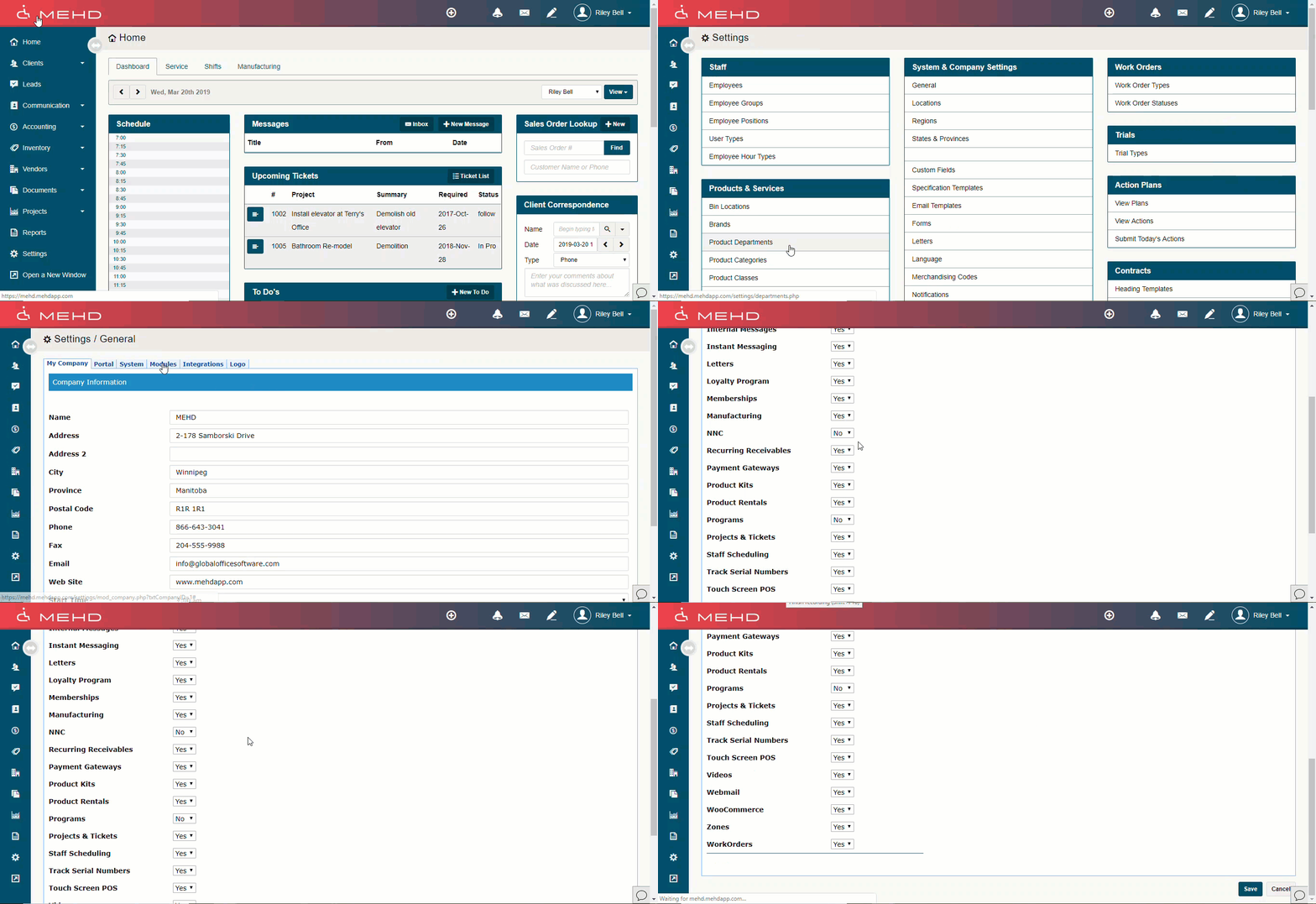
Go To:
- Setting > General > Modules
- Turn On and Off the modules that your team will be using, and click on [Save].
Module Explanation
|
Campaigns |
|
|
Commissions |
Do you salespeople receive commissions on sales? |
|
Client Jobs |
Does your company use job #'s to keep track of expenses, reimbursements, as well as purchases? |
|
Email Lists |
Put groups of clients together with Email Lists to send directly to MailChimp. You must pay for a MailChimp profile and complete the integration from MEHD. |
|
Expenses |
Track employee expenses through expense accounts, reference numbers, charges, notes, and pay out those expenses directly to employees. |
|
Leads |
Track inbound and outbound leads through your sales pipeline prior to purchase. |
|
Internal Messaging |
Allow your team to instantaneously message other staff online in the same office or at another location. |
|
Letters |
Template out letters to send directly to clients. |
|
Loyalty Program |
Create a point per dollar value rewards system similar to Air Miles where clients can use Loyalty points to redeem for cash value purchases. |
|
Memberships |
Allow clients to sign up for pre-paid memberships where they can use select services throughout the duration of the membership. |
|
Manufacturing |
Manufacturer parts or products from multiple other products, or deconstruct products into multiple smaller products. |
|
NNC |
|
|
Recurring Receivables |
Set up an invoice that will autogenerate on the selected date and reoccur on a set schedule until it is inactive. |
|
Payment Gateways |
Set up direct payment gateways to process payments such as Stripe, Moneris, or Payment Tree. |
|
Product Kits |
Put multiple products together to create a Kit that is sold at one price. |
|
Product Rentals |
Rent products to customers. |
|
Programs |
Set up classes that customers can pay for and attend. |
|
Project & Tickets |
Create large projects that can be broken down into multiple tasks and assign those tasks to employees. |
|
Staff Scheduling |
|
|
Track Serial Numbers |
Track products serial numbers for recall purposes and rentals. |
|
Touch Screen POS |
Use a full touch screen interface for your front end tills. |
|
Videos |
Allow videos to be saved under documents for employee reference. |
|
Webmail |
Allow employees to send messages to internal staff members. |
|
WooCommerce |
Connect your WooCommerce directly to your system and watch the orders come in live as Sales Orders, ready for fulfillment. |
|
Zones |
Set up Zones applicable to shipping. |
|
Work Orders |
Create Work Orders from its own module and download the 'MEHDapp' to access details about work orders in the field. |
Logo
The logo will appear on your MEHD / GO Business login page, the Portal and on Client documents such as Quotes, Sales Orders and Invoices.
Tip:
- If you have more than one location with separate logos, you can edit an image with both logos side-by-side and upload them as one.
Note:
- Please follow the file restrictions: JPG, JPEG or PNG.
- Logos should be uploaded in the 'Square' formatting
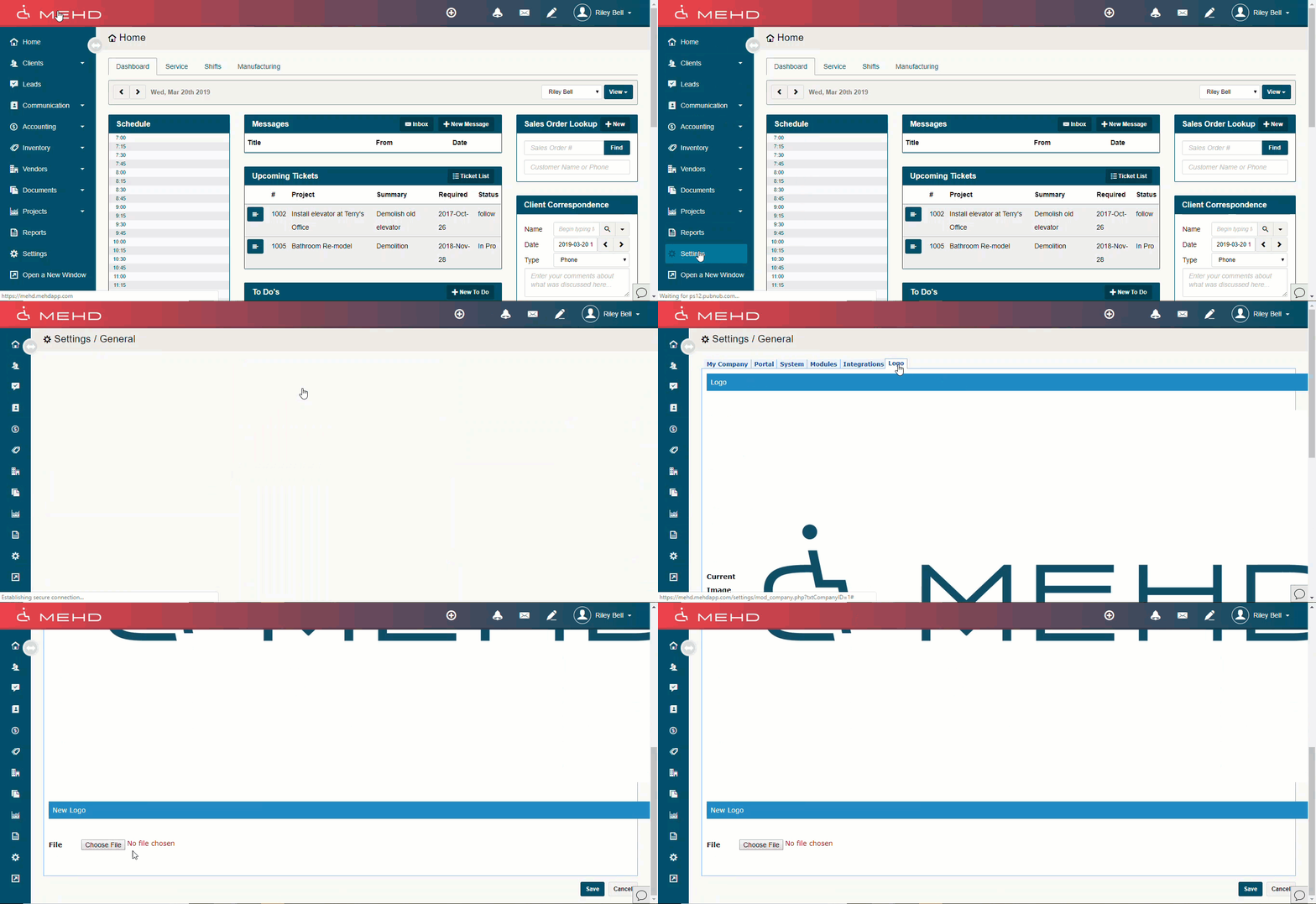
Go to:
- Settings > General > Logo.
- Select the “Choose File” button.
- Locate the logo file on your computer and upload to MEHD / GO Business, then Save.
Locations
If your company has multiple locations, no worries! You can run all of the locations out of one system.
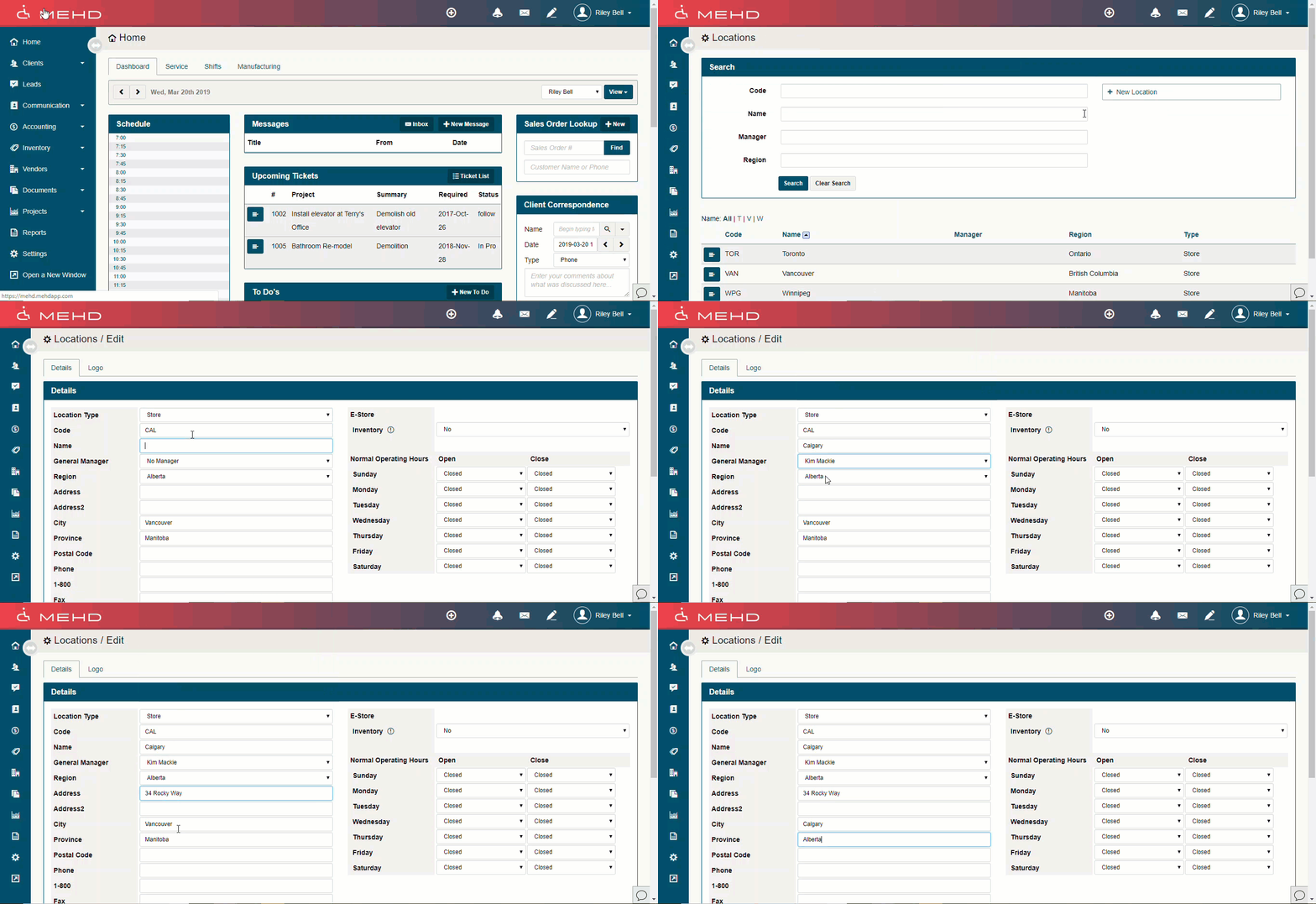
Go To:
- Settings > Locations
- Click on the [+ New Location] button in the top right
- Fill out all the fields for the location
- 'If' the location has a different logo than your company logo, attach the new logo under the 'logo' tab
- Be sure to set one up for every store and warehouse location. If a store has a warehouse attached to it and you will not be transferring inventory, create one single location.
Taxes
Taxes must be set up to properly process the applicable taxes applied to products and services. Taxes will then be linked to regions if taxes will be applied as 'Region Based Taxes'. This means that depending on the customers, the vendors and the store's location, the applicable taxes will be auto-filled.
Click here to learn how to attach taxes to regions
Example
| Canada's Province | Rate type (HST, GST, PST) | Provincial rate | Canada rate | Total |
|---|---|---|---|---|
| Alberta | GST | 0% | 5% | 5% |
| British Columbia (BC) | GST+PST | 7% | 5% | 12% |
| Manitoba | GST+PST | 8% | 5% | 13% |
| New-Brunswick | HST | 10% | 5% | 15% |
| Newfoundland and Labrador | HST | 10% | 5% | 15% |
| Northwest Territories | GST | 0% | 5% | 5% |
| Nova Scotia | HST | 10% | 5% | 15% |
| Nunavut | GST | 0% | 5% | 5% |
| Ontario | HST | 8% | 5% | 13% |
| Prince Edward Island (PEI) | HST | 10% | 5% | 15% |
| Québec | GST + QST | 9.975% | 5% | 14.975% |
| Saskatchewan | GST + PST | 6% | 5% | 11% |
| Yukon | GST | 0% | 5% | 5% |
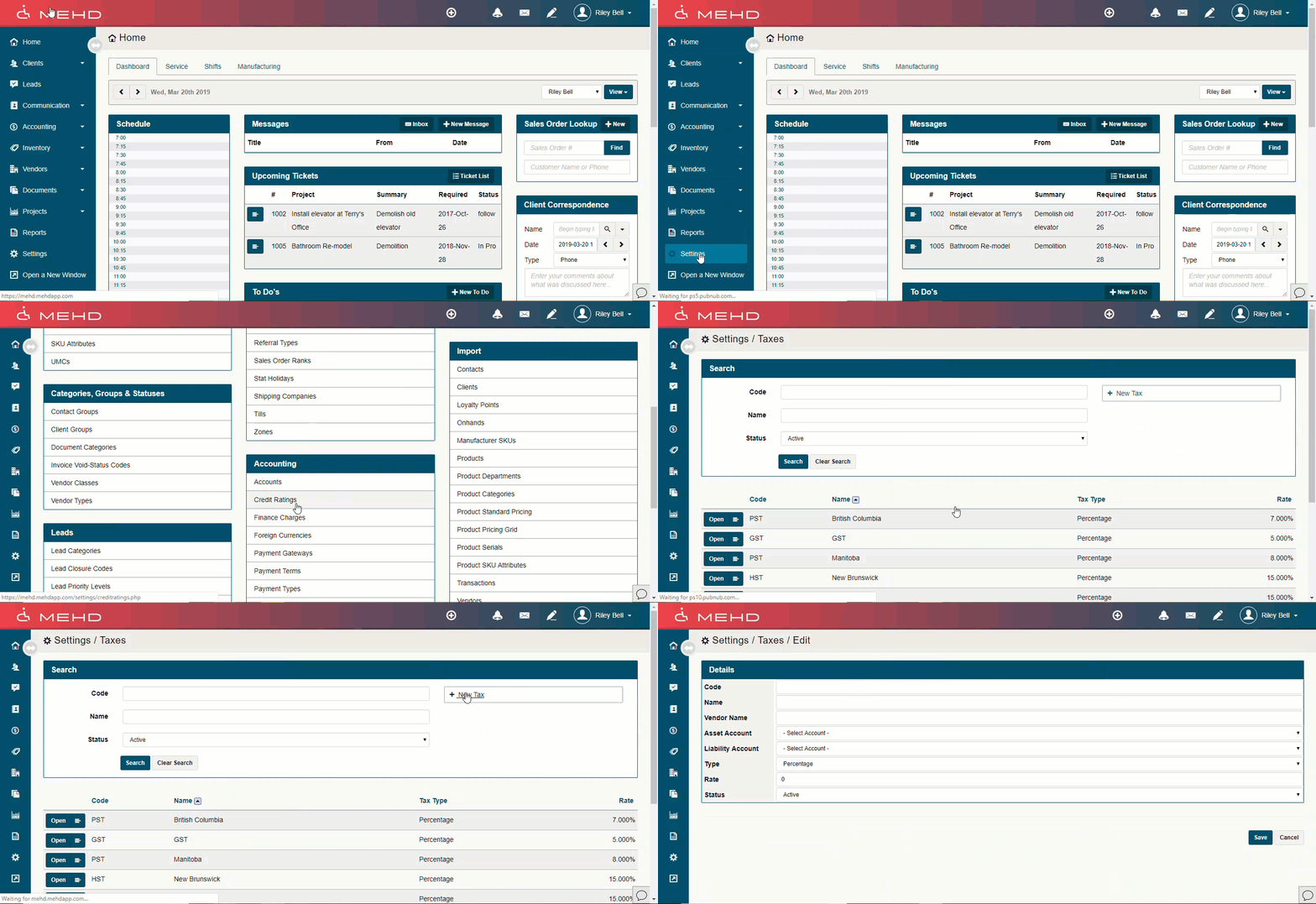
Go To:
- Setting > Accounting > Tax Rates
- Select the [+ New Tax] button in the top right corner to add new taxes
- Fill out the fields with the code being the exact wording that will appear on customer receipts
- Customers are to be 'Tax Exempt' from all products create a '0% Tax Rate'
Tax Fields
|
Code |
Assign a code for the applicable tax. Example: GST, BC PST, SK PST, MB PST, ON HST |
|
Name |
Assign a name for tax. Example: Saskatchewan PST or PST |
|
Liability |
If applicable, select an account from the drop-down menu of liabilities. |
|
Type |
|
|
Rate |
Enter the percentage of tax if Type = Percentage, enter the dollar value if Type = Levy. |
|
Status |
The status can be set to Active or Deleted. |
Regions
Regions are set as (Cities, Provinces, Area, Countries). They are predominantly used for reporting purposes but can be used for tax purposes if you sell products and complete services out of your main locations province.
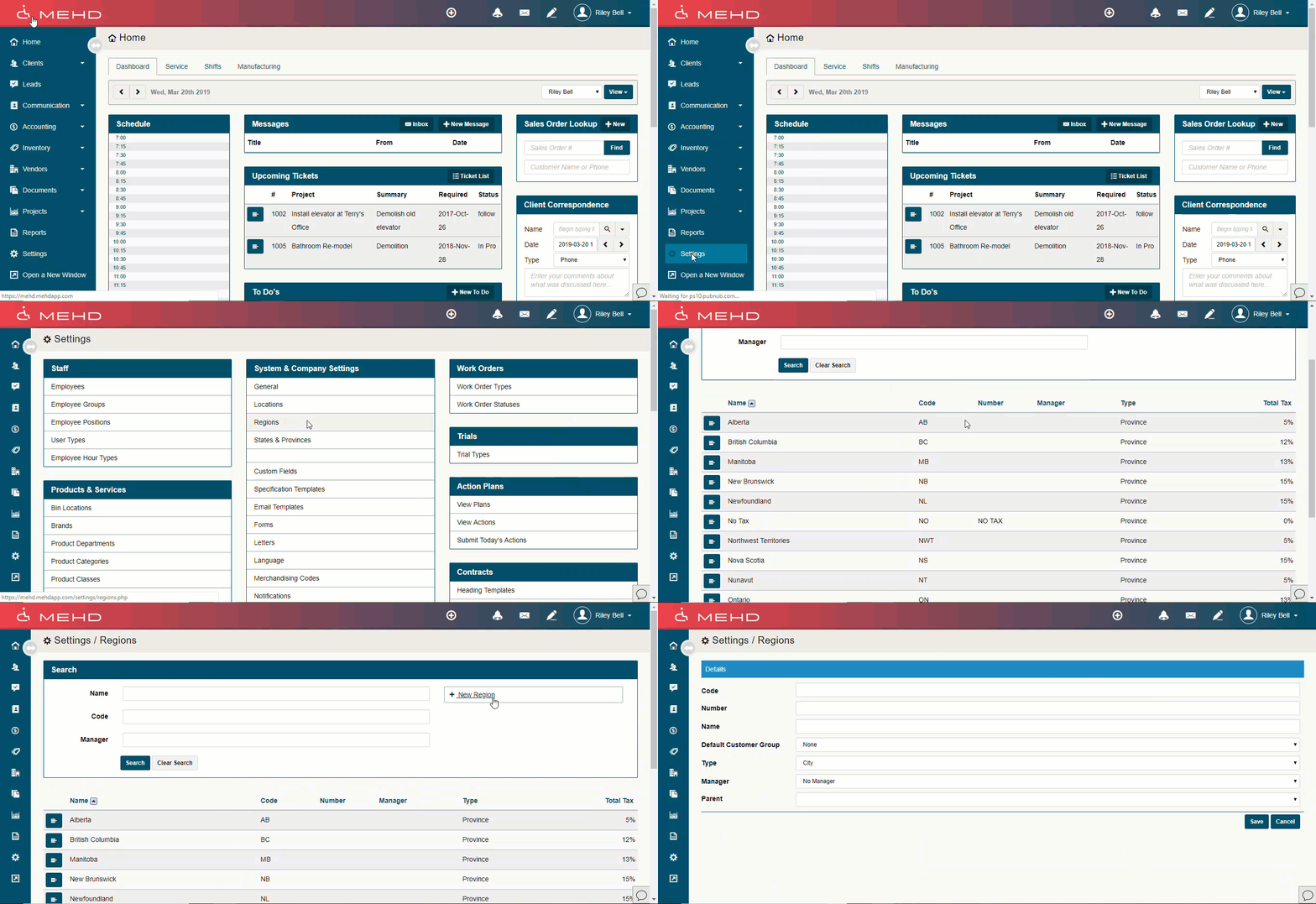
Go To:
- Settings > Regions
- Click on the [+ New Region] button to set up a new region.
|
Code |
Enter a code for Example: SK for Saskatchewan |
|
Number |
Enter a number for the Region. This can be the same as the 'Code'. |
|
Name |
Enter a name for the Region |
|
Type |
Select from the drop-down menu options City, Area, Province, or Country |
|
Manager |
Select No Manager from the drop-down menu or if you have several locations you can select the Manager of the Region from the Manager drop-down menu. You will need to set up Employees and Locations to see a list of Managers on the drop-down menu. |
That's it for System Set Up: Part 2. You're on your way to launching your MEHD / GO Business System.
Continue to System Set Up: Part 3.
Comments
0 comments
Please sign in to leave a comment.