
Now that you have finished 'Part 3' it's on to 'Part 4'. This set up includes User Types which is critical to security settings and what the user 'can and cannot' see when they are logged into MEHD / GO Business.
Advisor
- 60% of 'Default System Settings' are turned on in your new GO Business or MEHD Software.
- Follow along as we review specific settings that will tailor your system, creating a streamlined workflow for your organization and users.
- We suggest that you do not change settings not listed below to prevent turning off vital features.
Overview
What is a User Type
User types are related to the security settings as well as what the user 'can and cannot' see throughout your MEHD / GO Business System.
Adding User Types
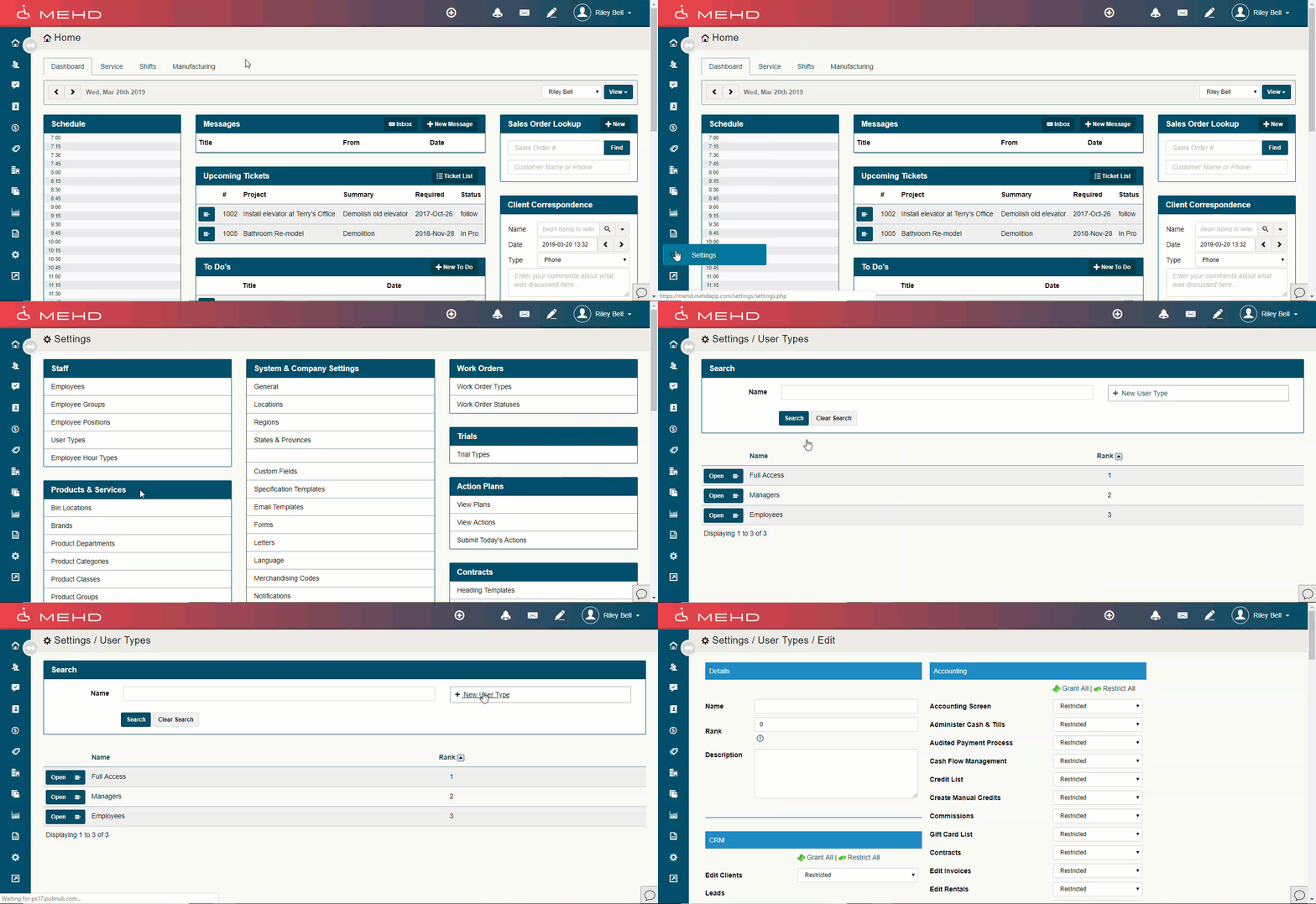
Go To:
- Settings > User Types
- Click on the [+ New User Type] button in the top right corner
- Fill out the applicable fields
- Turn on and off what you wish the 'User Type' to see
Notes:
- Multiple employees can have the same User Type
- Users with 'lower' numbers in the rank field should have more access to more settings as they will be able to adjust Users with a lower rank.
- Users with the same 'Rank' will not be able to adjust each other's profiles
- They will not be able to a
Verifying Employee User Types

To assign a new User Type to an employee go to:
- Settings > Employees > Open Employee Profile > Login Tab > Adjust the User Type
User Type Settings
Follow along as we go through all User Type fields and what they control.
Comments
0 comments
Please sign in to leave a comment.