
You can create Custom Fields for a number of different areas of the system (Customer, Employee, Product, Transaction, Transaction Line Item, Vendor and Product). This allows you to create your own Custom Fields that you will be able to track and report on.
Steps:
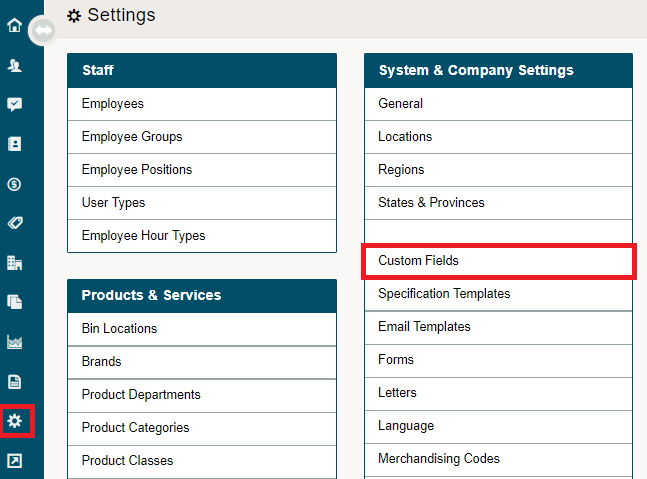
Go to Settings, and under the System & Company Settings Heading, select Custom Fields.
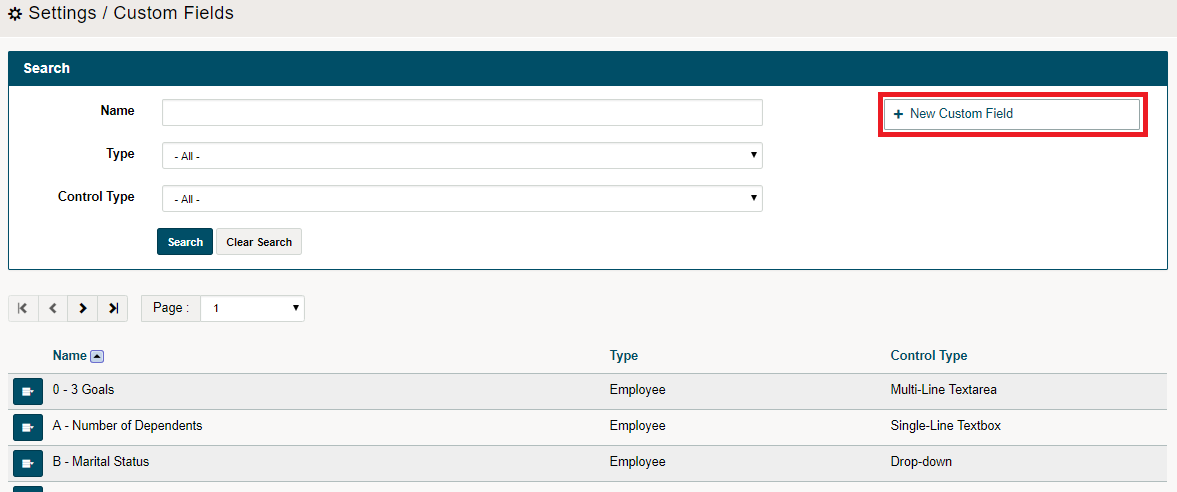
In this screen select the New Custom Field button located in the top right corner. This will bring up the Select New Field Type selector
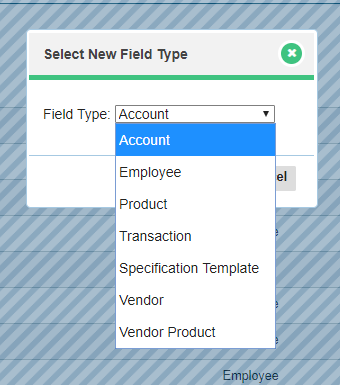
Click on the type of Custom Field that you want to create and then hit the Continue button. This will take you to the Details Screen for setting up the custom field.
The Details screen has 5 areas:
- Type – this displays the type of Custom Field that you selected to create.
- Name – you can assign a name to the Custom Field.
- Order – this is alphanumeric and allows you to put Custom Fields in a numeric or alphanumeric structure. IE 1,2,3 or 1a, 1b, 1c
- Control Type – this allows you to select what type Custom Field selector you want to use (Text Box, Text Area, CheckBox, Date or Drop Down).
- Width – allows you to set the width of the Custom Field up to 50 characters.
Note: If you select Drop Down for Control Type it will open up the Drop Down Options creator and allow you to create as many Drop Down Options as needed 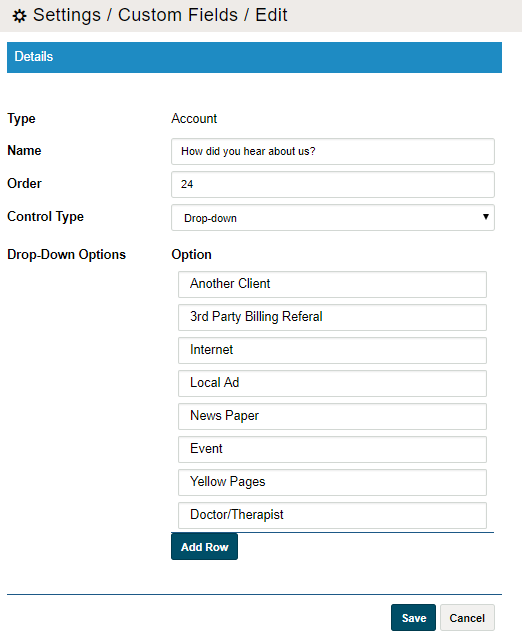
When you are done hit save and the process is complete. If we now go to any customer profile or create a new customer this Custom Field will be there. You can now enter this data in the customer profile and pull it for reporting in the Customer Advanced Search report generator.
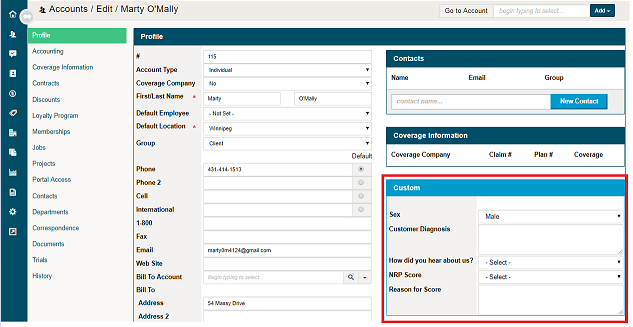
Note: If you select drop-down for the control type it will open up the drop-down options creator and allow you to create as many drop-down options as needed.
Edit Drop-Down Custom Fields
If you create a field listed as a 'drop-down' with multiple answers you may need to re-arrange or delete some of the existing answers.
To delete the drop-down answers, select custom fields under the System Settings.
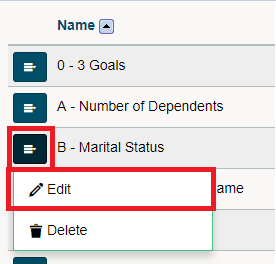
Open the custom field by clicking on the blue menu button beside the question, then click on the edit button.
In the new window, click on the (X) field to delete the answers to the question.
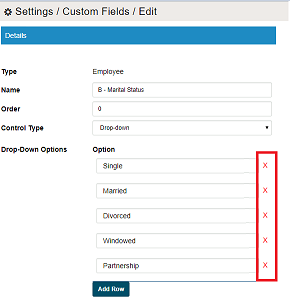
Note: Do not re-order answers by deleting and recreating the answer.
Comments
0 comments
Article is closed for comments.