
Purchase Order Worksheet VS Purchase Order
Purchase Order Worksheet - An entire list of products with analytics are populated for the selected vendor.
Purchase Order - Creating a manual list of products that need to purchase from a vendor.
Column Visibility - To change the columns that are visible, click on Actions > Column Visibility. From there click the boxes under the display of the fields you would like populated, finishing by clicking on Save.
Before you start setting up Purchase Order Worksheets, be sure that you have Vendors set up with product tied back to the products.
Actions:
1.Go to Accounting. Under the Purchasing Heading, choose New PO Worksheet.
2. Select the vendor you wish to purchase the products from.
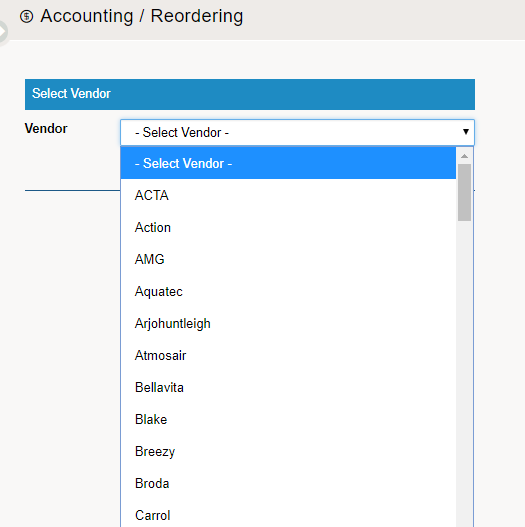
3. Use the advanced analytics to guide your purchase amount. On the far right-hand side, in the blank text field adjacent to the product, and below 'Order', type in the quantity you would like to purchase.
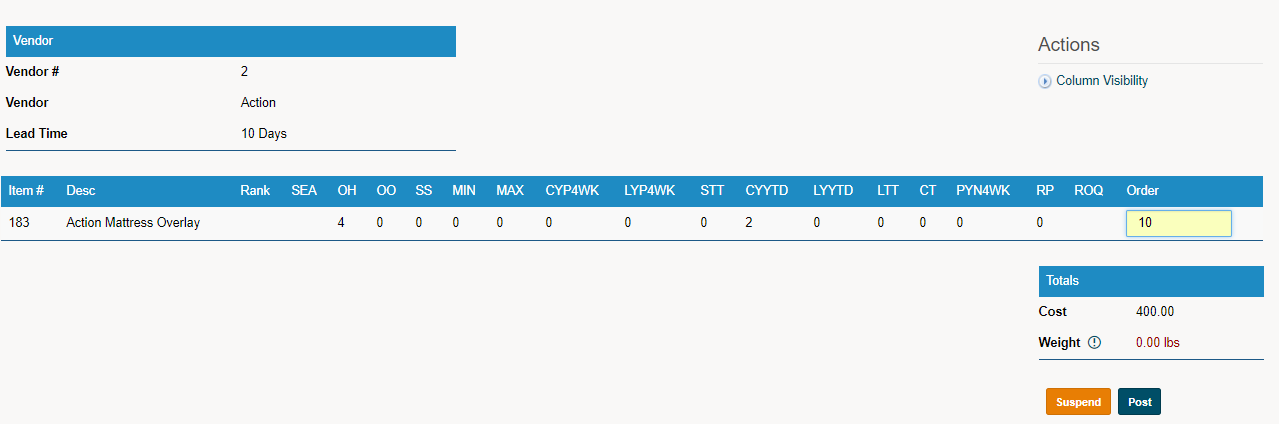
4. Finish the PO Worksheet by clicking on 'Post' in the bottom right-hand corner.
5. From there, go to Accounting, and under the Purchasing Heading, choose Purchase Orders. 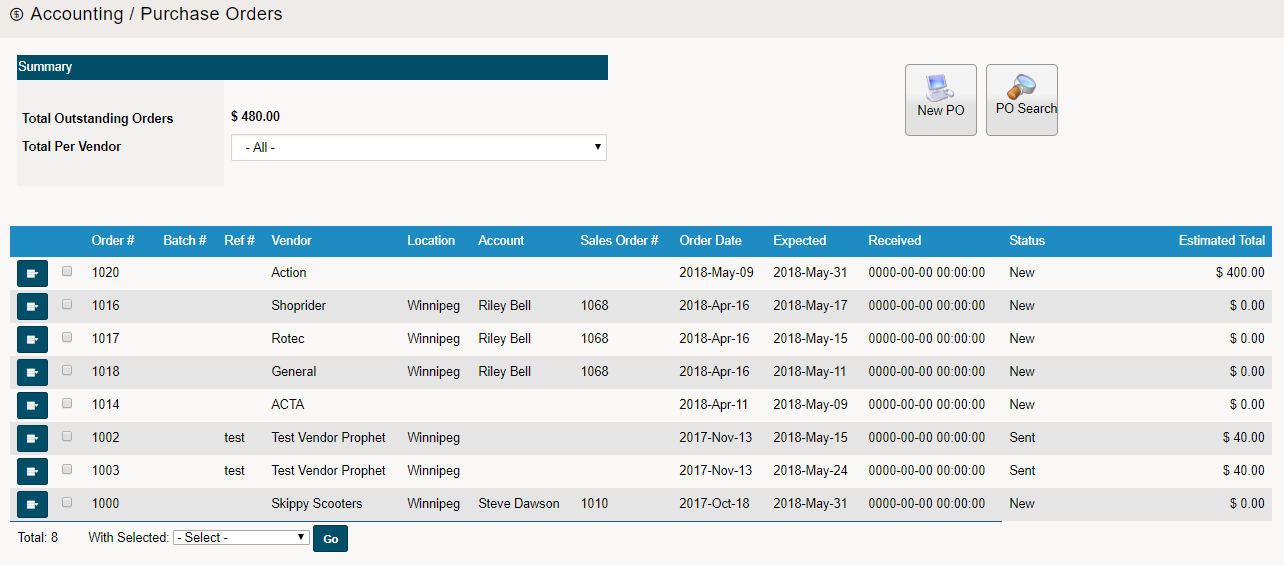
6. From there you can send the Purchase Order to the Vendor. Simply click on the contextual menu button, then 'Complete Order'. The status will then be updated.
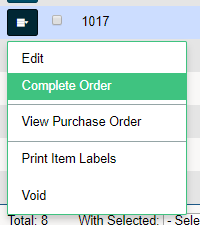
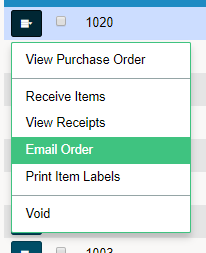
7. To Email the Purchase Order Worksheet, click on the contextual menu button, followed by clicking on 'Email Order'. Be sure that an email address is located in the vendor profile.
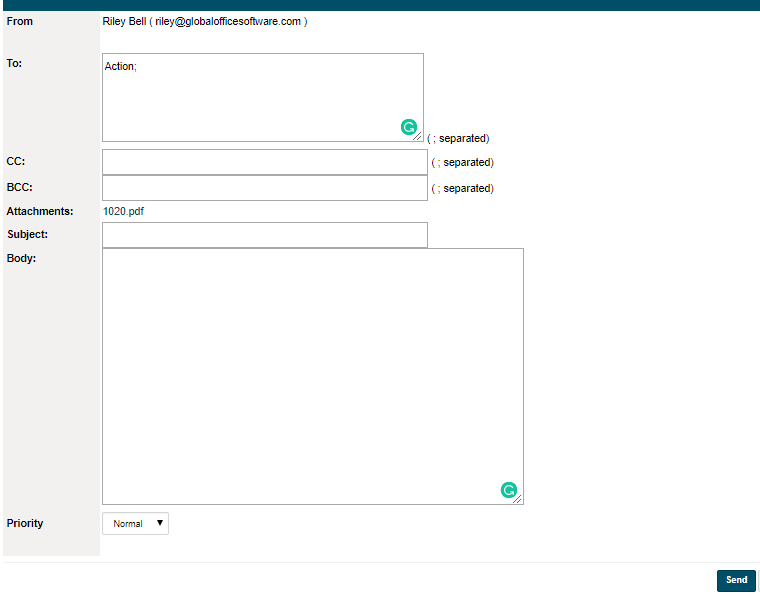
8. Finish by adding any email addresses, the Subject, and Body to the email. The Purchase Order will already be attached to the email. Finish by clicking Save.
Comments
0 comments
Please sign in to leave a comment.