
Have a large amount of reordering to complete? Use the reordering system to list multiple products for reordering at one time and automatically break them down into individual purchase orders.
Example:
Heather supermarket needs to stock up on supplies for the upcoming 2 days from vendors.
Heather opens the Reordering system in her MEHD / GO Business system and uses the search functionality to pull the items that she would like to reorder for the supermarket. She breaks down the items for reordering by the department, but also can populate the items for reordering by location, vendor and if the products are below their set reorder point.
A list of products is populated and from there heather can select which products she would like to reorder along with the quantities.
She adjusts the quantities and saves current reorder, at which time her MEHD / GO Business system breaks down the current order into purchase orders by vendors, at which time Heather can then send off the Purchase Orders to the Vendors.
Steps:
Open the Accounting Module, and click on the Reordering button under the Purchase Order heading.

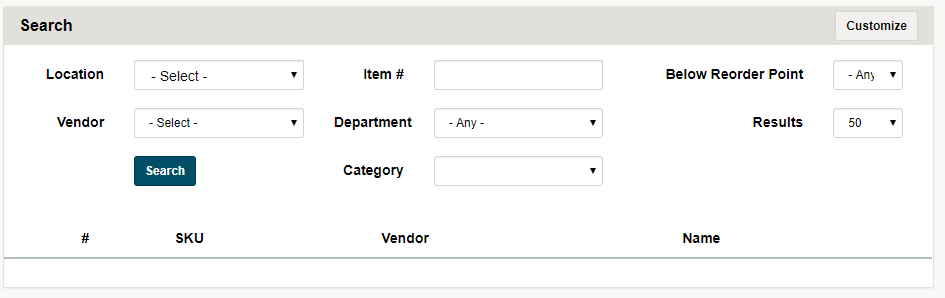
A new screen will appear with a search bar at the top of the screen. Make sure to select a location that you will be reordering for. From there, use the additional search functionalities to create a list of products be it by vendor, department, category or a reorder point. Click on the search button.
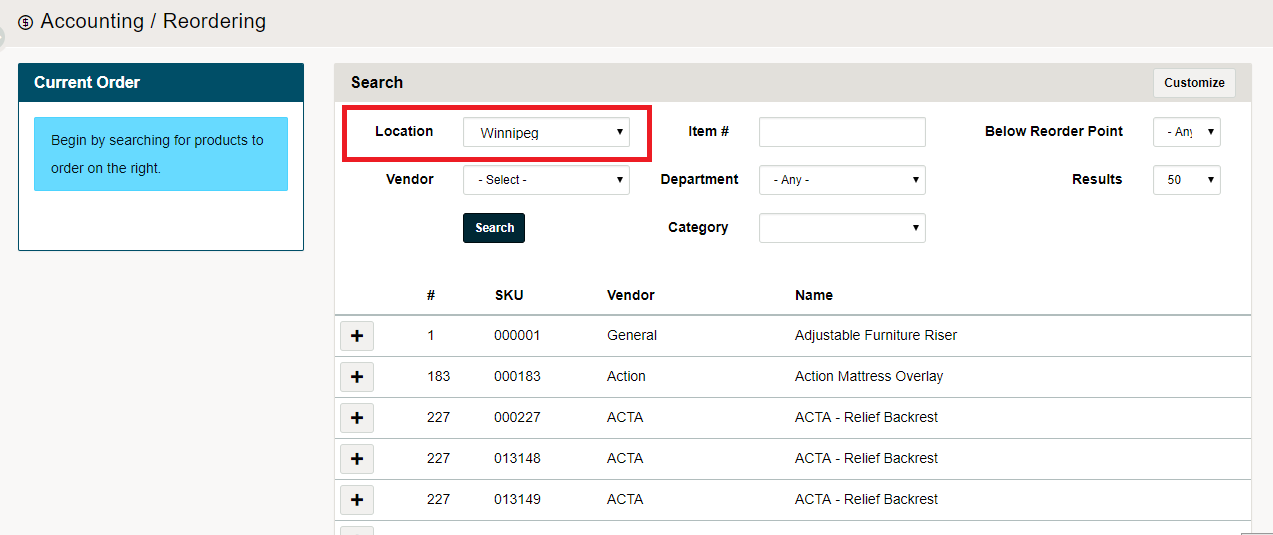
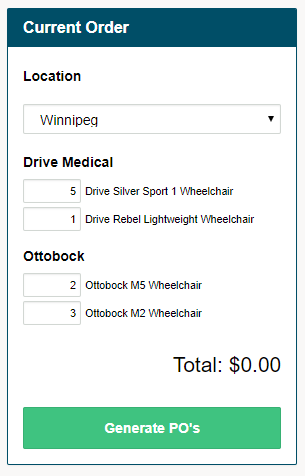
A list of products will populate below. Click on the [+] button beside a product to add it to the current order. Adjust the quantity of the product reordered through the Current Order. Again, adjust the search criteria to search for more products to add to the current order list.
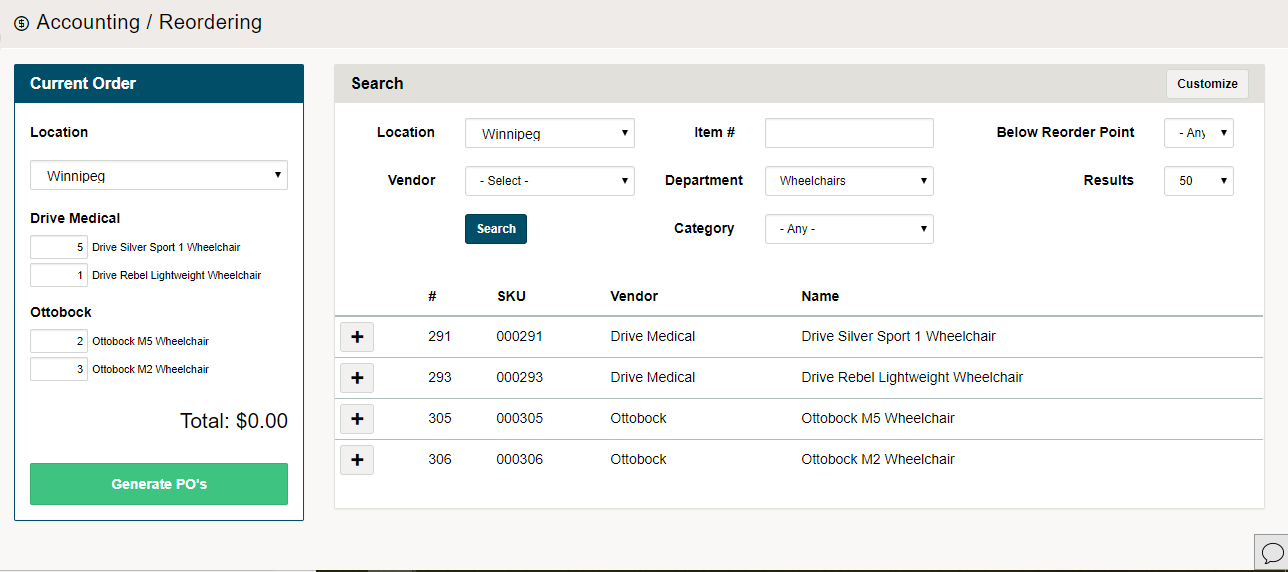
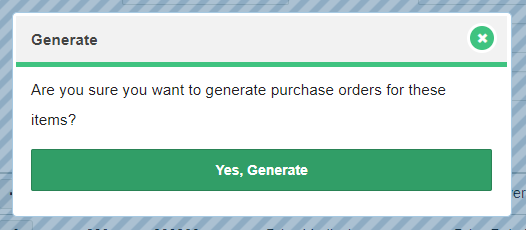
Once complete, click on the [Generate PO's] button to create Purchase Orders per vendor that will then be listed in the Purchase Order List.
Search Function
Use the search bar at the top of the reorder screen to find the products that you would like to reorder. This is the first step that should be configured before populating a list of products for reordering.
Customize
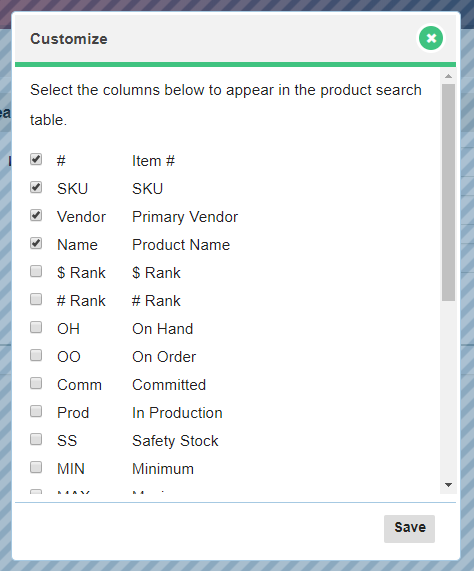
Click on the [Customize] button in the top right hand corner to set the columns you wish to see when reordering.

A new window will appear when you can check off the columns you wish to see when reordering. It is recommended that no more than (6) columns be selected at one time.
Current Order
List of the items to be on the purchase orders by the vendor name on the right-hand side. Scroll up and down on the current order to see the total list of products that you will be creating purchase orders for.
Comments
0 comments
Please sign in to leave a comment.