
Does your team create multiple purchase orders for different customers but the same vendor, only to later realize that you will get charged by the vendor for having orders below a minimum order value?
Use Batch Purchase Order to combine several Purchase Orders and send one PDF to the vendor to fulfill multiple internal Purchase Orders.
After the vendor has received your Batch Purchase Order they are able to fulfill the order and send back the items which you can receive and break down into their individual Purchase Orders.
Example
Purchase Orders - 3 Orders
- PO 123 - Customer: Jenny Craig (Vendor - Invocare) 1 Black Wheelchair
- PO 456 - Customer: Martin Merry (Vendor - Invocare) 1 Red Wheelchair
- PO 789 - Customer: Craig Smith (Vendor - Invocare) 1 Wheelchair motor, 2 Tires
Batch Purchase Order - 1 Order
Batch ABC (Vendor - Invocare)
- 1 Black Wheelchair (PO 123)
- 1 Red Wheelchair (PO 456)
- 1 Wheelchair motor (PO 789)
- 2 Tires (PO 789)
Steps
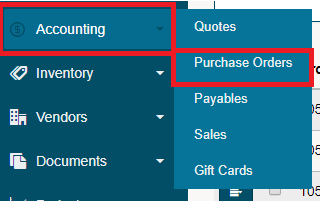
Hover over the Accounting Module, then click on Purchase Orders
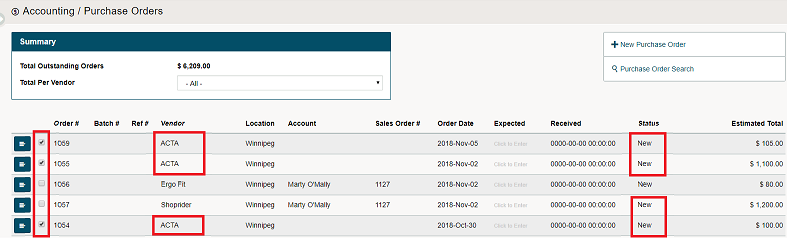
In the list of Purchase Orders, you will have the ability to combine several purchase orders for the same vendor into the same batch purchase order.
Make sure that the vendor's name are the (same) and status are set to (new).
Click on the checkboxes beside the Purchase Orders that you wish to Batch Order.
How to Use the Purchase Order Search
At the bottom of the list of Purchase Orders, select Print & Create Batch and click on the Go button.

The Batch Purchase Order has now been created. A PDF of the Batch Order will appear. All products from the Purchase Orders selected will appear on the Batch Purchase Order.

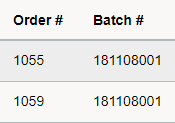
On the Purchase Orders list, Batch Purchase Order Numbers will now be listed beside the purchase order number.
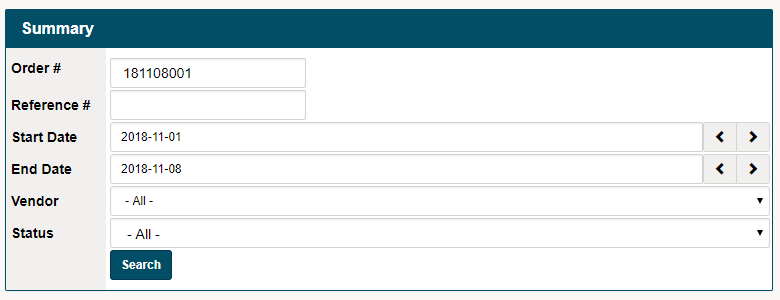
You can also search for Batch Purchase Orders inside the Purchase Order Search. Type the Batch Number into the Order # field.
The menu beside the Purchase Order allows you to complete several functions including:
- View the Purchase Order
- View the Batch Purchase Order
- Receive Items
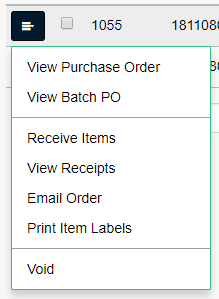
You will need to email the Batch Purchase Order to the Vendor from this menu, or View Batch PO and download to your local computer where you can email from your direct email server.
Click Here to Learn how to Recieve Batch Purchase Orders
Notes:
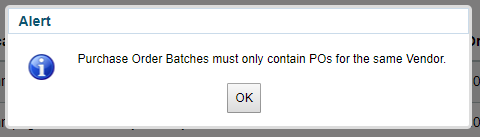
- The vendor must be the same for all Purchase Orders in a listed Batch Order. A pop-up will appear if you choose a vendor that does not match that of the other Purchase Orders.
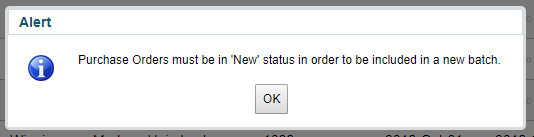
- The Purchase Orders must have a status of 'New' in order to be added to a Batch Purchase Order. Any other status of a Purchase Order will not be added.
Click here to learn more about receiving batch purchase orders
Comments
0 comments
Please sign in to leave a comment.