
When a Sales Order is created, there may be multiple payments put against the Sales Order. To be sure that users are not duplicating the invoiced amounts to customers, a pop-up window will now appear when a prior invoice has been created for the Sales Order.
Sales Order > Invoice(s) > Payment(s)
Example:
50% Upfront
40% 1/2 Way through competition
10% Upon completion
In this example, a Sales Order may be created for the customer where multiple Invoices are created from the one Sales Order to payment percentages or when the product comes into inventory.
Steps:
Convert a Quote to a Sales Order OR create a new Sales Order. Fill out the products and be sure to attach an account/customer to the Sales Order.

Click on the blue menu button beside the Sales Order. When the menu populates, click on Create Invoice.
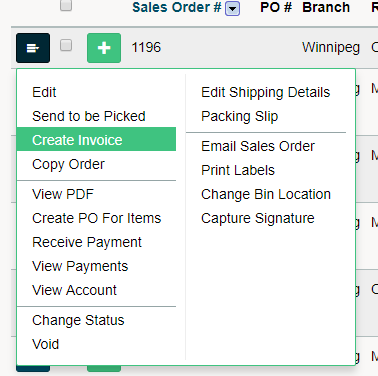
This will be a portion of the total amount, meaning that you are not receiving the total amount, creating a receivable for a portion of the sale. Fill out the Actual Qty amount that you will be placed on the initial invoice. Close the window by clicking on the Create Invoice button.
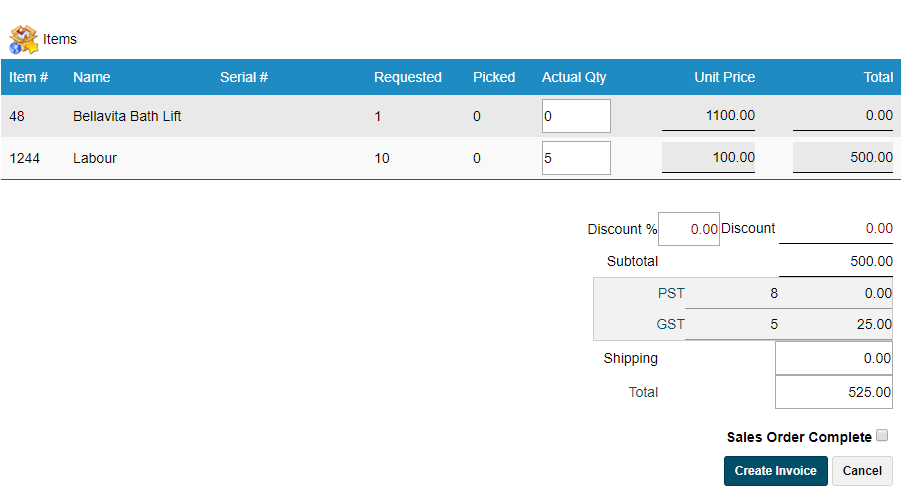
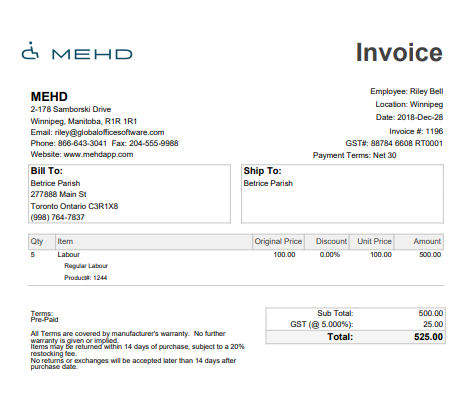
The Sales Order will not have Status of Invoiced, and a PDF of the Invoice will appear. All payments should be made against the sales orders and applied as credits to the invoice for accounting purposes.
To receive the rest of the Sales Order the user is able to create a second Invoice for the customer by clicking on the menu button beside the customer's Sales Order then clicking on the Create Invoice.
When the user clicks on the Create Invoice from the Sales Order menu a pop-up will appear.
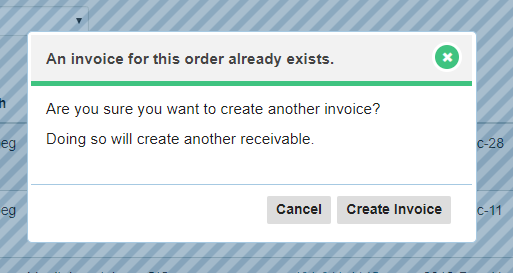
This lets the user know that a previous Invoice was created, in which credits may be applied to the next invoice.
Comments
0 comments
Please sign in to leave a comment.