
Have a team of employees that work in your warehouse picking and packing orders? Use the pick and pack feature to print out lists of orders that need to be....picked and packed.
Example
Ron's Part Shop has had a busy day and 1000 new orders have come in. Most of the order that came in through online orders or in-store orders all have shipping for free directly to the customer's house.
Ron is busy sifting through these Sales Orders and needs a way to let his warehouse employee John know what orders to pick together and place at the shipping docks.
Ron
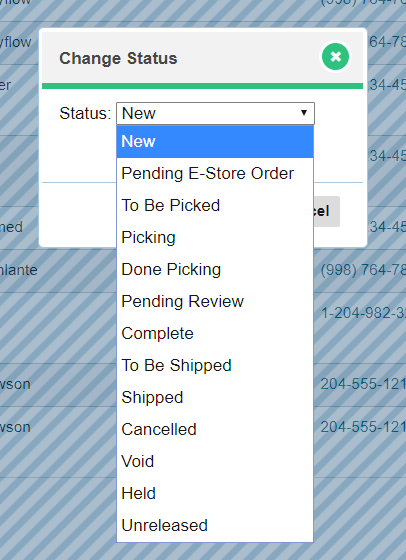
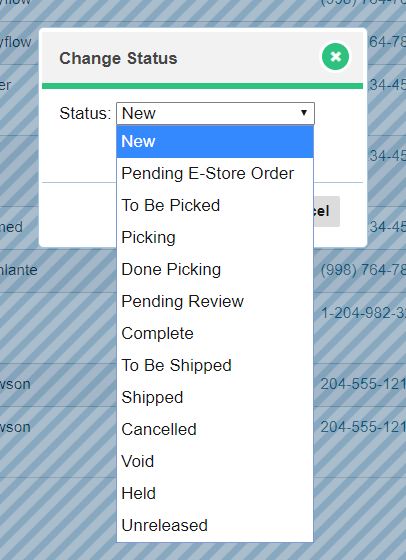
Status of Sales Orders
Steps
You must first create a New Sales order or transfer a Sales Order from a Quote.

The Status of the Sales Order will first be 'New'

On the New Sales Order, select the edit button beside the new Sales Order you wish to send to be picked. If at any time you would like to skip this step simply select the Change Status located further down the menu.
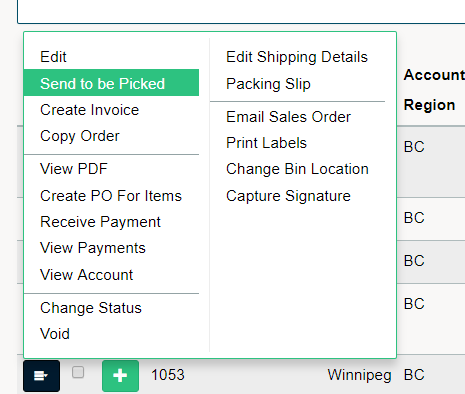
Status will then be 'Send to Be Picked'. At this time a pick ticket will be created.

Once the Status of the Sales Order has changed to, 'To Be Picked' additional options can be found in the edit button beside the Sales Order. These are 'View Pick Ticket' and 'Enter Picked Quantities'
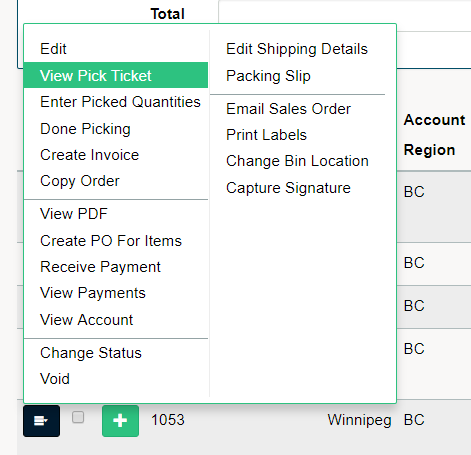
View Pick Ticket
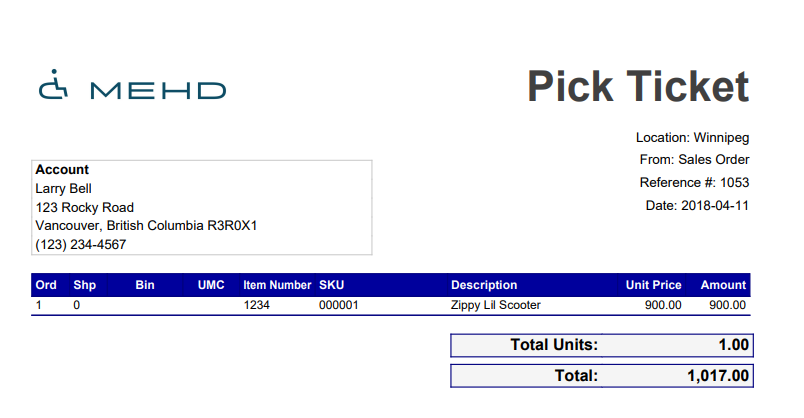
Enter Picked Quantities - This is where your warehouse staff can enter the amount of product that they picked and placed in the Sales Order. If the order is fulfilled be sure to click on [] Done Picking.
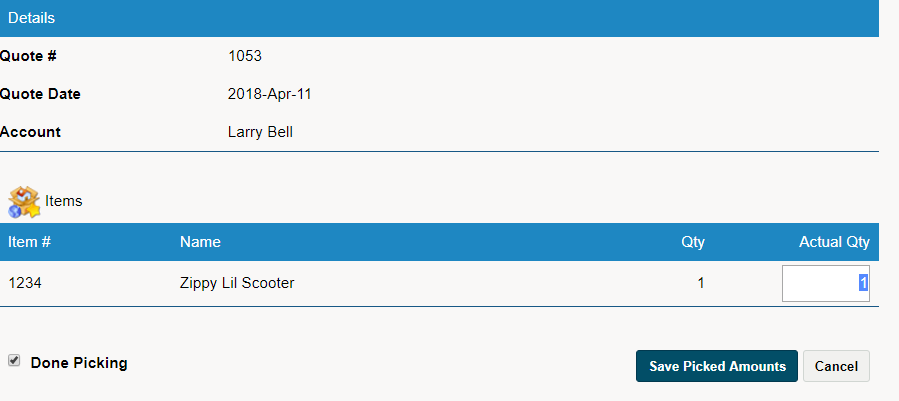
The Status of the Sale Order has now updated to 'Done Picking'.

At this stage, use the 'Change Status' in the edit button beside the Sales Order to update the Sales Order if it is 'To Be Shipped', ' Shipped', 'Pending Review', or 'Complete'.
Comments
0 comments
Please sign in to leave a comment.