
Description
Create a New Ticket.
Location
Home (Center-Middle)
Action
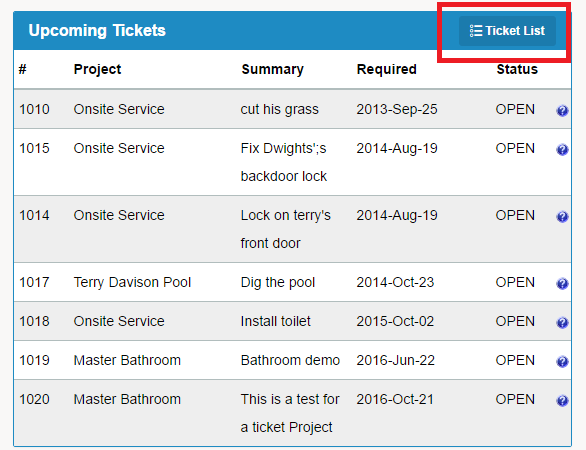
1) Click on the Ticket List button in the Upcoming Tickets heading on the home page
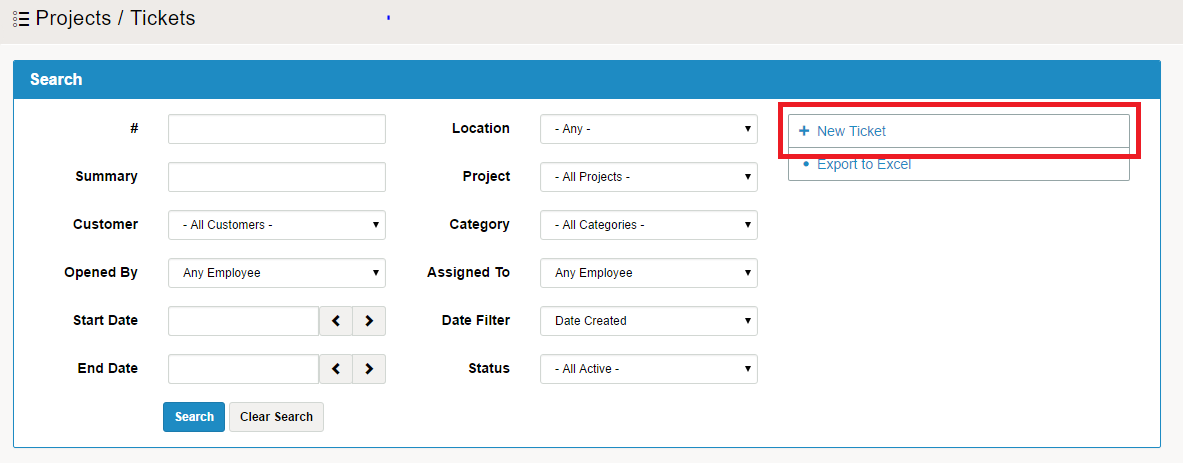
2) You will be brought to a list of all Projects / Tickets
3) Click on the New Ticket button on the right hand side of the page
4) Input Ticket Details
A) Summary - Where the title of the ticket will be listed
B) Input Customer if connected to a customers account
C) Attach to Project. Select a listing from the Project drop down list. If the project you would like to attach the ticket to is not listed, create a project
D) Select an employee at your business to Assign the ticket to in the drop down
E) Select a Category in the drop down
F) Assign a Priority level [Low, Medium, High, Urgent] to the ticket in the drop down
G) Select the Status [Open, Waiting, Closed] of the ticket in the drop down
H) If there is a Required Date, click on the field to the right of required date and use the pop-up calendar to navigate to the date the ticket must be completed by.
I) Type in the Estimated Hours
J) If there is notes to go with the ticket, simply type them into the field beside Description
5) In the lower right hand corner, click the save button
Comments
0 comments
Please sign in to leave a comment.