
Before you can refund a customer, you must have a Transaction Type - Refund set up. Click here to learn how to set up Refund as a Transaction Type.
Refund Best Practices
It is the best practice that customers bring in a receipt with the item(s) that they are wishing to return for a refund. The PDF/receipt of the invoice will provide an invoice number in which you can directly refund the item on.
If a customer does not bring in a PDF/receipt of the invoice, search for the invoice in the customer's profile under the History Tab, under Purchases and Payments. You will not only be able to see what was on the purchase, but how much of the payment was made against the invoice and what the payment type was.
If you are not using an integrated credit/debit terminal you will need to punch in the item amount directly to the terminal for a refund.
It is best to outline the terms of your refund policy at your time of purchase or within your store to notify customers. Select items might not be returnable and refundable, it's best to let customers know at the time of purchase.
If multiple receipt copies are issued, it is best practice to staple the receipts together and cross out the products on the existing receipt that have been returned.
Example
Joe brings in a flashlight that he recently purchased from Molly's bargain bin store. Molly notes that they will give Joe a refund for the one product on his invoice of several products.
Molly simply opens the invoicing screen and changes the transaction from 'Sale' to 'Refund' (may be listed as 'return' due to system settings) and enters the product along with the customer name.
With her system not being connected to a payment terminal, she simply types in the amount of the refund in the terminal and refunds the customer.
She then prints out a PDF of the return and staples it to the original Invoice, along with crossing out the product that was returned on the original invoice.
Steps
Go to the Accounting Module, then click on Invoicing.

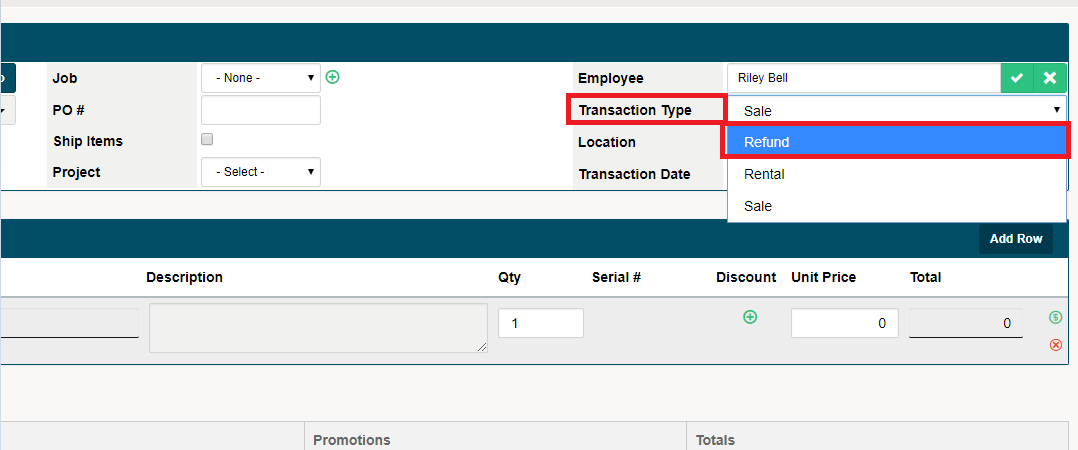
At the top right of the invoicing screen, change the Transaction Type to Refund.
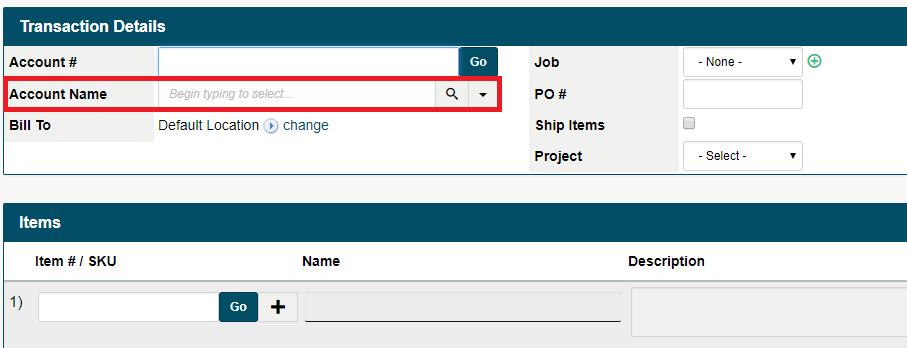
Choose the Customer/Account Name in the top left-hand corner.
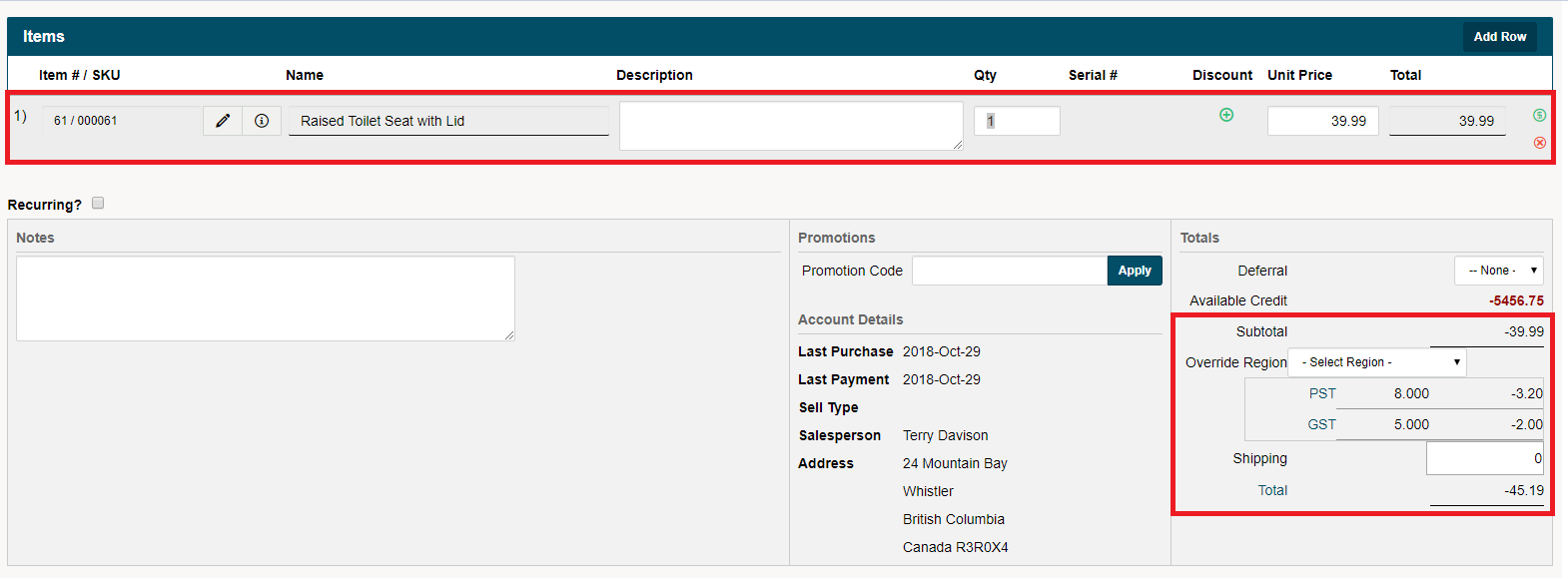
Enter the line items you want to refund by the name of the product or item number. It will appear just the same as making an invoice, the difference being in the Subtotal, Taxes, and Total amount. All of these amounts will appear negative showing a refund amount.
Finish by clicking on [Complete Transaction] located at the bottom of the page.
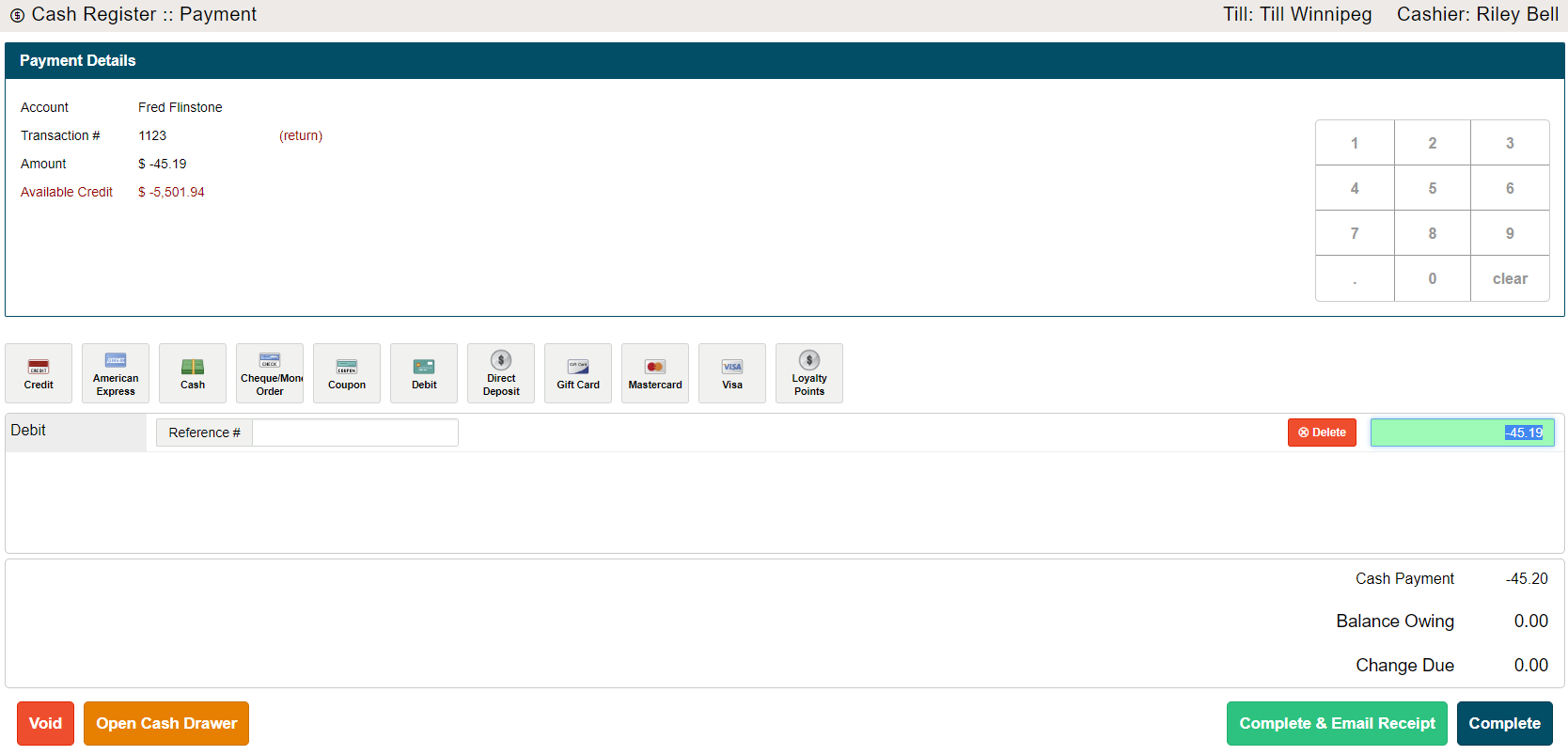
A Cash Register will appear. Type in the payment type (Cash, Debit, Visa, Master Card, etc.) and fill out the fields attached. Finish by clicking on (Complete, or Complete & Email).
How to View a Refund in a Customer Profile
Comments
0 comments
Article is closed for comments.