
Example:
A 'Customer or Account' is anyone that purchases off of you, or uses your services. These can be set as Businesses and Individuals.
If you were an electrical supply company think of your customer/account as:
- Business - Bowden Electrical
- Business - CRL Lighting
- Business - Crown Cabling Systems
- Business - Manitoba Government
- Individual - Walk-in Customer
- Individual - Mrs. Wendy Mintos
Actions:
1. Navigate to the Customer/Account Module
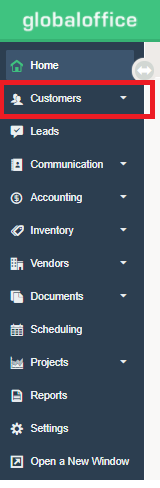
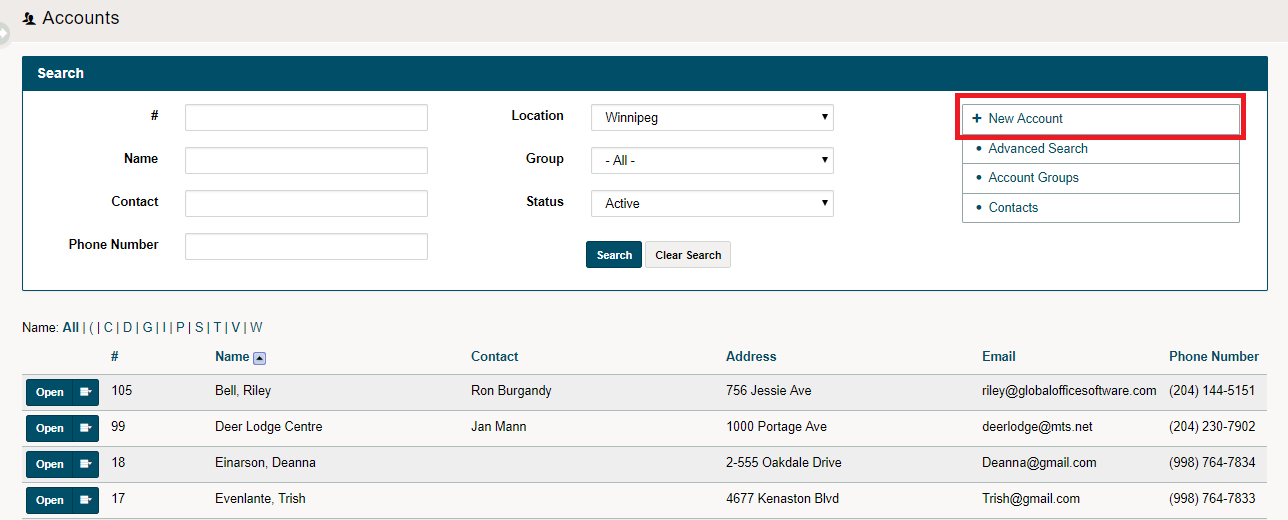
2. Click on the (+ New Account) on the top right-hand side if creating a new business as a customer. If this is an existing business that is a customer, click on the blue (Open) button beside their company name.
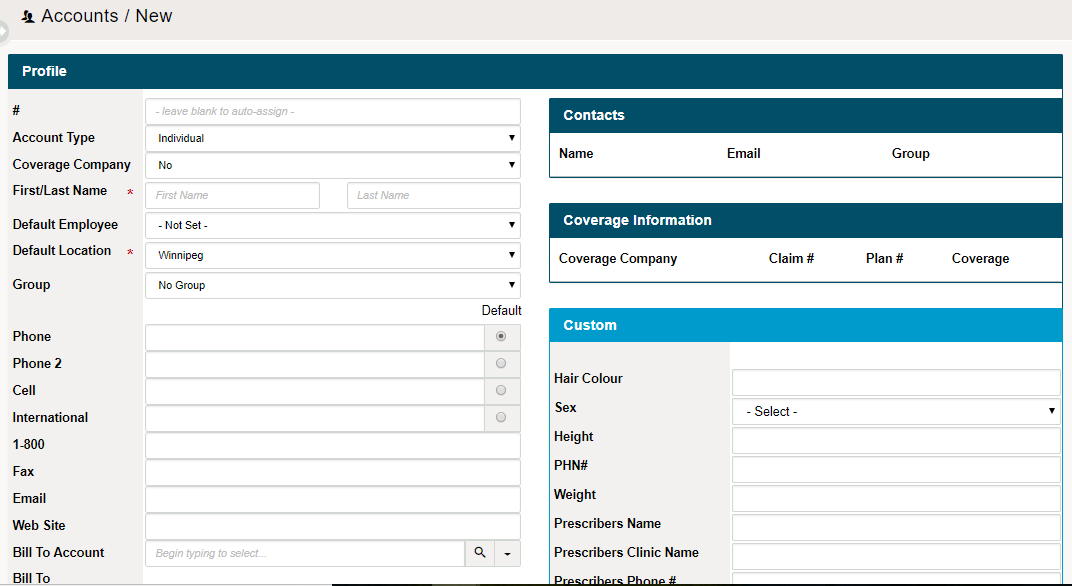
3. Fill out the information as required, click the blue (Apply Changes) button on the bottom right-hand corner.
4. More information will populate tabs under the customer's profile. Simply click on the tab you wish to add more information under and fill out the required information. In this case - click on the 'Contacts' tab.
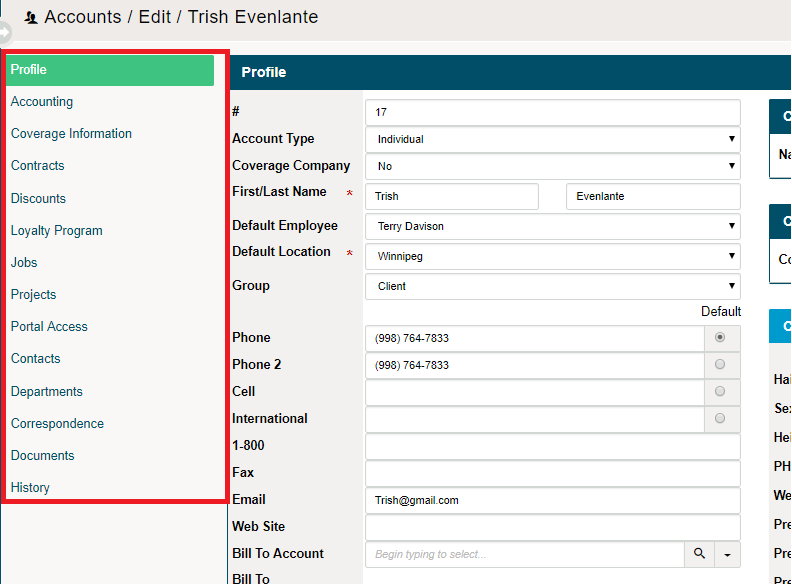
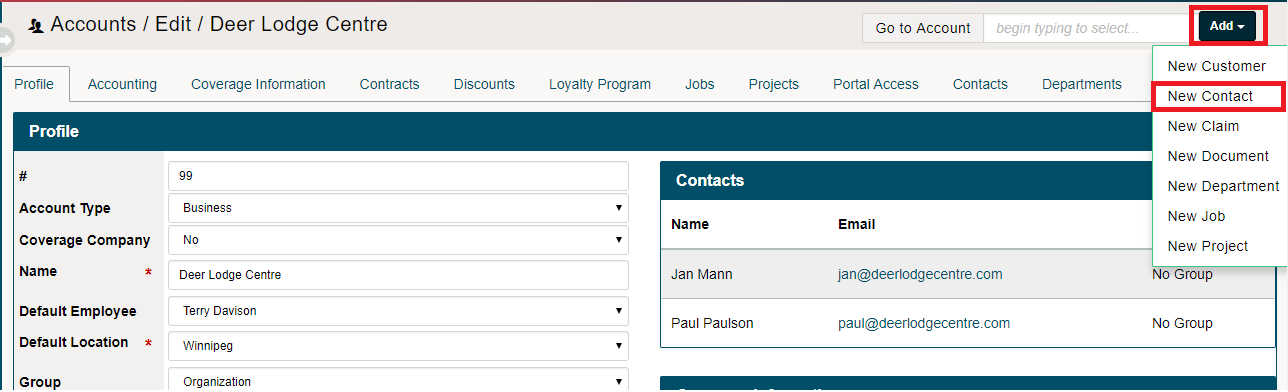
5. Once inside the Contacts of a Business or Individual, click on the (+Add) button on the top right-hand side. From there, select 'New Contact'.
6. A new window will appear, fill out the required information for the contact and click apply, new tabs will populate where more information about the contact can be filled out.
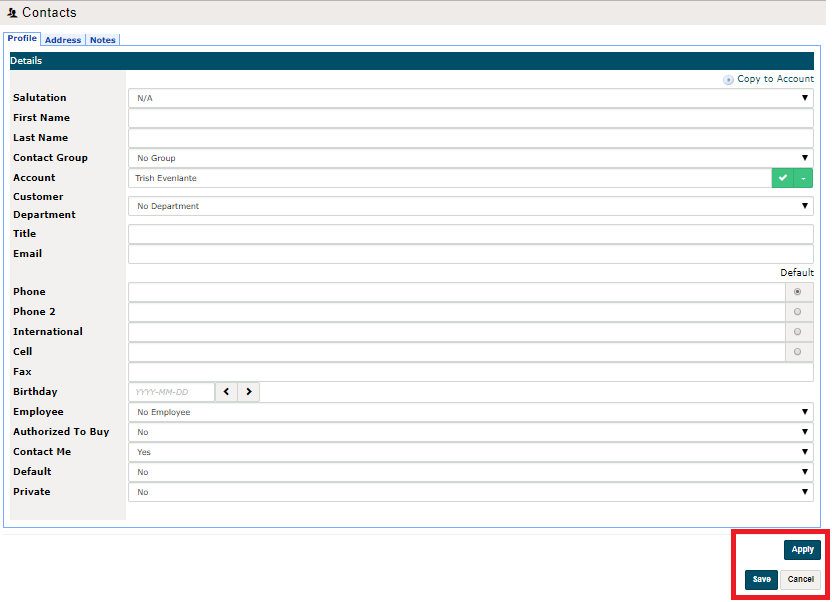
7. Finish by clicking save.
Additional
- If you deal with set groups of contacts, for example (Physiotherapists, Chiropractors, Massage Therapists, Caregivers, Family Members) that are contacts for a Customer be it a Business or Individual, be sure to create 'Contact Groups' - Learn More.
- When you have multiple contacts within a Customer/Account, you can choose one contact to be the Default Contact.
Comments
0 comments
Please sign in to leave a comment.