
Serial number tracking is a great way to track customers purchase of products and verify the products if they return or would like to get a refund for the product.
You can also use serial number tracking for vendor-based purposes such as contacting the vendor for a replacement part on the serialized item.
Step 1 - Turn On Serial Number Tracking
Prior to adding serial numbers to products, you must turn on the Track Serial Numbers Module.
Click here to learn how to turn on the Serial Tracking Module
Step 2 - Turn On Serial Number Tracking in Product Profile
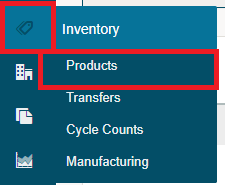
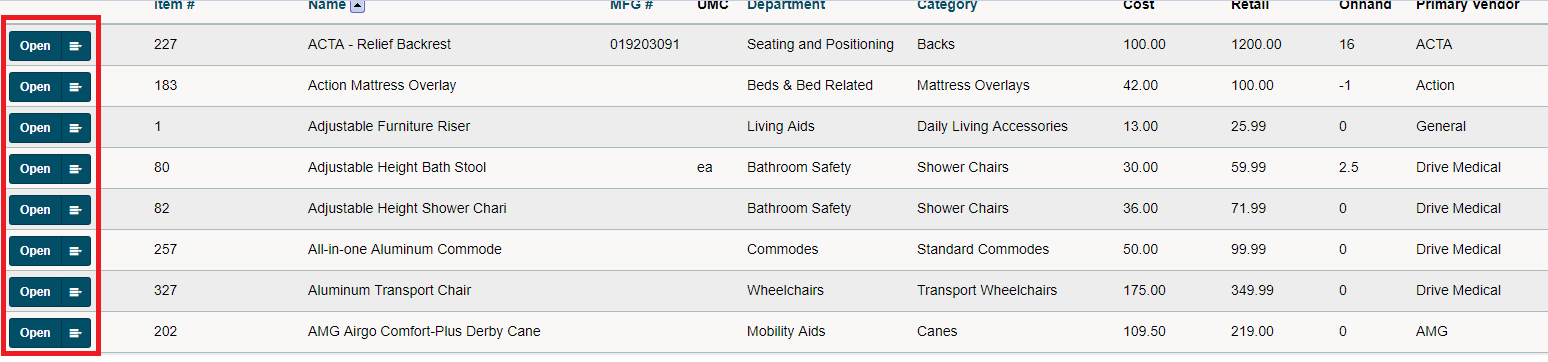
Go to the Inventory module, under the Products Heading, choose Products and then Open the product profile.
Click on the Statistics Tab.

Set the Inventory Tracking drop-down menu to "Yes, Including Serial #s", then choose the Apply button.


Step 3 - Add Serial Numbers
Choose the Serials Tab inside of the profile of a product.

Choose [Edit Serials] in the top right-hand side.

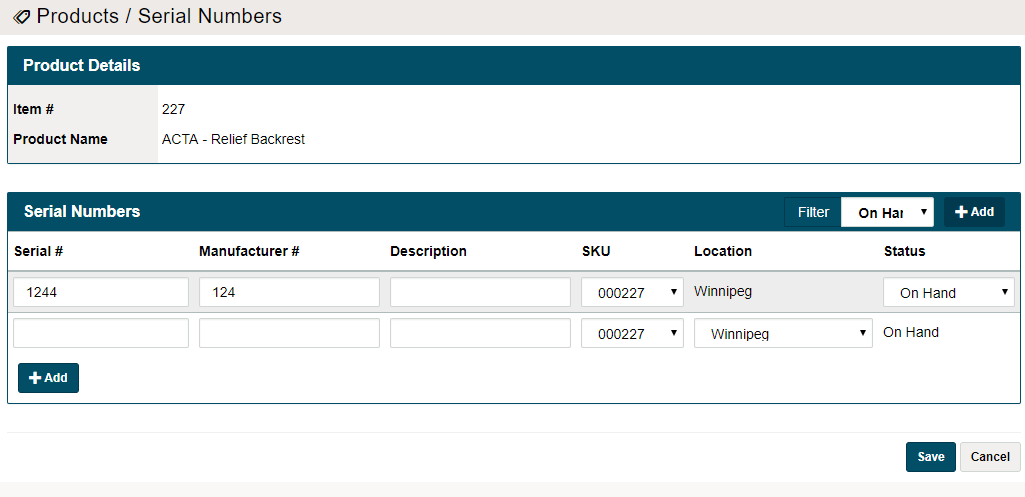
Enter the serial number(s) for the product(s) by clicking on the [+ Add] button and listing the serial #, the correct SKU and the correct Location.
Finish by clicking on the [Save] button.
Comments
0 comments
Please sign in to leave a comment.