
After creating a Quote for a client and receiving approval to go ahead with the purchase it's time to get paid.
Transition the quote to an invoice and receive payment (learn more here).
Steps - From a Customer Profile
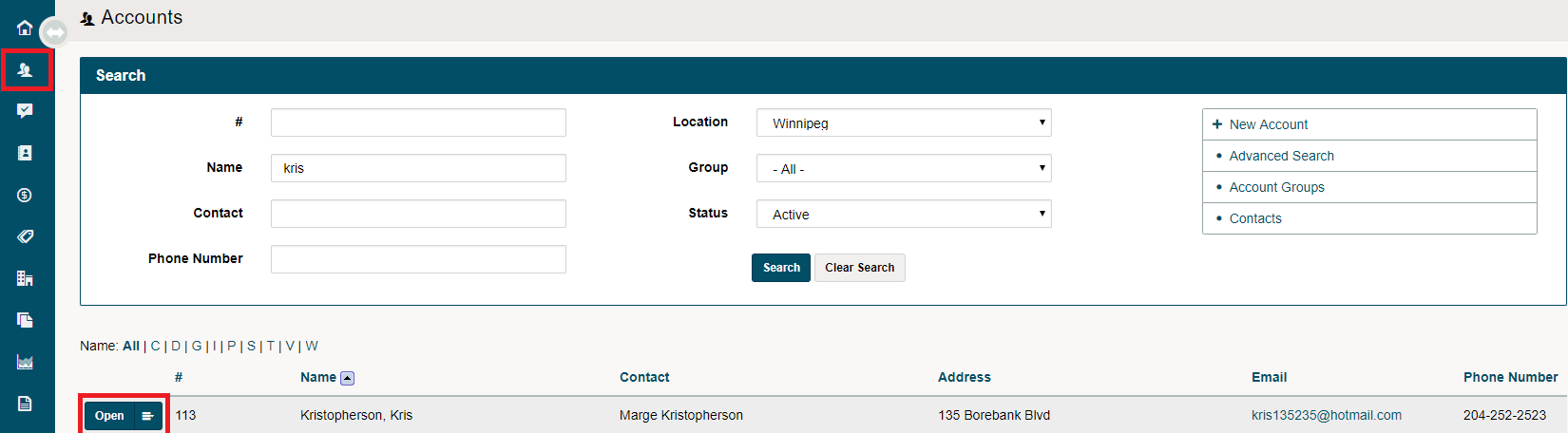
Click on the Accounts module and open the customer's profile.
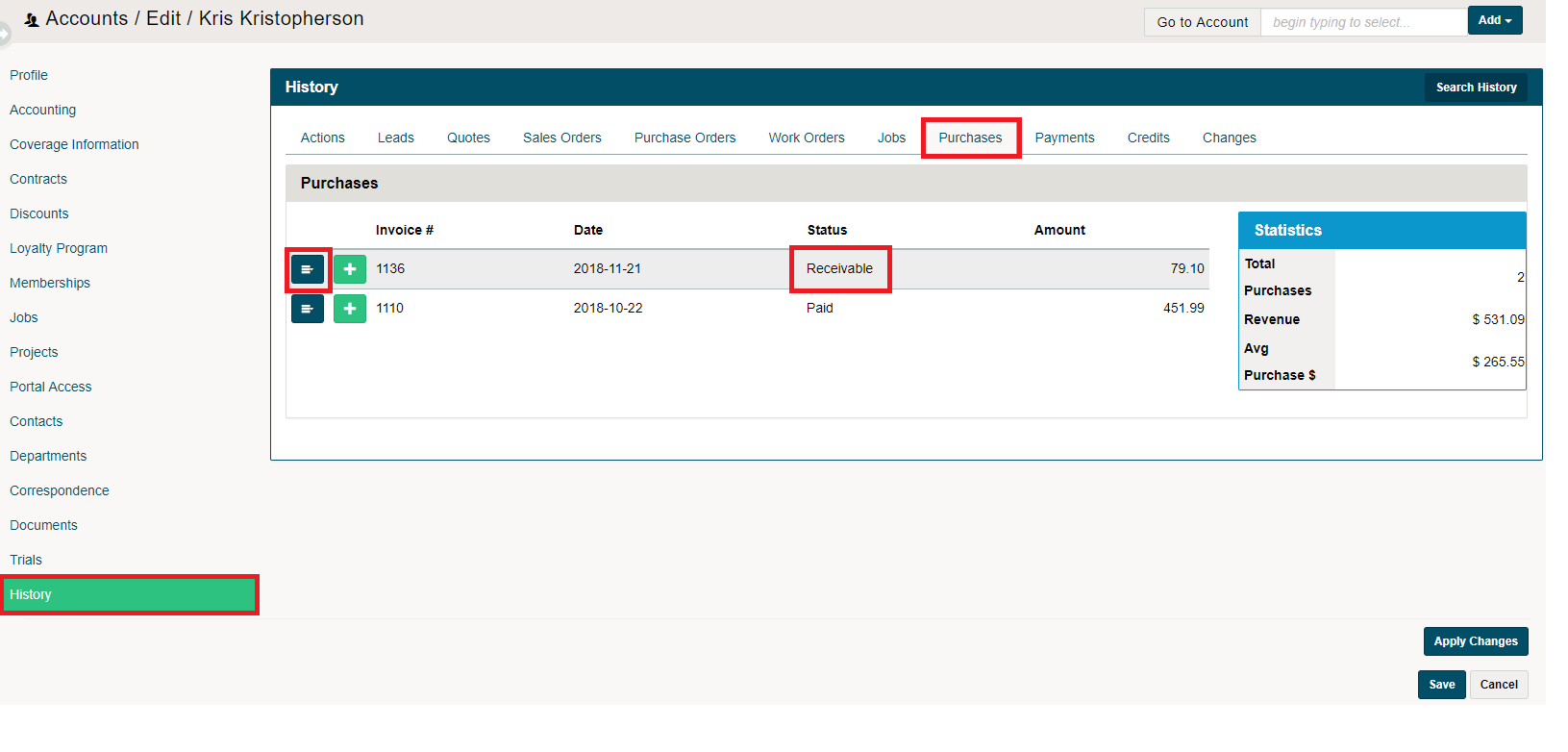
Under the History Tab, you will need to click on the Purchases Tab. Here you will see a list of the customer's past purchases, look for the receivable purchases and click on the blue menu button beside the purchase you would like to pay for.
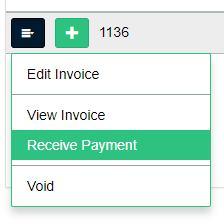
Find the correct invoice that the customer is paying for. Click on the blue menu button beside the invoice, and then click on Receive Payment.
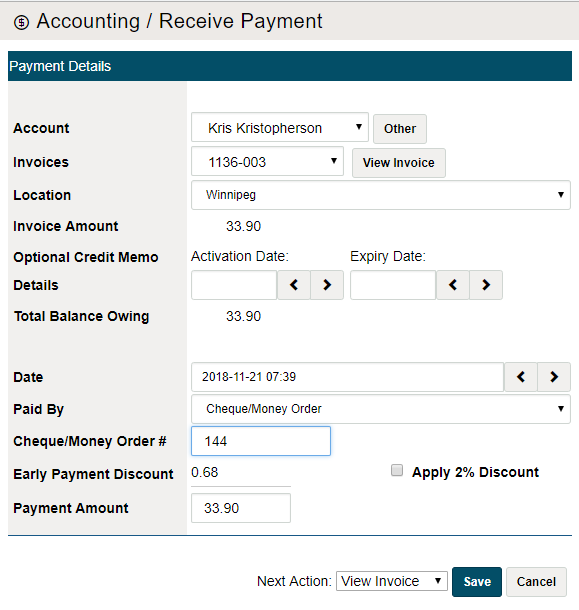
A payment screen will then appear in which you can select the type of payment with adjustment details.
Steps - From Receivables List
Go to the Accounting module and click on the receivables list
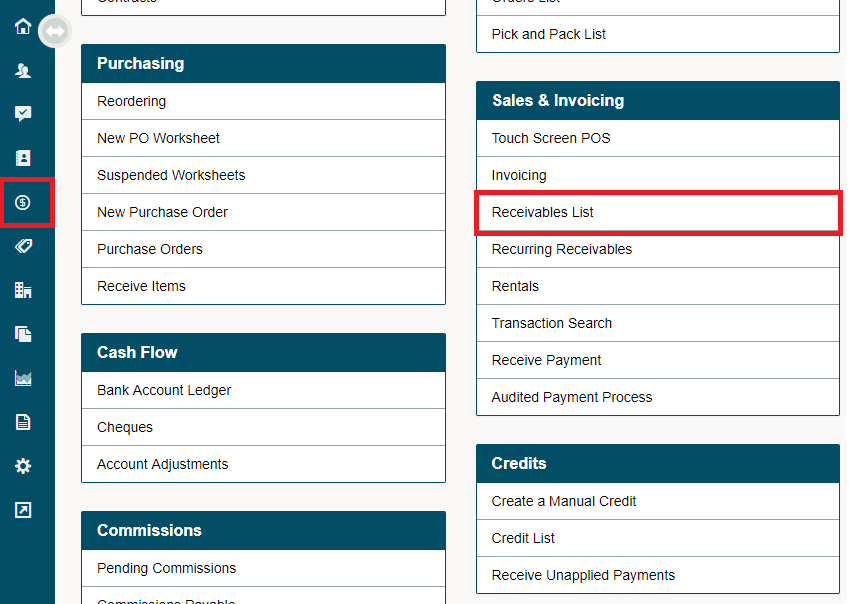
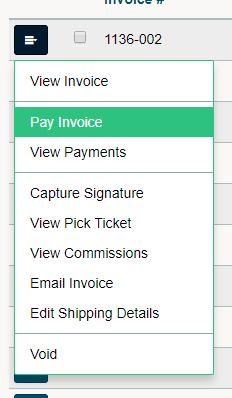
Search for the invoice you want to pay. Under the contextual menu for that invoice, choose Pay Invoice. Complete the information in the popup window.
A payment screen will then appear in which you can select the type of payment with adjustment details.
Comments
0 comments
Please sign in to leave a comment.