
Split billing is the division of a bill for service into two or more parts. Bills may be split to divide work between clients and payers.

Example
John has injured himself and will need to purchase a wheelchair from Mary's Medical Shop. John has coverage from ICBC and Veterans affairs, he lets Mary know and provides Mary with contact information for his coverage providers.
Mary attaches the (2) coverage providers to John's profile in MEHD/GO Business. Then Mary reaches out the coverage providers with the quote for the wheelchair and verifies the ($) amount that each coverage company will provide John with.
Mary moves the quote to an invoice and uses the Split Coverage feature to insert the amounts that each coverage provider will pay for the wheelchair, leaving John with the difference of payments.
Each providers invoice is able to be broken down to list the price they pay with a master invoice being tracked to the customer.
When each provider pays it will directly complete their payment and the portion of the customer's full invoice for the product.
Notes:
Before using split coverage be sure to familiarize yourself with the following:
- How to create a Coverage Company
- Be sure to attach a Coverage Company to a Customer
- Split billing can only be used when editing an invoice
Step 1 - Turn on Split Coverage
Go to the System Settings module, and click on the General button under the System & Company Settings heading.
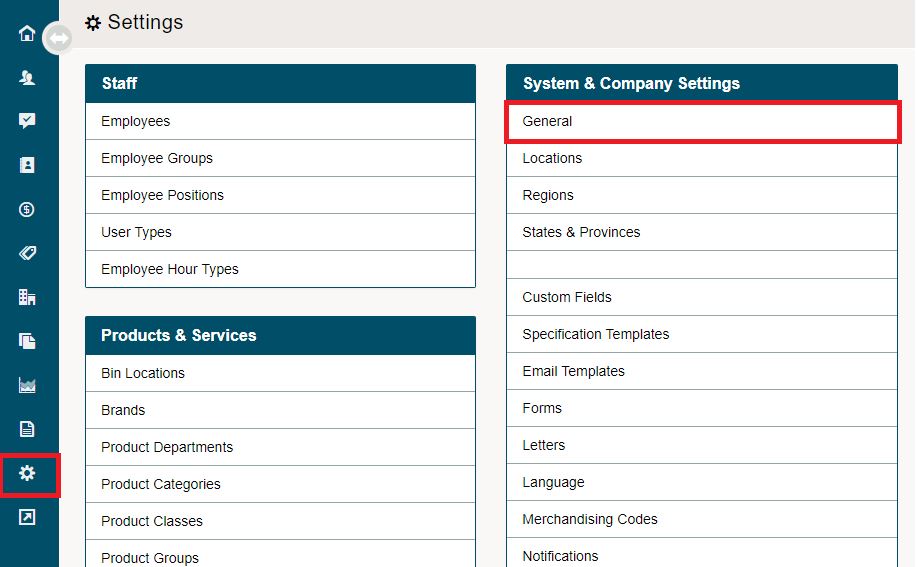
Then click on the System Tab at the top of the page.

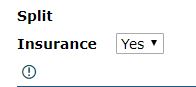
On the right-hand side under the Accounting heading, change the field of Split Insurance from No to Yes. This will now create split billing functionality in your system.
Step 2 - Quote/Work Order to Invoice
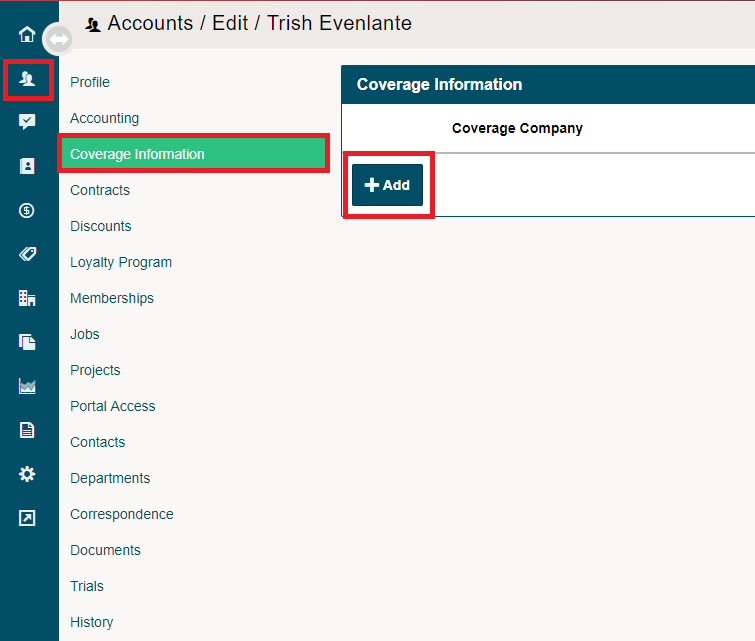
Start by creating a customer and attaching the coverage providers the customer uses to the customer's profile.
Navigate to the customer's profile, then to the Coverage Information tab.
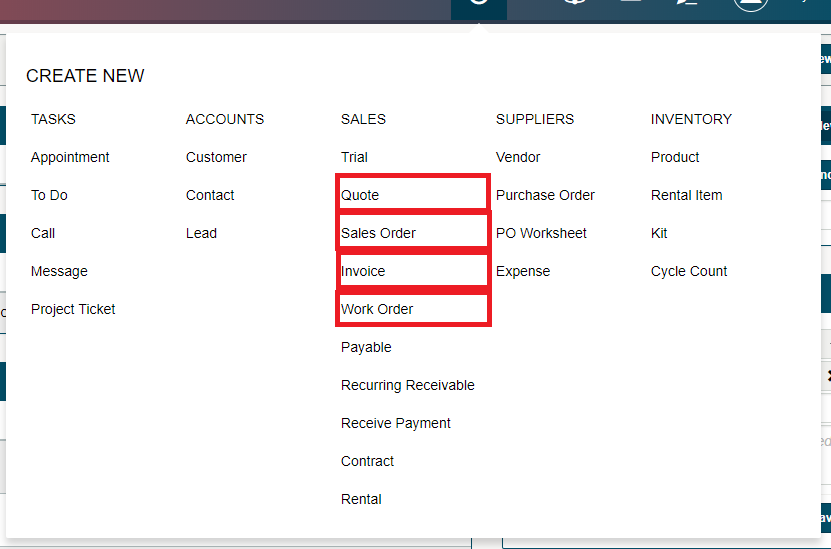
Then create a new (Quote, Work Order, Sales Order, Invoice) for the Customer (How to Create a Quote)
The Work Order or Quote would then be sent to the coverage providers attached in the customer's profile. After verification back of the coverage amounts, you will now be able to split the coverage.
Learn how to email directly from MEHD/GO Business click here
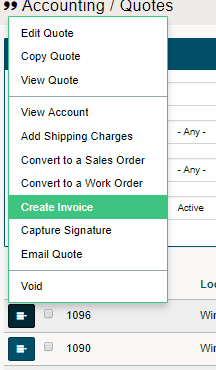
Move the Work Order or Quote to an Invoice thereafter. Click on the blue menu button beside the Work Order or Quote that you would like to transfer to an invoice. Click on Create Invoice in the menu.
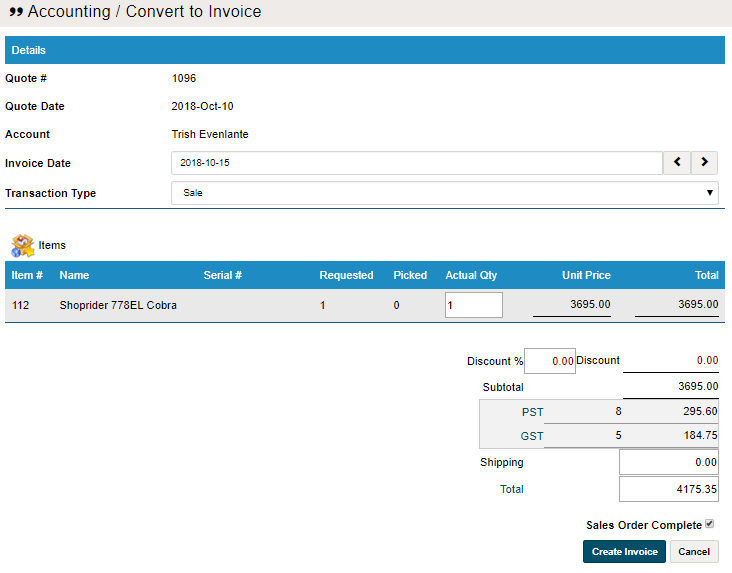
Fill out the actual quantities that will be applied on the invoice, followed by clicking on Create Invoice.
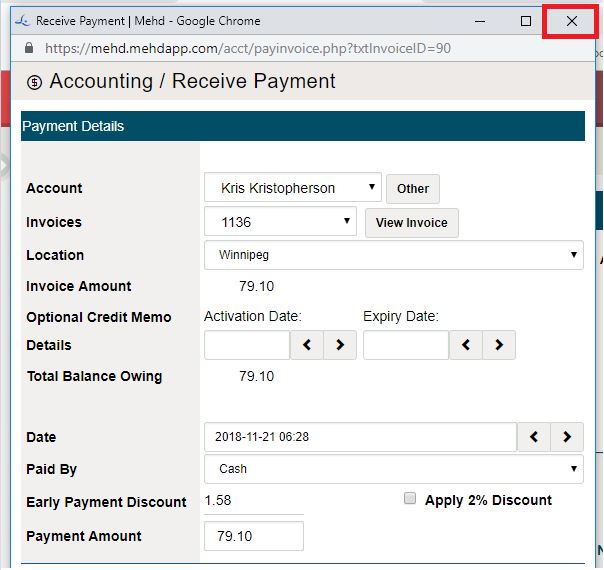
A Receive Payment screen will appear. At this time since you are splitting the bill to funding sources before taking payment, simply click on the [X] button.
Step 3 - Splitting the Invoice
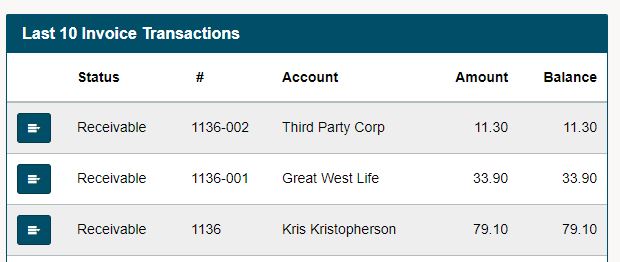
Now that an invoice has been created it is time to split the coverage to the providers. Navigate to the invoice through the (1) Customers Profile under their history tab, (2) on the Receivables List on the Accounting module (3) Last 10 Invoice Transactions on the Accounting module.
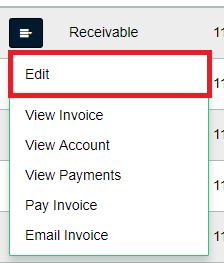
Click on the blue menu button beside the invoice and click on edit.
On the invoice, click on the blue Split Coverage button on the right-hand side of the product.
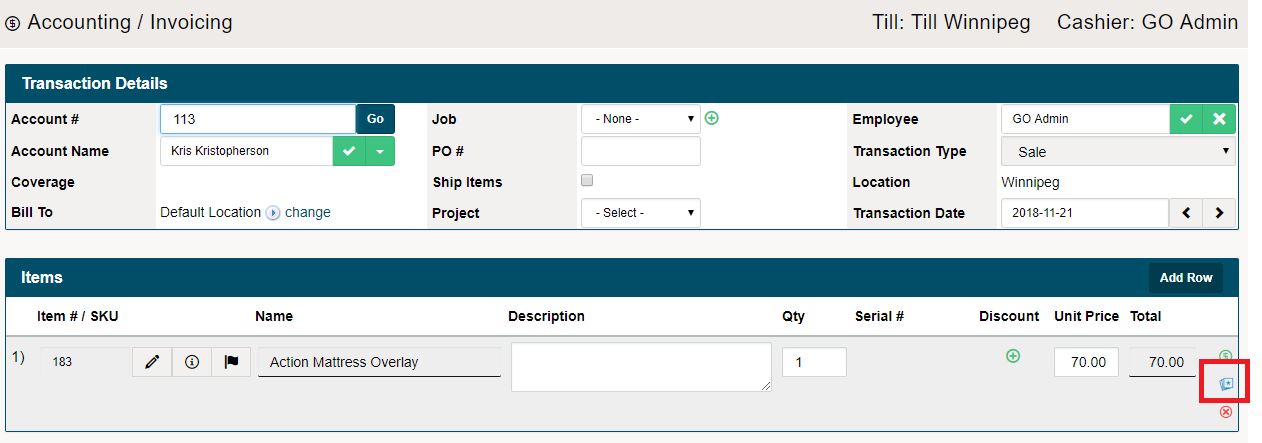
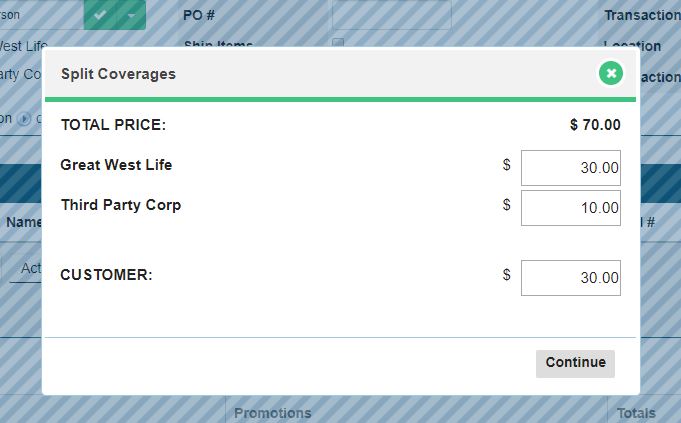
A new window will appear, type in the values that each Coverage Company will then pay. When clicking on the Complete Transaction button in the bottom right corner, the invoice will be split into an invoice for the customer, and for the coverage companies that apply.
After completing the split billing, you will now be able to see that the invoice has been split to the correct amount for each provider with taxes. You can now pay the invoices (1) on the Receivables under the Accounting module (2) under the coverage providers profile (3) under the customer's profile.
Changes Made To Split Invoicing:
Phase 1
- Auto pull coverage companies to Invoicing header
- Split bill button per line item
- Auto pull coverage companies to split billing window
- Ability to select ‘default’ coverage company in a customers profile
- Ability to deselect ‘default’ coverage company in the customer profile
- Ability to split bill multiple ways to coverage companies
- 2 Coverage Companies + Customer is 3 Bills
- Ability to pay bills by multiple coverage companies
Phase 2
- Ability to see the split bill in coverage companies profile
- Ability to see coverage company on receivables
- Split Billing calculation logic to sum to total
- Ability to see split bill off of customers profile
- Ability to see coverage companies split bill off of customer profile
- If default coverage company selected, apply 100% of products as a base to the company
- If coverage company has $0 on the bill don’t create an invoice, if a customer has $0 invoice push invoice to profile for history tracking
- Cash register payment shows split invoice amount over the full invoice amount
- Day End report shows the correct totals for split amounts
- Invoice Report shows split totals per company or customer
- Default coverage company is listed first
Phase 2
- Logics
- Ability to edit split bill amounts
Comments
0 comments
Please sign in to leave a comment.