
Have a large shipment of products come in that need to be labeled and put out for retail customers? Use the batch label printing function easily prints labels continuously through your label printer for multiple products and SKU's selected.
Steps
Go to the Inventory Module, and select Products.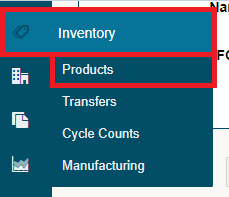
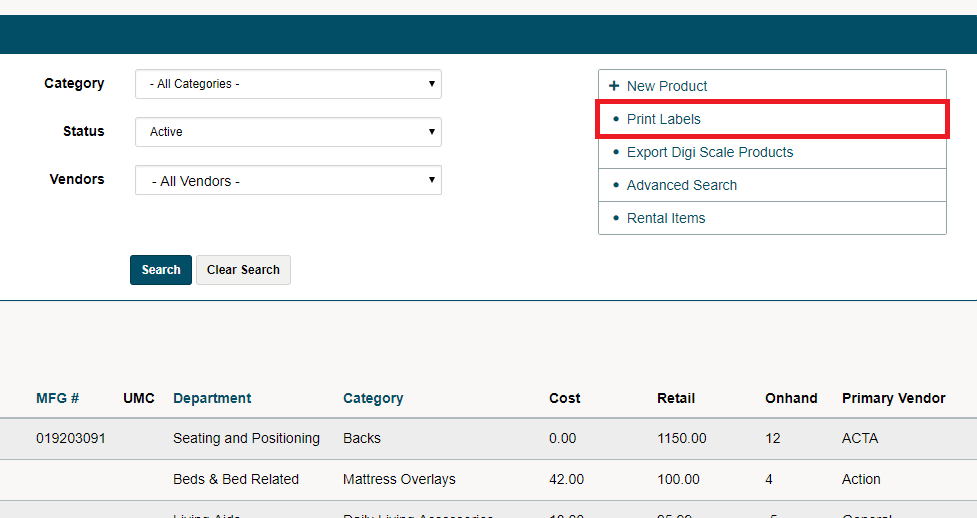
A list of all your products will appear. From the top right of the screen, choose Print Labels.
Use the Search criteria to display the products for which you want to print labels. Use the Select All or Deselect All drop down. Check the boxes for the product labels you want to be printed.
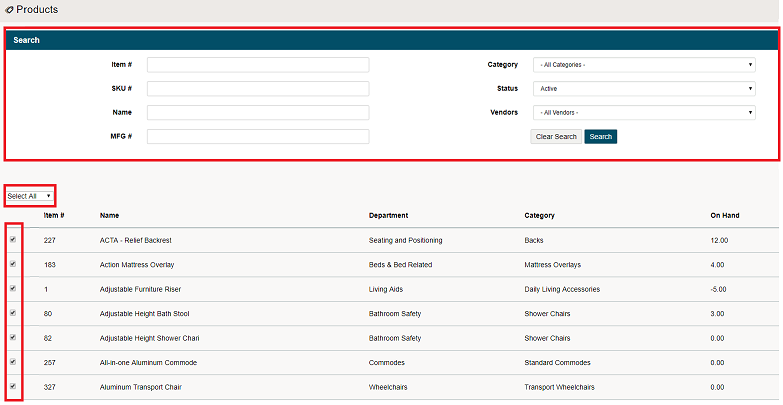
Scroll to the bottom of the screen and choose Next Step.

Ensure the Filter settings are correct for your printer setup. Select the quantity of each label you would like, including for each listed SKU (if multiple SKU's) below each item number.
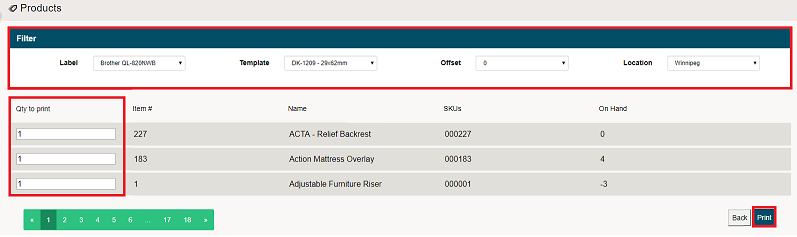
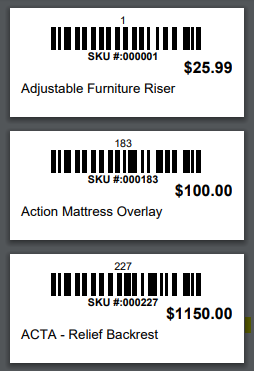
Scroll to the bottom of the screen and Choose Print. Your labels will be displayed prior to printing.
Comments
0 comments
Please sign in to leave a comment.