
When a customer purchases a product, you may need to service the product several times throughout the products life.
Example
Michelle has purchased a Scooter from Vivian's Scooter shop. The scooter that was sold to Michelle was serialized (010101).
Three years down the road, Michelle's Scooter battery seems to not be holding a full charge. Michelle phones up Vivian's Scooter service and books an appointment, in turn, Vivian checks her weekly schedule and books an appointment for Michelle in her GO Business / MEHD system and sends out an email reminder.
During the appointment, Vivian notices that the batter needs a new positive tab, and the scooter needs a new right front tire. Both of those items will be covered under warranty. Vivian then goes into her GO Business / MEHD system and selects the Service Dashboard.
She types in Michelle's name and selects her account. It populates the Assets purchased by Michelle, and Vivian simply types in the notes on what she serviced on the assets.
Next time that a Service Tech from Vivian's Scooter shop goes to service Michelle's scooter they can see the notes that previous employees have saved about the asset.
Steps
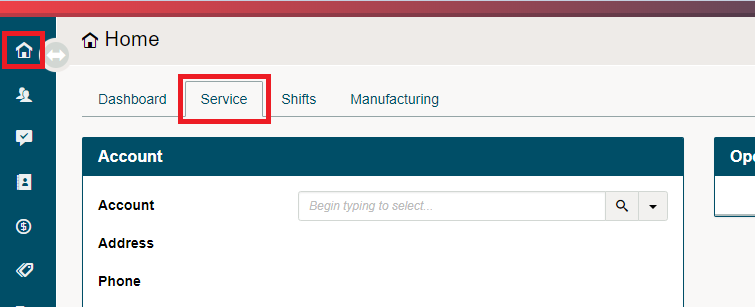
On the Home Dashboard, click on the Service Tab
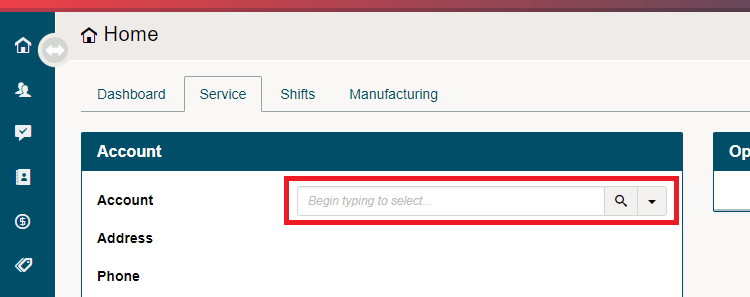
Once on the Service Dashboard, type in the Customers Name in which you would like to search their Assets.
Scroll to the bottom of the Service Dashboard, and view all the Assets on the customer's profile.
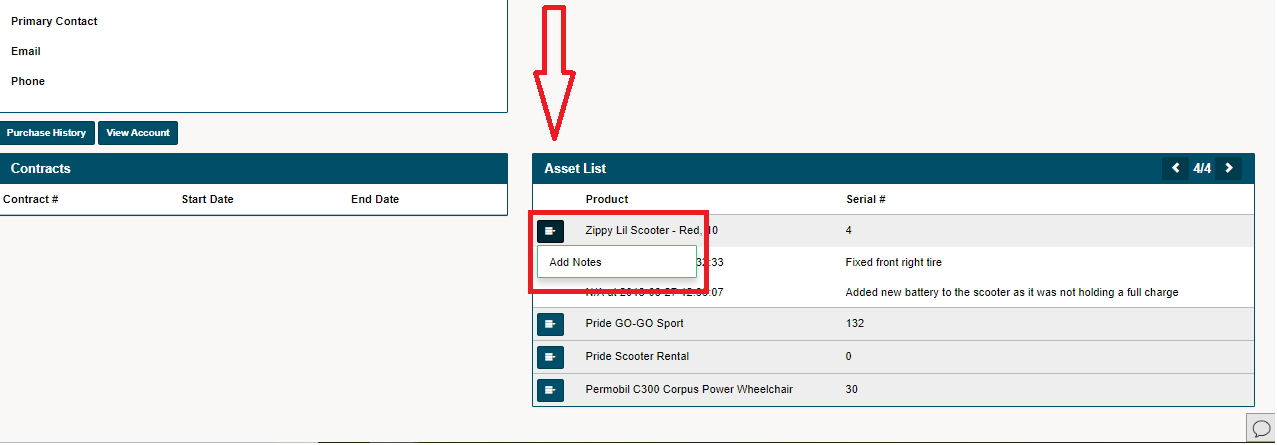
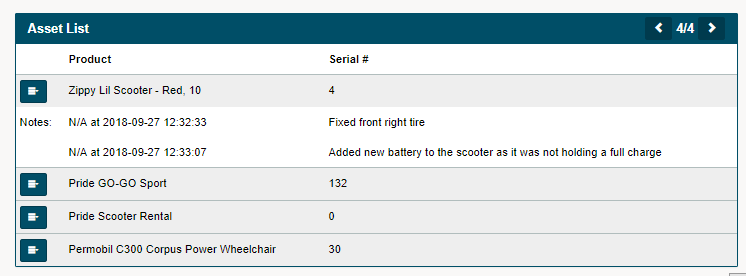
To Add Notes, click on the blue edit button beside the Asset. To View notes simply look at the time stamped note below the product.
Comments
0 comments
Please sign in to leave a comment.