
When you're ready to invoice your customer, if you have an existing sales order for this order, you will convert the sales order to an invoice, rather than create a new invoice.
Update: 2018-12-17 The system will alert you when creating duplicate invoices
Steps
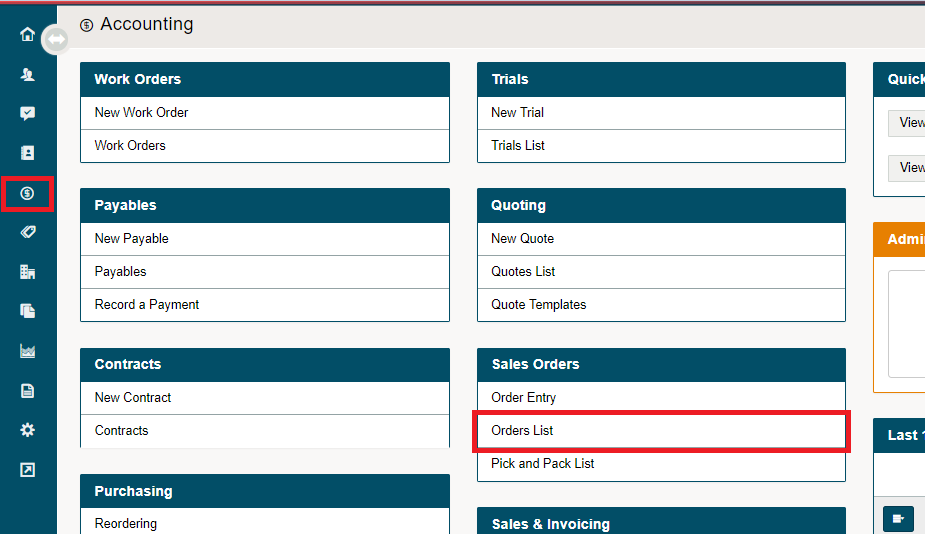
Go to the Accounting, and under the Sales Orders Heading, choose Orders List.
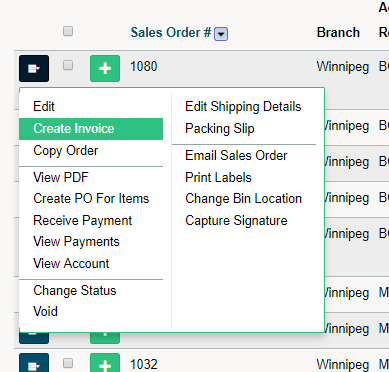
Click on the blue menu button beside the Sales Order. Then on the dynamic menu select Create Invoice.
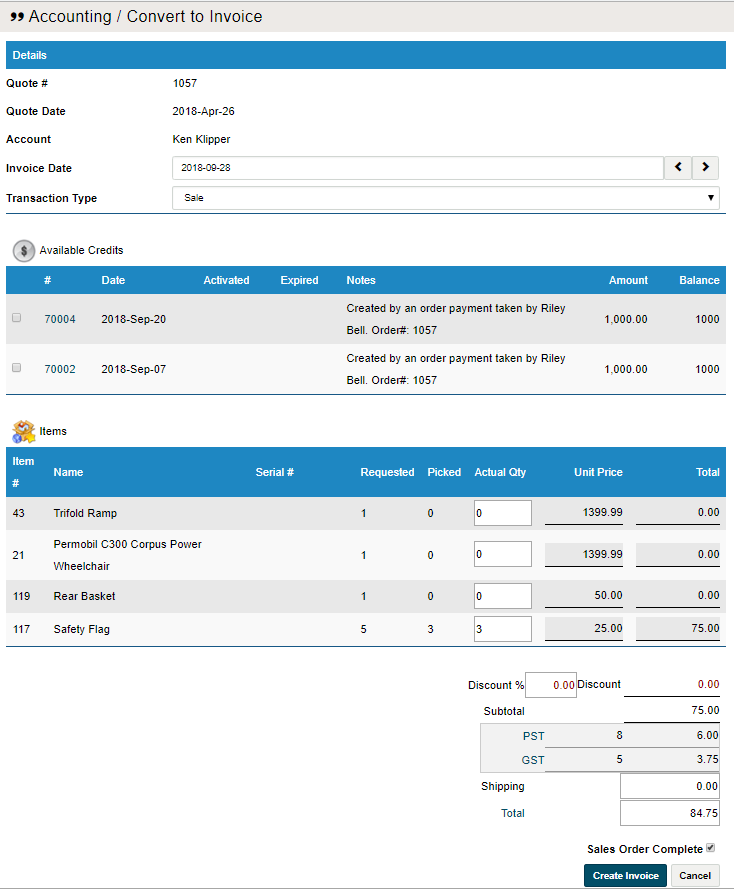
A new window will appear. If the customer has any credits on file they can be applied to the payment by selecting them from the checkbox. Fill out the Actual Quantity of products that are being delivered to the customer at that time.
Finish by adding any discounts or shipping costs and clicking the Create Invoice button.
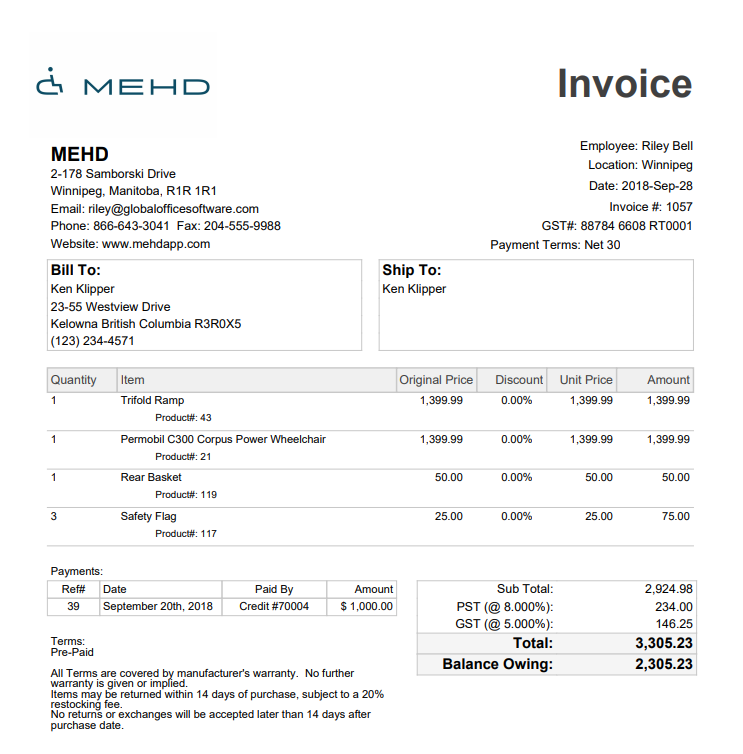
A PDF of the Invoice will populate
Finish by Receiving the Payment for the Invoice. If there is a credit card on file or credits you can use them at this time.
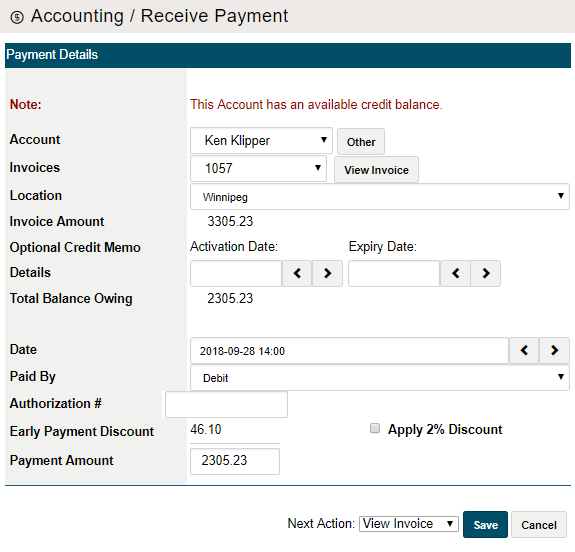
If the customer is paying at that time, finish by collecting from the customer and selecting the correct payment type under Paid By.
If partial payment was taken, this will be reflected in their total and owing columns, as well as the status of the order updating to Invoiced.

Multiple Invoices for One Sales Order
Please note: You can create multiple invoices for one sales order to account for backorder situations. If an invoice for the sales order has already been created, you will be alerted with a pop-up. You then have the option to create additional invoices for the backordered items, and the invoice will be appended with a suffix number, such as -001, -002, etc. The pop-up alert also serves to ensure you don't create unnecessary duplicate invoices.
Comments
0 comments
Please sign in to leave a comment.