
Often sales might have parts you might not have in inventory, in this case, you would want to create a Purchase Order for your customer.
Not to lose the sale, you should also be creating a Sales Order at the same time. With GO Business / MEHD you can seamlessly create a Sales Order while attaching a Purchase Order for your customer.
Example
Bryan needs a new 12" wheel for his scooter so he heads down to Chucks Scooter Shop. The exact wheel that Bryan wants is currently not in stock so Chuck will directly put in a Purchase Order for Bryan and get the Wheel Shipped to the shop.
Chuck goes ahead and writes up a Sales Order for Bryan, and from the Sales Order creates a Purchase Order. The Purchase Order, in turn, is directly linked to Bryan's Sales Order.
Steps
Create a Sales Order (Click Here to Learn How)
OR
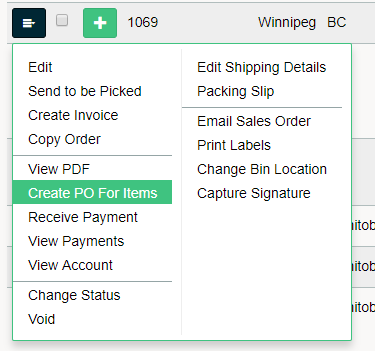
From an existing Sales Order in the Order List, click on the blue edit button beside the Sales Order.
From the menu click on Create PO For Items.
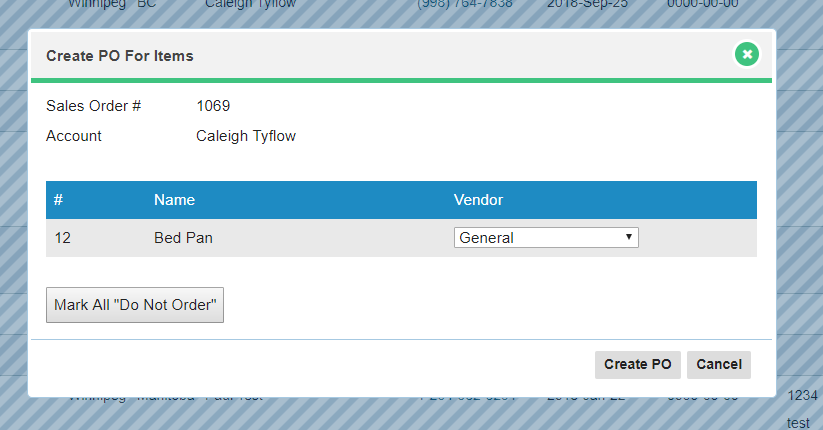
A new window will appear in which the items on the Purchase Order are listed. If the item is not to be purchased, change the drop-down menu beside the item to -Do Not Order-.
If the items is to be purchased, leave the drop-down menu as is beside the product and select Create PO.
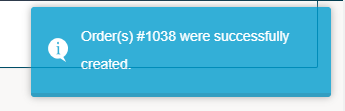
You will be taken to the Sales Order List, with the Purchase Orders that were created listed in the top right-hand corner.
After receiving confirmation, flip over to the Purchase Orders List under the Accounting Module. From the list, you will be able to see the Purchase Order(s) created for the customer at the top of the list with the attached Sales Order #.

Complete the Order.
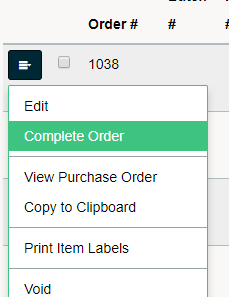
Email directly to the Vendor from your GO Business / MEHD system.
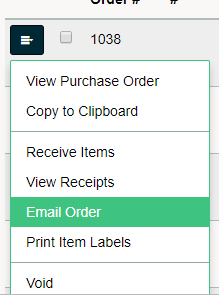
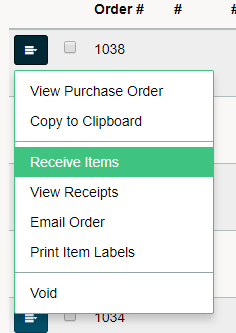
Once the items arrive, be sure to Receive Items in the Purchase Order.
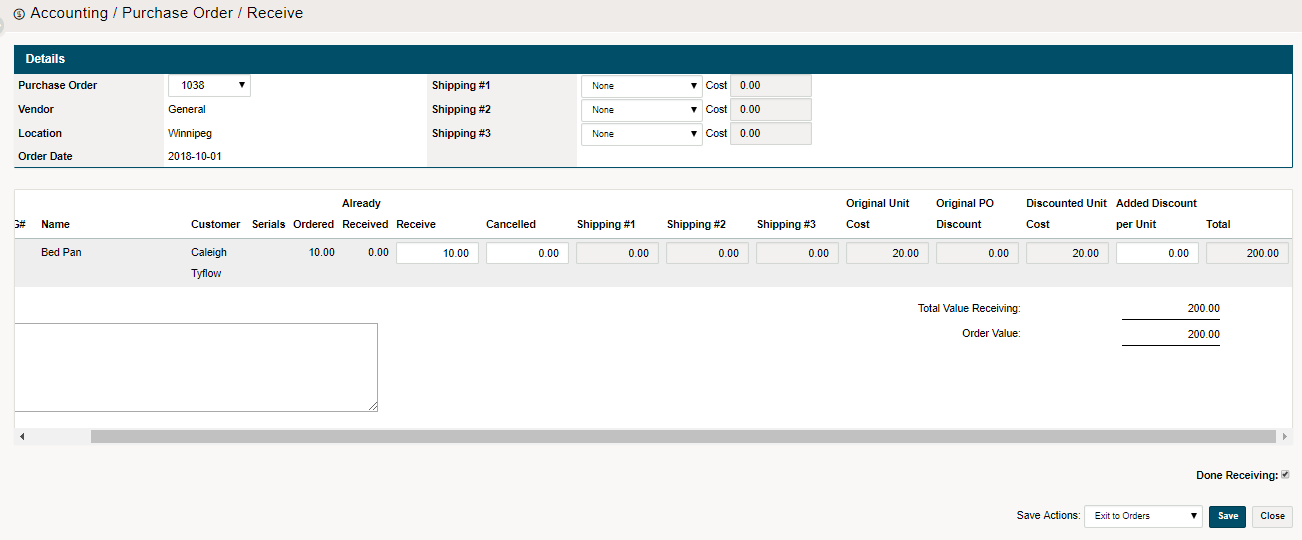
Be sure to verify the amount ordered is the amount received, add any additional costs or discounts necessary. The items will now be received into inventory at your location.
From here, you will be able to call or email the customer back and let them know their products are in stock. Simply receive payment for the Sales Order to complete the transaction.
Comments
0 comments
Please sign in to leave a comment.