
Have an item that can't be sold without another item OR that you would highly recommend being sold with another item?
Use the 'Auto-Add' button to attach products to each other when creating (Quotes, Sales Orders, and Invoices).
Example:
When selling a new rim at Jeff's bike shop, Jeff often includes a new tire. In doing so, Jeff wanted the product names 'bike tire' to auto-populate on his (Quotes, Sales Orders, and Invoices). It helps as sometimes Jeff and his staff can forget to add this product.
To do so, Jeff simply uses the Auto-Add button inside of products, related products.
Now every time Jeff adds a rim to his (Quotes, Sales Orders, and Invoices) a 'bike tire' also auto populates.
If Jeff doesn't sell the bike tire with the rim, he simply deletes the bike tire from the (Quotes, Sales Orders, and Invoices).
Steps:
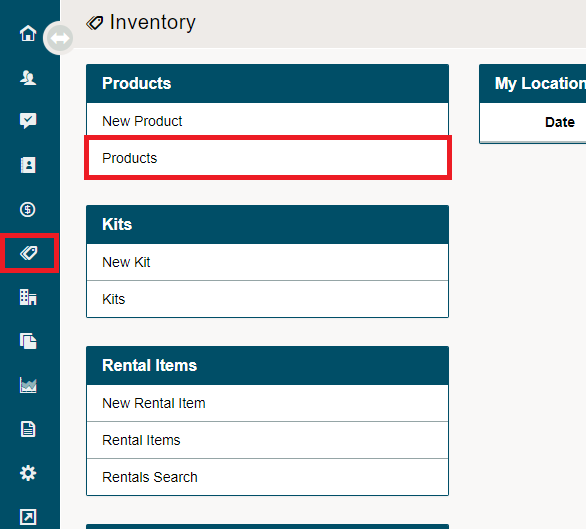
Go to the Inventory module, followed by clicking on products.
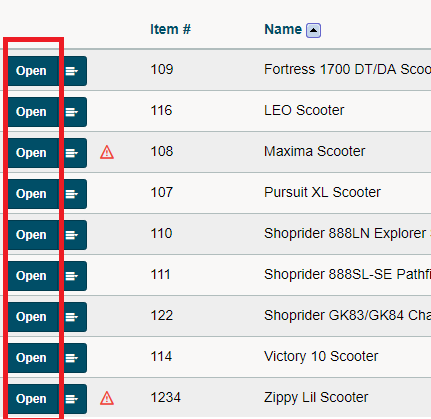
Click the blue open button beside the product you wish to add additional products to.
Inside of the product, navigate to the Related Products Tab. Click the Add button, followed buy the Item Number or Name of the product you wish to add.
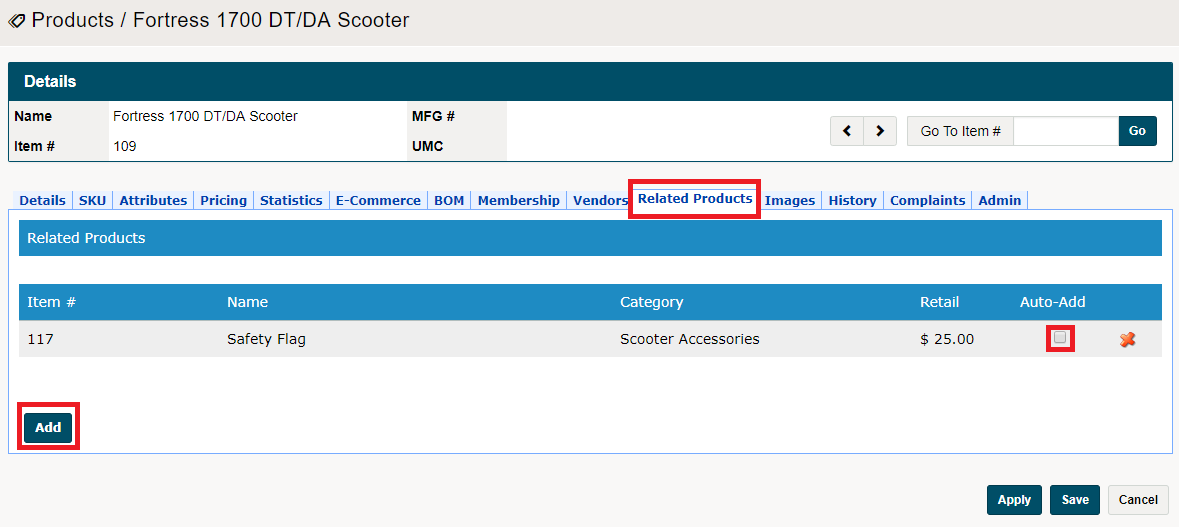
Click on the Auto-Add button, and finish by clicking on 'Apply or Save'.
To delete the item, click on the red (x) button to the far right of the item in the Related Products page.
Comments
0 comments
Please sign in to leave a comment.