
Learn more about the rates, types, and steps to pay commissions to employees.
Rates
- Flat Rate: The same commission amount will be used no matter the retail value of the product sold. For instance, the Flat Rate commission of ($10.00) will be used on every product sold in the wheelchair departments. If the employee sold (3) wheelchairs at the prices of ($1000, $1200, and $1500) they would calculate (3 * $10.00) = $30.00 of commissions.
- Percentage: The commission amount will fluctuate with the retail price as the commission is a percentage of the retail price. For instance, a Commission Percentage of (10%) on all products in the wheelchair department. If the employee sold (3) wheelchairs at the profits of ($1000, $1200, and $1500) they would calculate ($3700 * 0.10) = $370.00 of commissions.
- All commissionable percentages are calculated after cost (retail - cost). Therefore if you have a product that retails for $2000 and costs $1000, the employee will earn commissions on the profit of selling the product (2000-1000 = 1000 * 0.10 = $100 commission).
(3) ways to set up commissions
1 - Commission Per Employee
Use Commissions Per Employee if you have differing commission rates per employee on similar products. This could be due to seniority or wage negotiations.
Learn about Employee Commissions
2 - Commissions Per Department
Use Commissions Per Department if employees will earn the same commission on products in the same department.
Learn about Department Commissions
3 - Commissions Per Category
Use Commissions Per Department if employees will earn the same commission on products in the same category. If commissions per department are already set up for the department that connects to the category they will override the listed commission rate.
Learn about Category Commissions
How to Report and Pay Commissions
Go to the Accounting Module located on the left-hand menu, then view the options under the Commission heading.
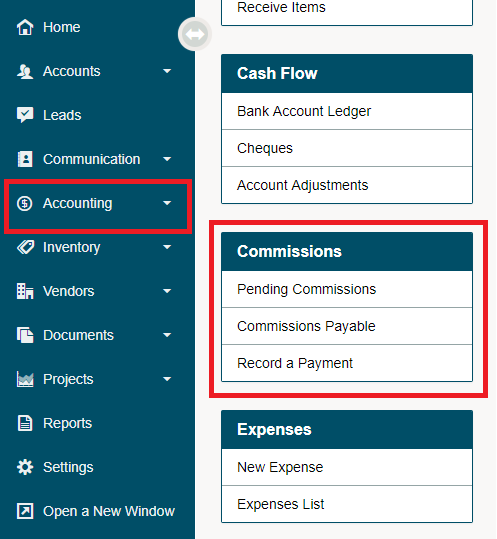
Pending Commissions
Start by selecting the Staff Member and the Invoice Status (All, Paid). If commissions are not paid out until a payment by the customer is received, be sure to change the Invoice Status to Paid.
The items, with the attached account, sales date, quantity, commissionable amount, rate and total will be displayed.
Scroll to the bottom right to see the total commissionable amount of products sold and the total commission the employee should receive.
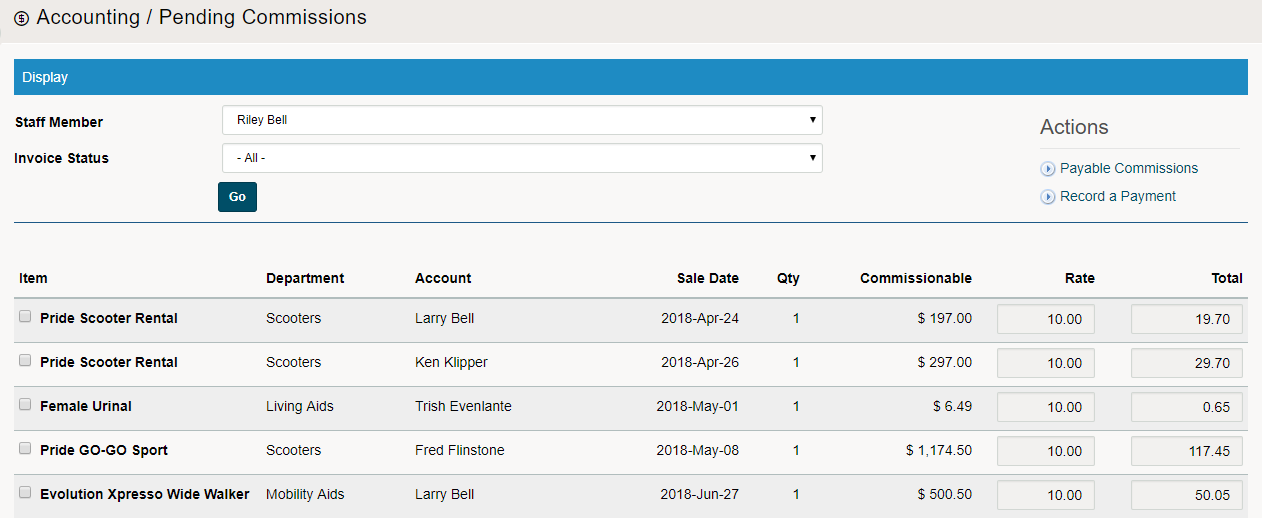
Be sure to [] check all that are approved by a manager. They can be approved (one by one) or at the bottom of the page use the (Check all / Uncheck all).
From there, select the With Selected [Approve or Void] in the drop-down, then click on GO.
Change Commission Rate or Commission Total manually on the Pending Commissions Page: First, check off the item and row you wish to change. The Rate and Item will now be unlocked and you will have the ability to manually change the rate and total before approving.

After you have Approved Commissions, you will now need to see the Commissions Payable.
Commissions Payable
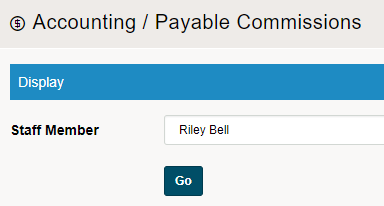
Start by selecting a staff member and clicking on GO.
A list of all the Payable Commissions will populate. Check over the Invoices if needed and check the box beside the Invoice #. If you would like to (Check All or Uncheck All) you can do so at the bottom of the page.
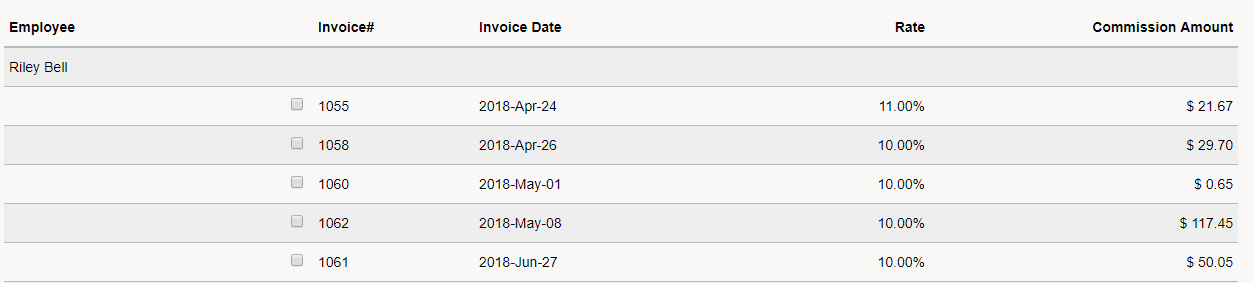
Finish by recording a payment for all of the Payable Commissions. Select Record Payment at the bottom of the page to pay out the commissions, select Void to void the commissions payable.
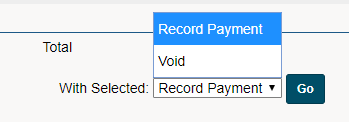
You will then be brought to Record a Commissions Payment screen.
Record a Commission Payment
The staff member will auto-populate along with the commissionable payment amounts. If you would like to pay all of the cheques out at once be sure to click on the first commissionable payment and then hold shift and click on the last amount.
This will highlight all commissionable payment amounts in grey and add them to the Amount field.
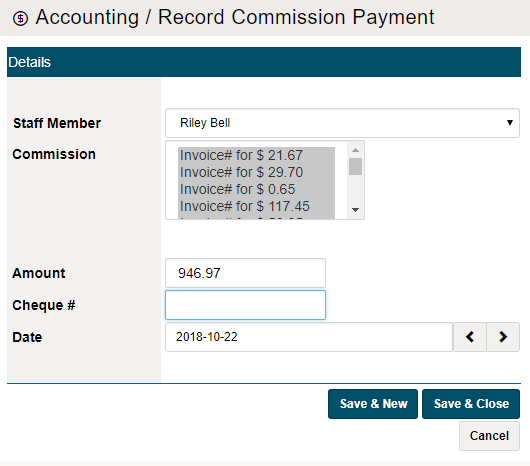
Be sure to place a reference of the Cheque # and the Date the commissionable payment was paid. Finish by clicking on [Save & New] or [Save & Close]. The commissions will then be paid by the cheque to the employee.
Comments
0 comments
Please sign in to leave a comment.