
When receiving products from a Purchase Order you will need to create a Payable from the Purchase Order. Follow along to do just so.
Example:
Joe's garage creates a Purchase Order for 12 new winter tires from Max Tires. Joe lists all the products in the Purchase order in his Global Office Software system.
Joe then emails it to Max Tires. Max tires, in turn, lists the price for the tires. Joe agrees to purchase the tires for $50/tire for a total of $600.00. Joe complete the purchase order by updating the price of the tires in the Purchase Order and changing the Status of the Purchase Order to Sent.
Next week Joe receives the 12 winter tires. He goes into the Purchase order list and uses the receive items function.
He then creates a Payable from the Purchase Order. His bookkeeper Kale, uses the Payables to list the taxes on the Purchase order and Pay the Vendor while recording it in Joe's Global Office Software system.
Steps
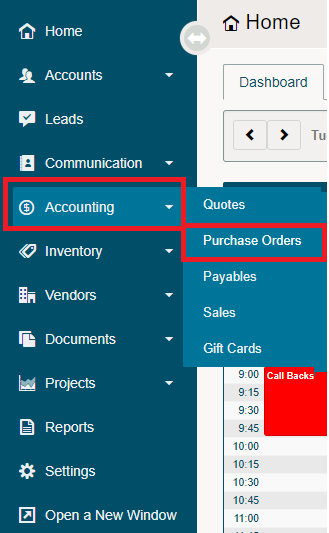
Hover over on the Accounting Module, and click on Purchase Orders to view the list of Purchase Orders.
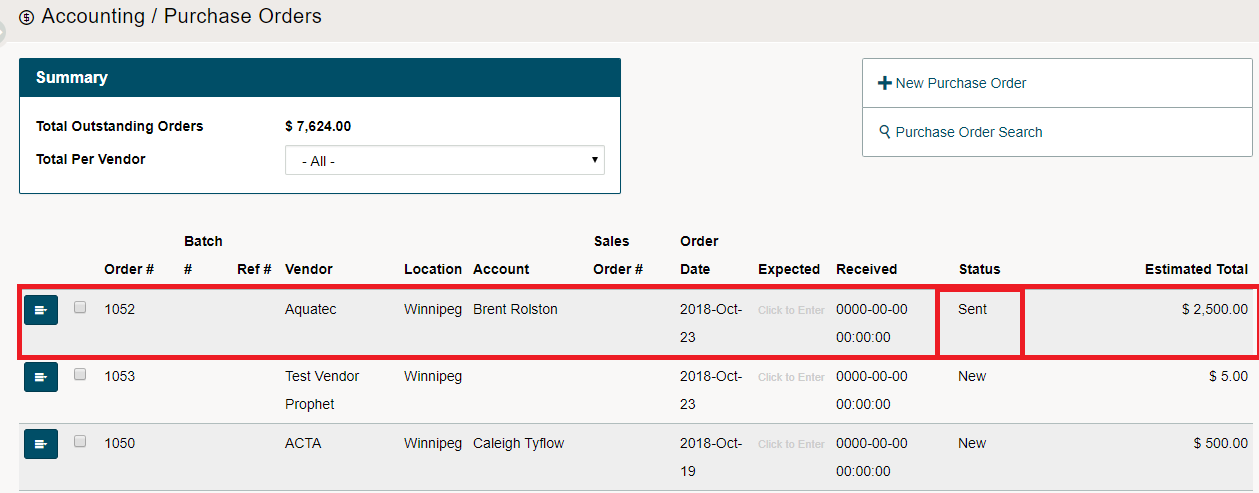
The Purchase Order must have the status of 'Sent'.
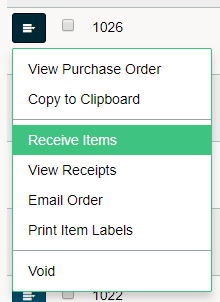
The menu will then show the option to Recieve Items, click on it.
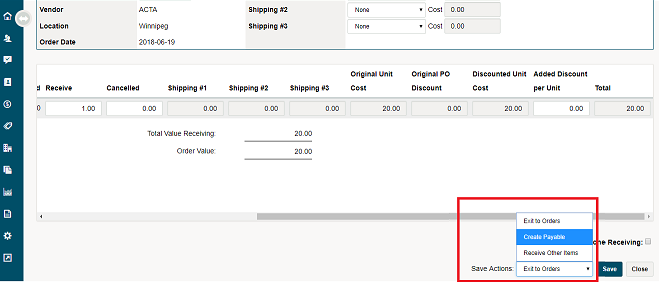
In the receiving screen verify the number of items received was correct and add any additional shipping charges and tariffs. When saving, be sure to change the Save Actions to Create Payable.
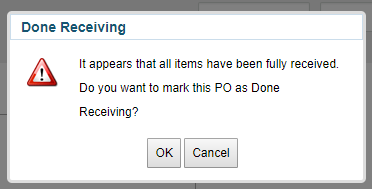
A new window will appear, if the PO is done, click on OK.
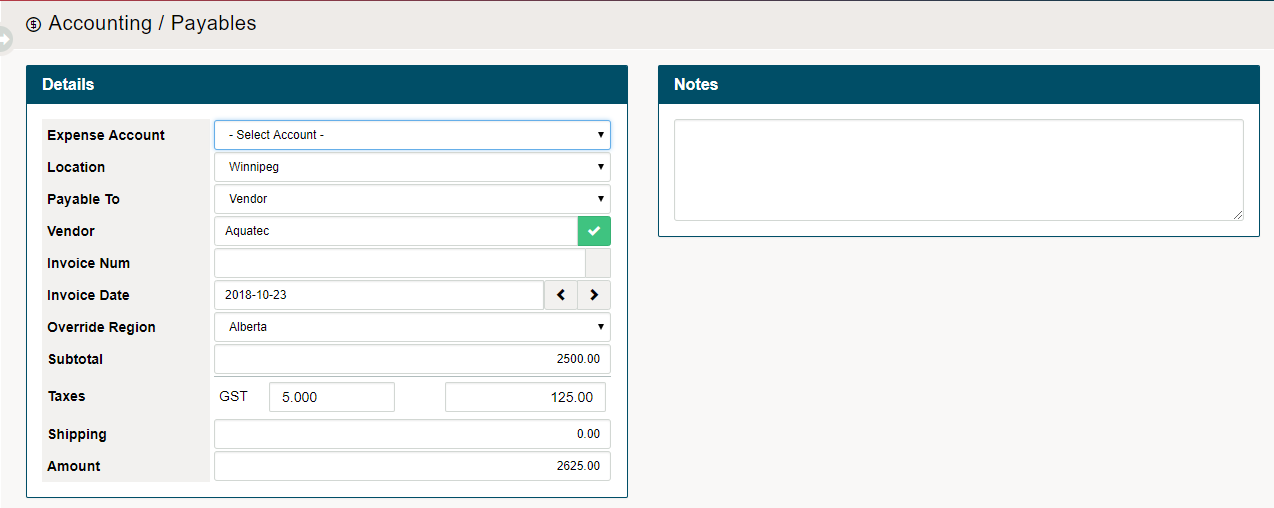
A new payable will be created. Select the expense account, location, add the invoice number from the vendor, the invoice date, and an override region if needed (tax purposes). Add additional notes to the payable if needed.
Click here to learn how to add Taxes to a Regions.
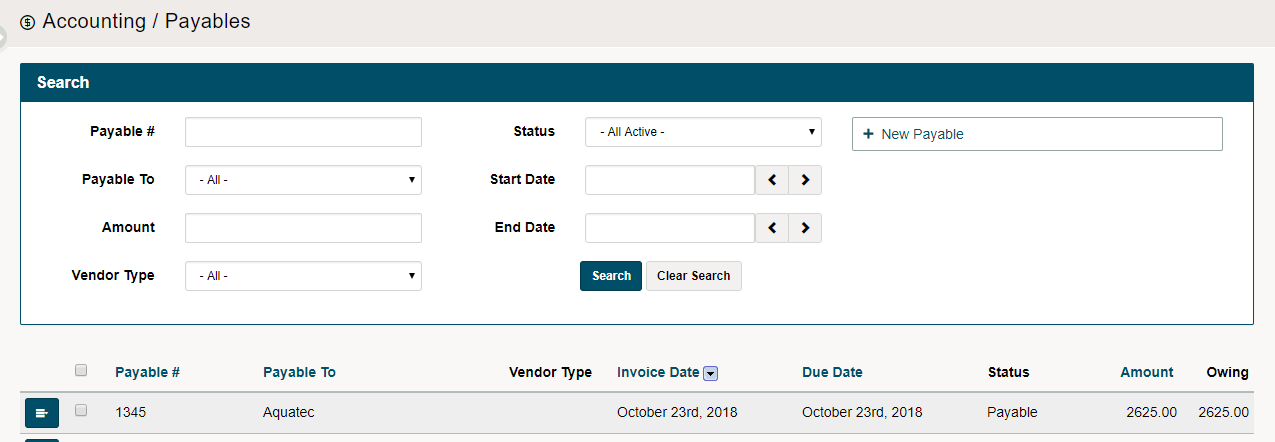
After saving the payable you will be able to view it in the Payable List.
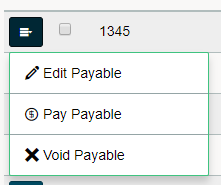
Click on the menu button beside the Payable and choose to edit the payable or in this case, Pay Payable.
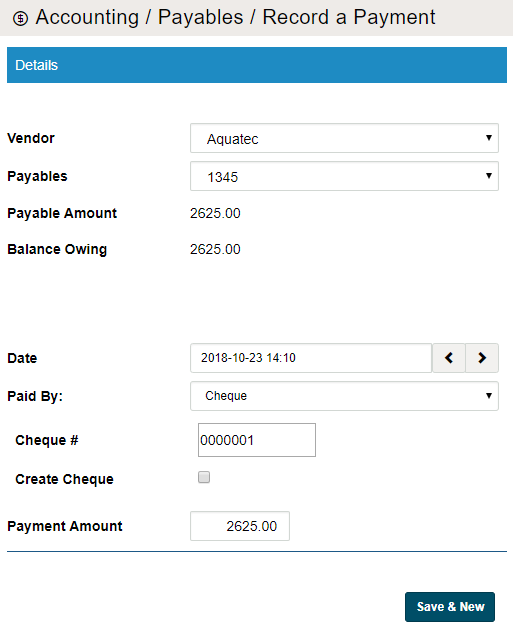
On the Record a Payment screen, change the payment type add fill out the additional fields such as the cheque number if a cheque is selected. Finish by clicking on [Save & New]
You will now be able to see the list of payables with the status of paid or payable listed. Use the search bar to narrow the Payables to search for the exact payable that you would like to pay.

Comments
0 comments
Please sign in to leave a comment.