
If your company would like to include the applicable taxes for vendor-based purchase orders, use the steps below to turn on taxes in purchase orders.
Steps
Turn on Purchase Order Taxes.
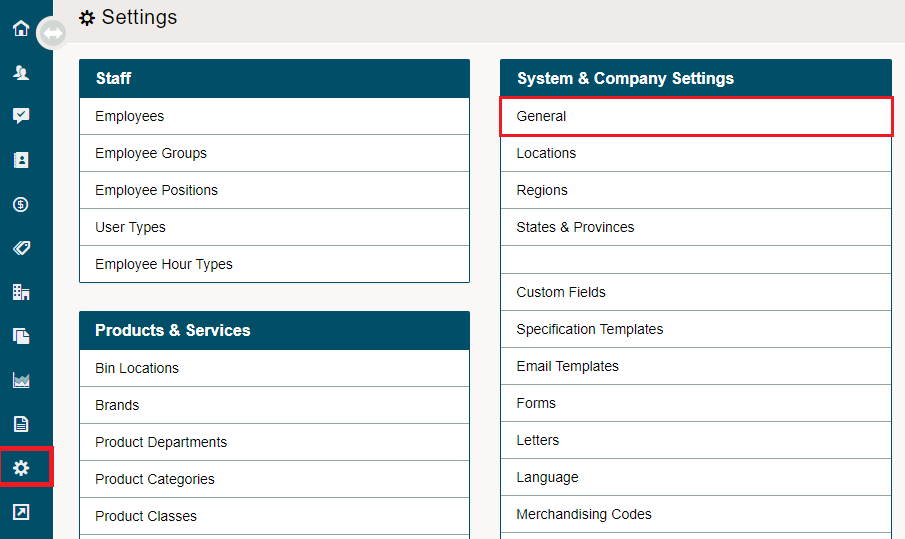
Go to System Settings module, followed by clicking on General under the System & Company Settings.
Click on the System Tab.

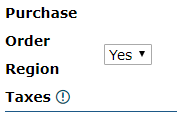
On the right-hand side under the Accounting heading, turn on Purchase Order Region Taxes. Be sure that you have set up taxes and attached taxes to regions prior to turning this functionality on. Finish by clicking on the [Save] button located in the bottom right corner.
Creating a New Purchase Order
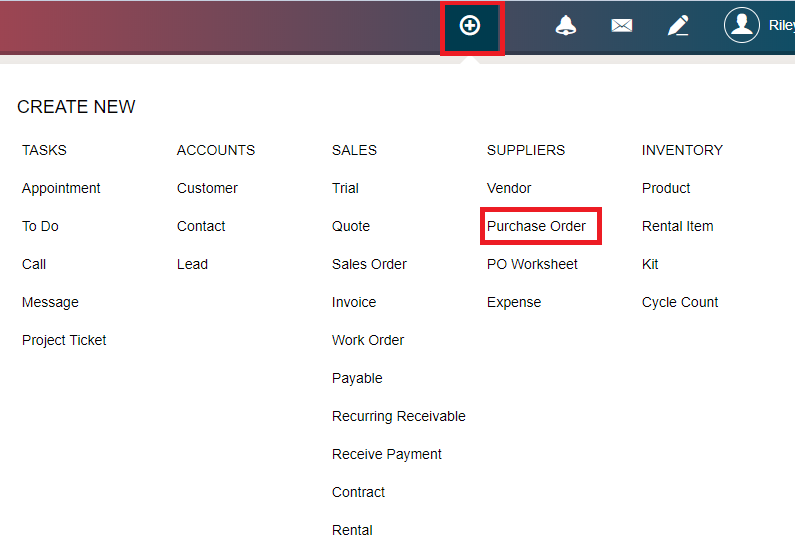
Go to the Quick Create button in the header bar and then click on Purchase Order.
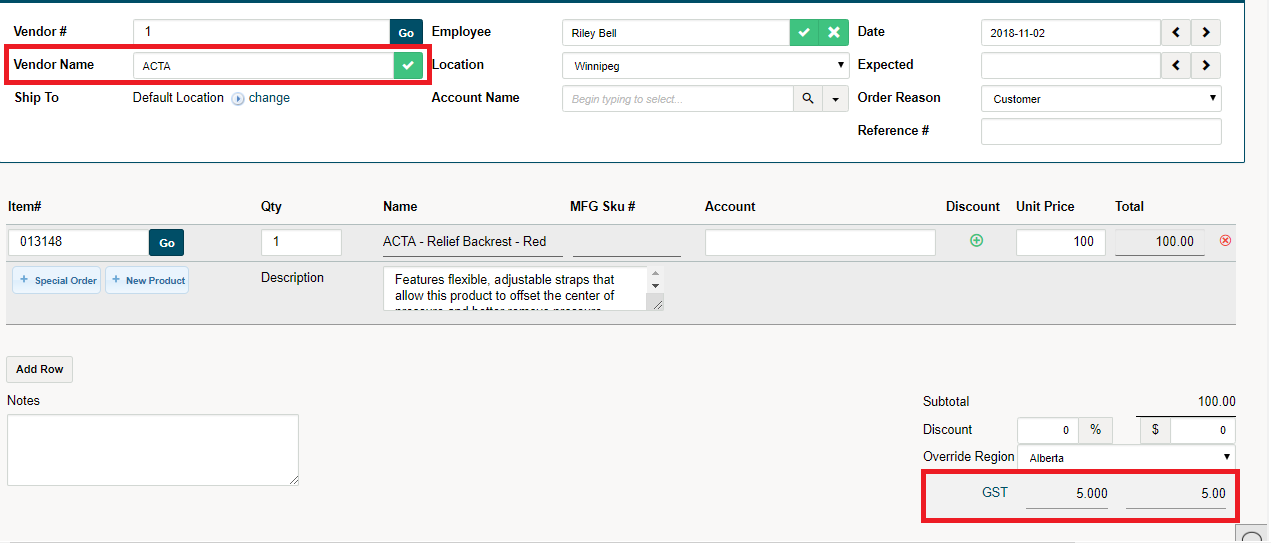
Type in the vendor name. The selected vendor will correspond to the type of taxes that are applied. Be sure that all vendors have a Region attached to their profile, as Regions are attached to Taxes.
Comments
0 comments
Please sign in to leave a comment.