
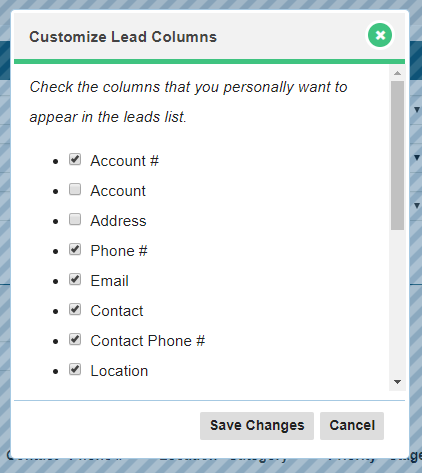
On the Leads module page, you have the ability to customize the columns that are displayed to your salespeople. The columns that are checked off under the Customize leads feature will be displayed as columns
This can also help when quickly sorting through your leads list.
It's recommended that no more than (9) columns be selected at any time. This is due to the display of data on the leads list page.
Steps
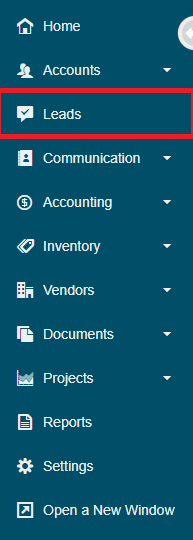
Go to the Leads module located on the left-hand menu, this will open a list of leads.
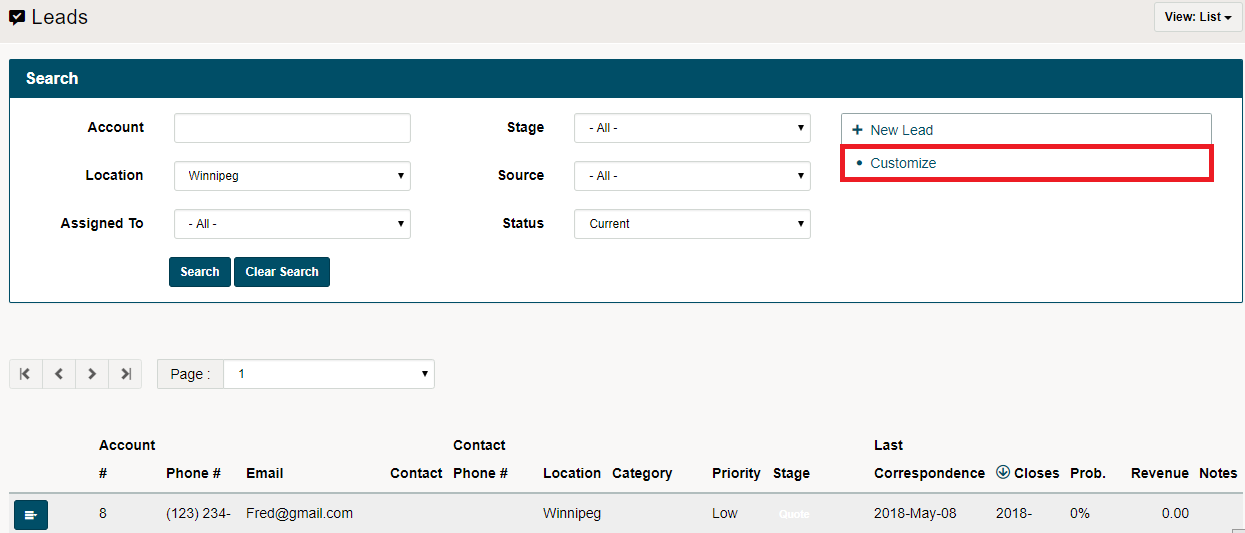
On the list of leads, click on the customize button in the top right-hand corner.
A new window will appear listing the lead columns that you personally want to appear in the leads list. Remember to keep the number of columns that you would like to see to under (9). Click on the [Save Changes] button at the bottom of the page.
All the leads will now display with the columns selected in a List View and the selected columns will appear in each lead card in Column View.
Comments
0 comments
Please sign in to leave a comment.