
Taxes must be set up to properly process the applicable taxes applied to products and services. Taxes will then be linked to regions.
Click here to learn how to attach taxes to regions
Example
| Canada's Province | Rate type (HST, GST, PST) | Provincial rate | Canada rate | Total |
|---|---|---|---|---|
| Alberta | GST | 0% | 5% | 5% |
| British Columbia (BC) | GST+PST | 7% | 5% | 12% |
| Manitoba | GST+PST | 8% | 5% | 13% |
| New-Brunswick | HST | 10% | 5% | 15% |
| Newfoundland and Labrador | HST | 10% | 5% | 15% |
| Northwest Territories | GST | 0% | 5% | 5% |
| Nova Scotia | HST | 10% | 5% | 15% |
| Nunavut | GST | 0% | 5% | 5% |
| Ontario | HST | 8% | 5% | 13% |
| Prince Edward Island (PEI) | HST | 10% | 5% | 15% |
| Québec | GST + QST | 9.975% | 5% | 14.975% |
| Saskatchewan | GST + PST | 6% | 5% | 11% |
| Yukon | GST | 0% | 5% | 5% |
Steps
Go to the System Settings located on the left-hand menu followed by clicking on Taxe Rates under the Accounting Heading.
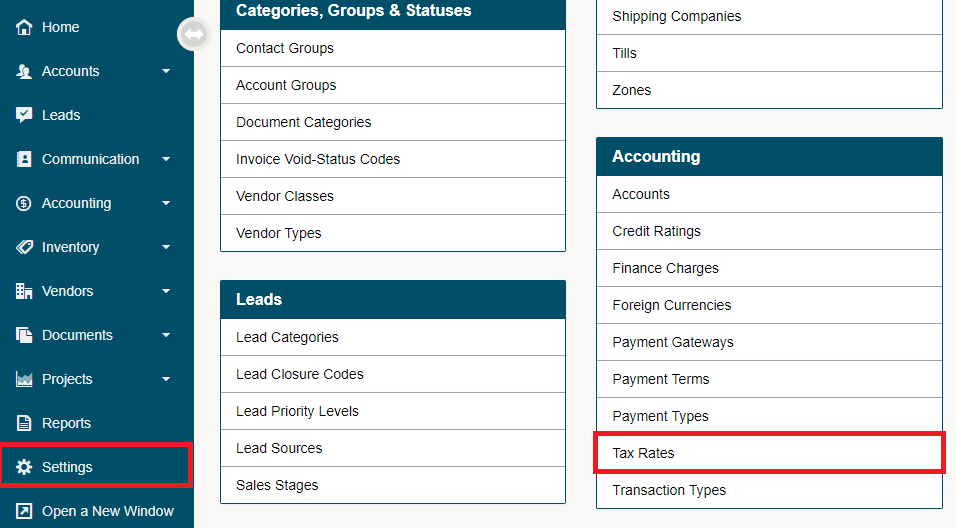
Select the [+ New Tax] button in the top right corner to add new taxes.

Fill out the fields with the code being the exact wording that will appear on customer receipts.
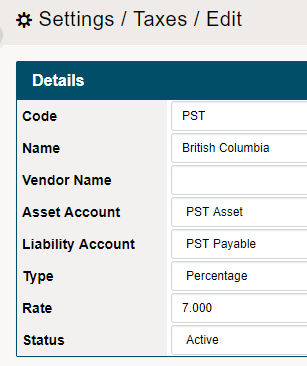
- Code: Assign a code for example: SK for Saskatchewan.
- Name: Assign a name for tax for example: Saskatchewan PST.
- Liability Account: If applicable, select an account from the drop down menu.
- Type: Select from Percentage or Per Unit Fee (Levy).
- The Levy can be used for occasions when certain products incur a mandatory fee whenever sold.
- Rate: Enter the rate of tax.
- Status: The status can be set to Active or Deleted.
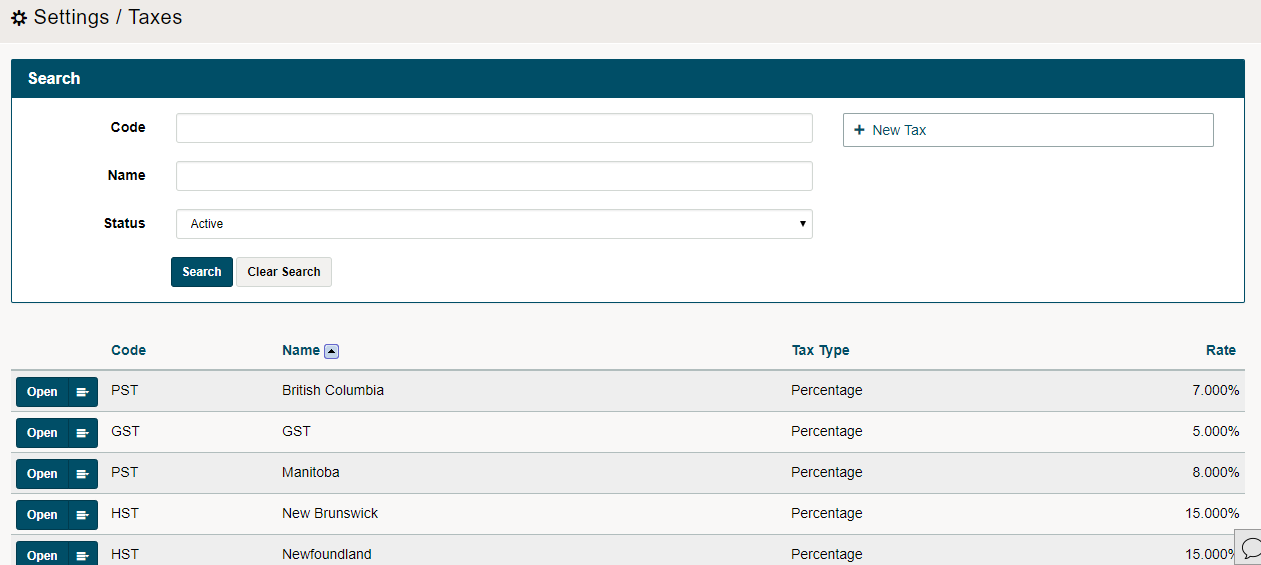
Finish by clicking on the save button. You will now be able to see a list of all tax rates that have been created.
Comments
0 comments
Article is closed for comments.