
Locale
Complete the fields. If you check the box "Use defaults when creating system entities," when you create customers, contacts, and vendors these will pre-populate the fields for you.

Other
Display #X Rows: The system will show this number of results per page.
Default Dashboard: The system will default each user to the standard default dashboard or cashier dashboard on login.
Session Timeout: Select how long users can remain idle in the system before the system logs idle users out without saving changes.
Telephone Field Mask: When telephone numbers are entered in Phone fields, they will snap to the selected format.

Customers
Default Type: If you mainly deal with businesses or commercial operations, choose Business. If you primarily deal with Individuals, choose Individual. The most visible change you will see is a business will have one line for the name, and individuals will have first and last name fields.
Edit Customer Numbers: If you select No, once the customer number has been created, it can not be changed.
Custom Field Display: If you create any custom fields specific to customers, you can decide if these fields will show on the customer Profile tab, or on a separate tab.

Documents
Default Screen: Choose either the Documents Explorer screen or the standard search screen. Explorer lets the user click through a hierarchy of folders where Seach allows the user to use a search field to find the exact file.
Loyalty Program (If Enabled)
Complete the fields.
The enablement is controlled by the module's settings. Redemption on loyalty points has defaulted to the amount selected. Customers can then use loyalty points when paying for items.

Products
Reorder Level: This is the default value which will show in the Product reordering field.
Products Cost Tracking: Choose between Weighted Average, Entered Value, or Last Purchased.
Extended Description: When set to yes, a Description text field is added to the Product Details tab.
Hazardous Product Details: When set to yes, the default is to check the "Product is Hazardous" checkbox and add three info fields in the Product Details tab.

Programs
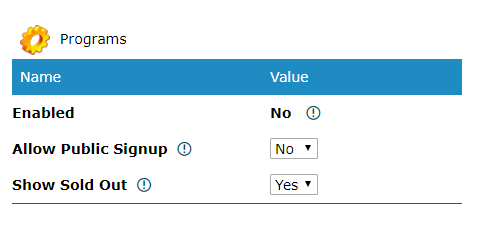
Enabled: This will change from (No/Yes) due to the selection in system module settings.
Allow Public Signup: This will place a link outside of the secure login so that public users can view and signup for programs. During the signup process, they will also create an Account record and portal profile. This requires the program system and the portal system to be enabled in module settings.
Show Sold Out: Set whether a public show can show sold out classes.
Scheduling
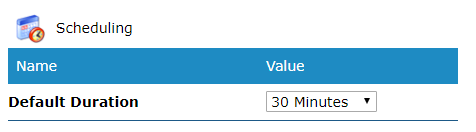
Default Duration: The duration at which your appointments on the schedule will automatically default to every time you create a new appointment.
System Emails
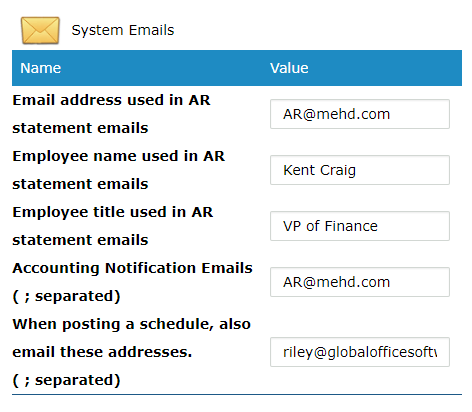
AR Statement Emails: What email should you clients email back when paying invoices.
Employees Name in AR Statement: Employees name that handles customers requests to pay invoices.
Employees Title in AR Statement: Employees title that handles paying customer invoices.
Accounting Notification Emails: When multiple people need to be notified when AR statements are sent out.
Posting Schedule Email Addresses: List all managers or employees separated by their email address. This will send them a direct email everytime that a new schedule is posted.
Webmail
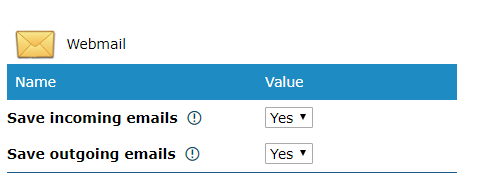
Save incoming emails: Based on the address from which you read an email in the webmail system, it will attempt to find a matching customer record. If it finds a match it will save the email to the customer's correspondence tab.
Save outgoing emails: Based on the address from which you read an email in the webmail system, it will attempt to find a matching customer record. If it finds a match it will save the email to the customer's correspondence tab.
Comments
0 comments
Please sign in to leave a comment.