
Lead Closure Codes help users and managers track why leads are closing. Looking at historical information on why leads were closing will lead your team to an analytical approach of why the lead was closed.
Example
- Contact back in 6 Months
- Not Ready to Purchase
- Went with competition
Steps
Go to the System Setting module located on the left-hand menu followed by clicking on the Lead Categories button under the Leads heading.
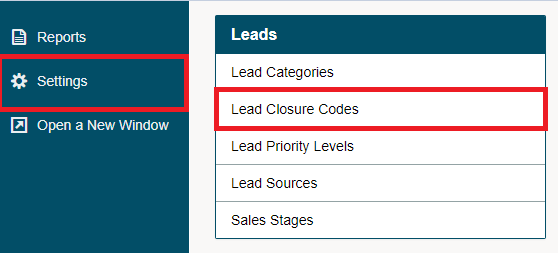
Click on the [+ New Lead Closure Code] button in the top right-hand corner.

A new window will appear with the following fields:
Name - The name of the new lead closure code. The name will appear in the lead closure window when (lead complete/lead dead) on the Leads Module page under the leads menu button. Type in a suitable name.
Colour - Colour to be displayed on the Lead listing page
Status - Active or Inactive. Inactive Lead Closure Code will not appear when creating a new Lead.
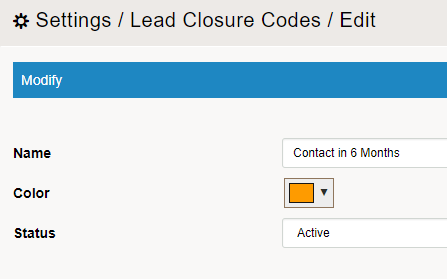
To Edit or Delete a Lead Closure Code
Click on the menu next to the lead closure code. In the drop-down menu then click on Edit or Delete. By clicking on delete, it makes the closure code inactive. This allows you to search for the closure code in the list of closure codes and in reports.
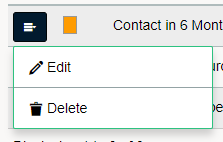
To view more analytical information on Lead Closure Codes, use the Comprehensive Leads Report.
Inside of a Lead
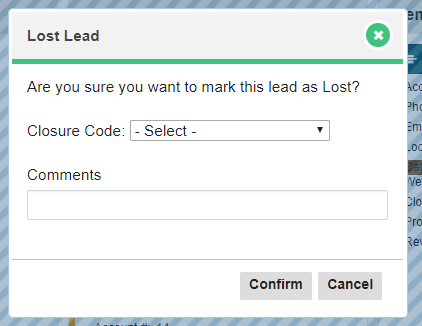
Click on the Leads module, followed by the edit button beside the lead you wish to close. In the drop-down menu, click on Lost.
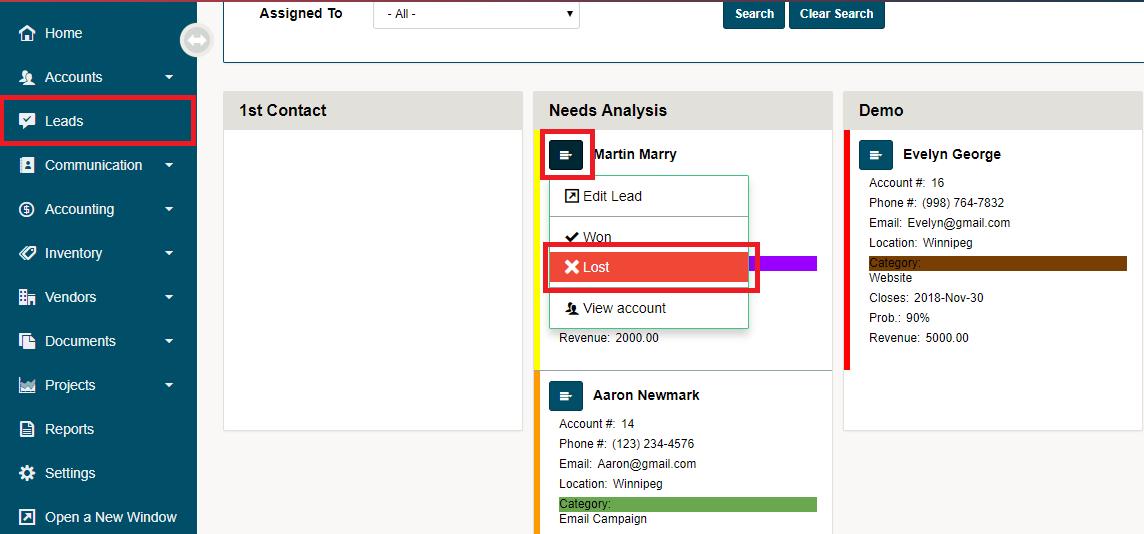
A new window will appear, click on the drop-down field beside Closure Code to select from the codes you have previously created. Type in any additional comments that will help management come reporting on Lost Leads through the Comprehensive Leads Report.
Comments
0 comments
Please sign in to leave a comment.