
Lead Categories allow you to track lead for reporting purposes. Looking further into the categories and budgets that have been set for marketing activities will help create an analytical analysis of Lead Categories.
Lead Category VS Lead Source
|
Lead Category |
Lead Source |
|
Referral |
Customer, Partner Company, Employee |
|
Social |
Twitter, LinkedIn, Facebook |
|
Search Engine |
Google. Bing, Yahoo |
|
Event |
Seminar, Webinar (e.g. Seminar 6/6/16) |
|
Advertisement |
Print, Web, Remarketing (Print Ad – My Business Magazine June) |
|
EDM |
Email Campaign #1, Email Campaign #2, |
|
Website |
Called In, Contact Us Form, Estore |
Steps
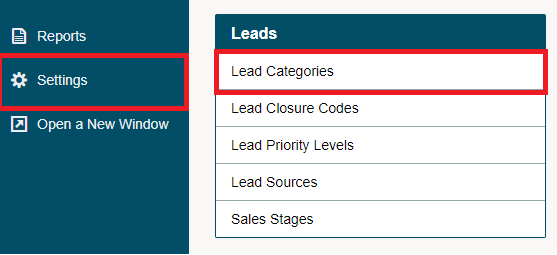
Go to the System Setting module located on the left-hand menu followed by clicking on the Lead Categories button under the Leads heading.
On the Lead Categories page, select [+ New Lead Category] button in the top right-hand of the page.

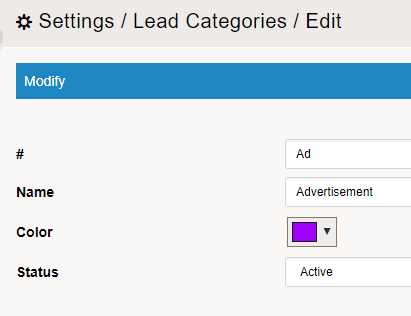
On the New Lead Category screen, provide the following information:
# - Number of the Lead Category
Name - The name of the new lead category. The name will appear in the category drop-down list when you are creating a new lead. Type in a suitable name.
Colour - Colour to be displayed on the Lead listing page
Status - Active or Inactive. Inactive Lead Categories will not appear when creating a new Lead.
Finish by clicking on the [Save] button.
Comments
0 comments
Please sign in to leave a comment.