
As you might sell and purchase from foreign countries, you will have to adjust dollar amounts for costs and prices to reflect that of the country you are completing business in.
You can set as many foreign currencies as you like, and define the exchange rate as often as you like.
It is best practice to adjust the foreign exchange rate as often as is necessary for your business to match that of the fluctuating exchange rate.
Note: Prices can be adjusted on the fly when invoicing or creating purchase orders
Example
Code: USD
Name: USD
Rate: 1.3100
This means that all products can be imported in USD, as well as converted to USD. This will help when it comes time to create a Purchase Order or sell products that have been imported.
Steps - Settings
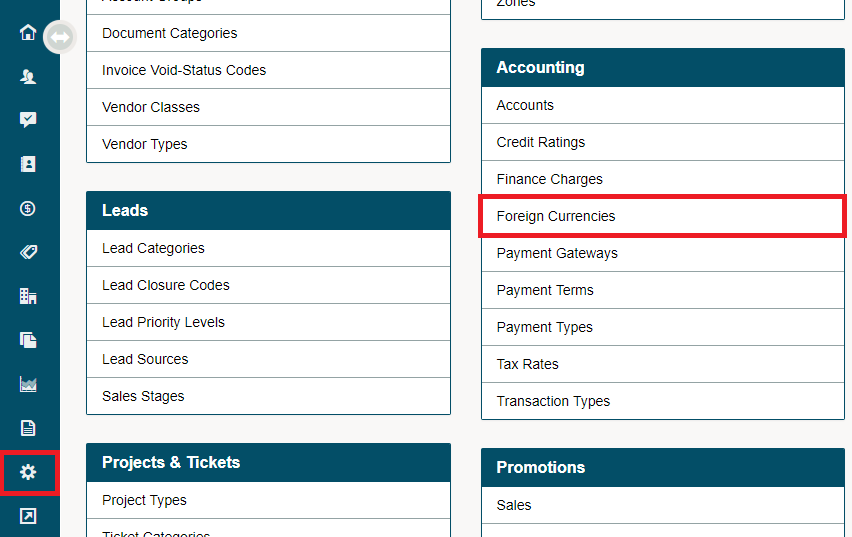
Go to the Settings. Under the Accounting Heading, choose Foreign Currencies.
Click on the (+ New Foreign Currency) button.
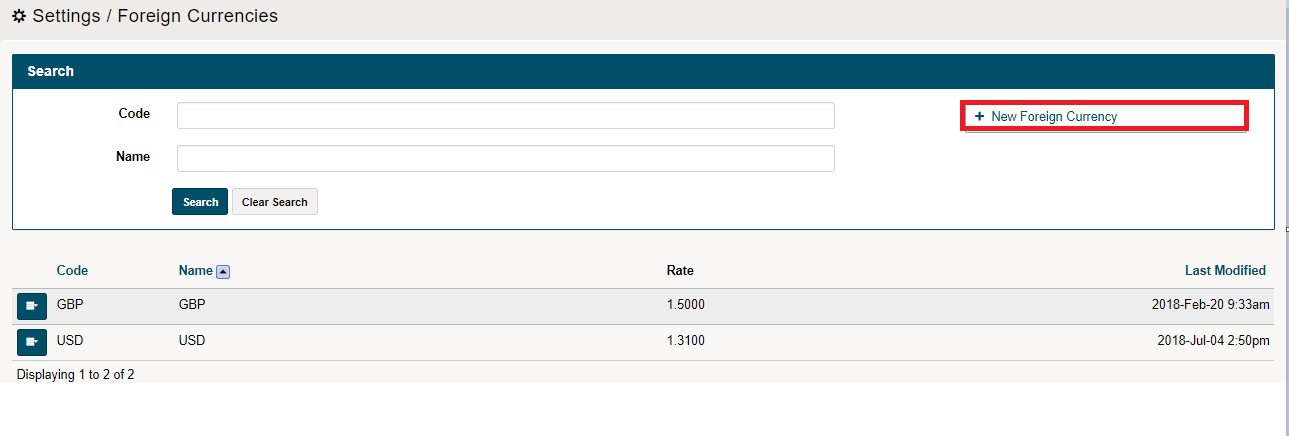
Give the currency a Code, such as, "USD," to represent US Dollars, or "GBP," to represent Pounds Sterling. "CDN," representing the Canadian Dollar, automatically ships with your GO Business / MEHD system and will be the default currency.
After creating the Code and Name for the currency, list the current exchange rate with the currency from CDN.
Define the exchange rate compared to the Canadian Dollar. For example, if it takes $1.35 Canadian to purchase $1.00 USD, you would enter 1.35.
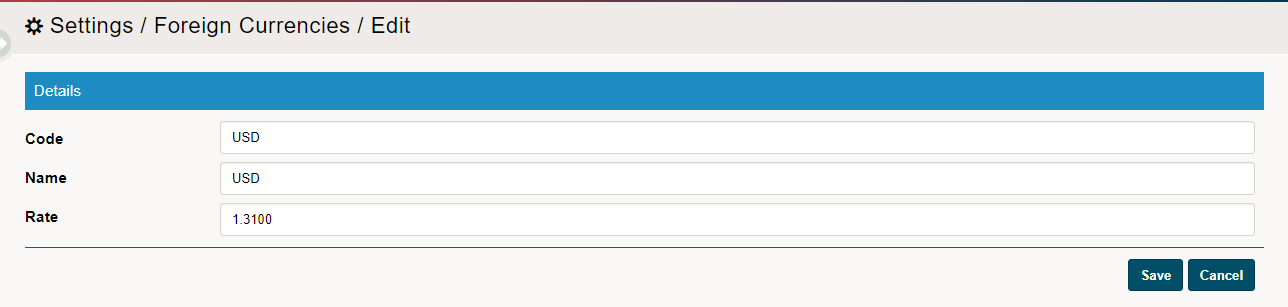
Finish by clicking on the save button. Under the Foreign currencies, you will now see a list of currencies that you can accept in your GO Business / MEHD system.
Comments
0 comments
Article is closed for comments.