
The Comprehensive Sales Report allows you to report on your sales, filtered by a variety of options, such as Customer Groups, Product Departments, and individual products.
Steps:
Go to Reports, then under the Sales Heading, choose Comprehensive Sales.
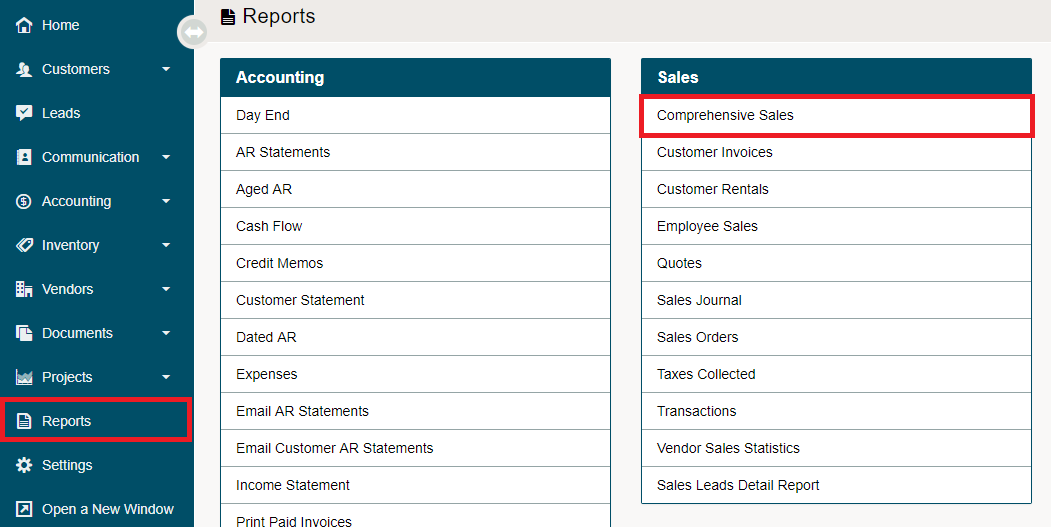
Now you will select all of the criteria to go into the report (you can change criteria at any time and run as many different reports as you like):
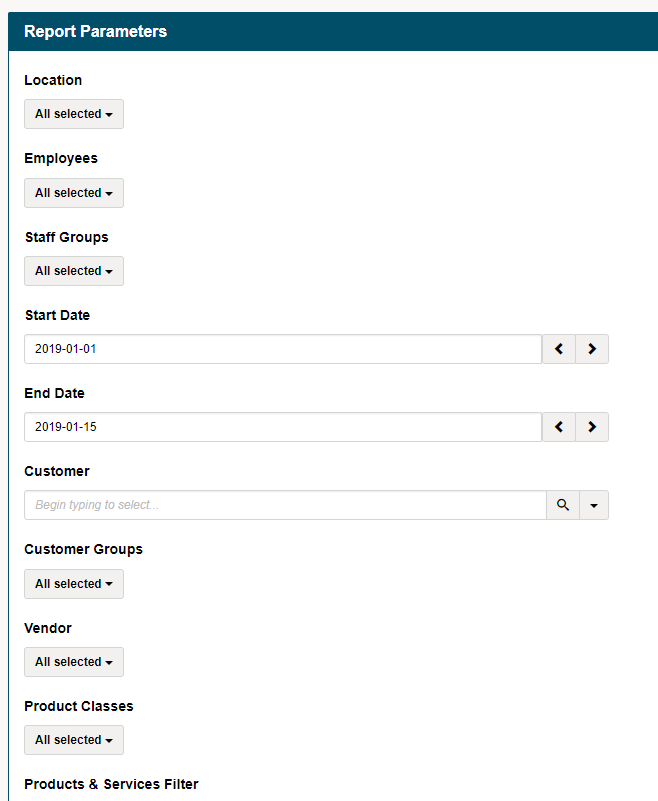
- Location - Defaulted to select all
- Employees - Defaulted to select all
- Staff Groups - Defaulted to select all
- Start Date
- End Date
- Customer (options)
- Customer Groups
- Vendor
- Product Classes
- Product & Services filter
- No filter will set all product sold on the report
- Departments - populates a new filter where you can select the set departments you would like to report on
- Categories - populates a new filter where you can select the set categories you would like to report on
- Products & Services - populates a new filter where you can type in the name of the product or service you would like to report on
- Cost Type
- User Defined
- Weighted Average
- Last Purchase Cost
- Status
- Active - All
- Receivable
- Paid
- Void
- Suspended
- Type
- Sales
- Rentals
- Returns
- Transaction Type (from system settings)
- Sale
- Rental
- Sellable Return
- Non-sellable Return
- Output
- MS Excel - Detailed
- MS Excel - Summary
- PDF - Detailed
- PDF - Summary
Choose to Create
Extra:
In Microsoft Excel use the 'Filter' tool to break down the detailed report even more.
Use 'Pivot Tables' to find quick calculations and breakdowns while 'Pivot Charts' provide great visual breakdowns of data.
Comments
0 comments
Please sign in to leave a comment.