
Inventory is the backbone of your company. Having the correct data about your inventory can help other parts of your business such as Sales, Service, and Manufacturing.
Follow the steps and links below to import your inventory:
C - Import Products
D - Import 'On hands' per location
This article will focus on 'C - Import Products'. Before importing data about your products, be sure to set up departments and categories.
Steps:
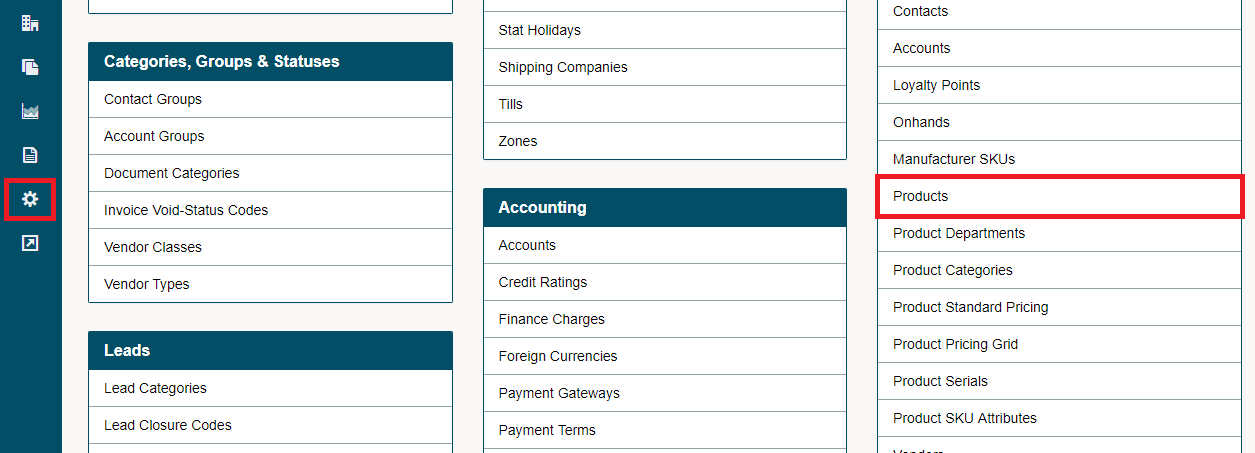
1. Go to Settings.
2. Click on 'Products' under the 'Import' heading on the right-hand side.
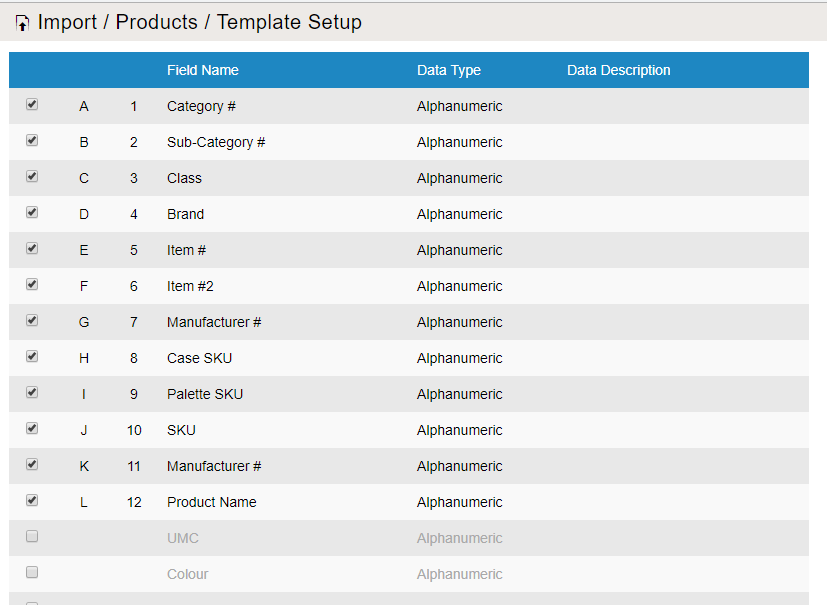
3. Click on the 'Setup Template'. A new window will appear in which you are able to click on the [] checkboxes to turn on and off the fields that will be listed in your product import. Finish by clicking on the save button.
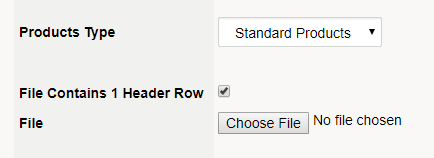
4. Check to make sure the 'Products Type' is set to 'Standard Products' in the drop-down list.
5. Click on 'Download Template', from there open the downloaded Microsoft Excel file. Fill out as much data per product in the template.

If a product with the same product # is already in your system, the information you input into the template will override the current information.
Copy and paste existing information into the correct columns and adjust formatting as needed. At this time it is best to input any additional data into the fields provided. Lastly verify the information is in the correct row and column before saving and uploading to your system.

6. Save the template in CSV form once finished.

7. On the import products screen, be sure to check off 'file contains 1 header row' if you have saved your template with a header row.

8. Click on the 'choose file' button at the bottom. Choose the CSV file you have saved.
9. Click on the preview button. To see more rows and columns, minimize your screen size by pressing the (Ctrl and - buttons) at the same time. To set your screen back click on (Ctrl and +) at the same time.

10. Finish by clicking 'Save', and then typing in your systems home URL. All of your products will now be uploaded.
Comments
0 comments
Article is closed for comments.