
Import existing customers
Your GO Business / MEHD provides a template file that you can use as a guide to create your own customer list to import into your system.
Be sure to download and view your customer import as a CSV template.
GO Business / MEHD ability to import customer information is vast. By importing a Customer CSV file will create a customer in your system with the attached row information. Customers with duplicate information will be be skipped during an import.
Steps
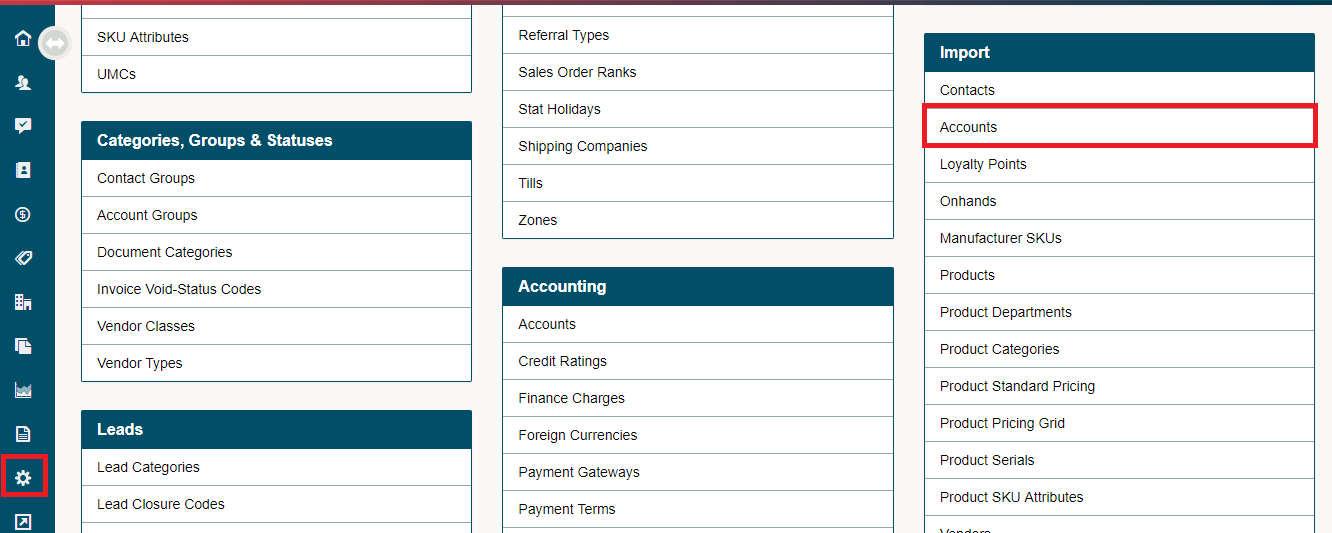
Go to Settings and under the Import Heading choose Accounts/Customers.
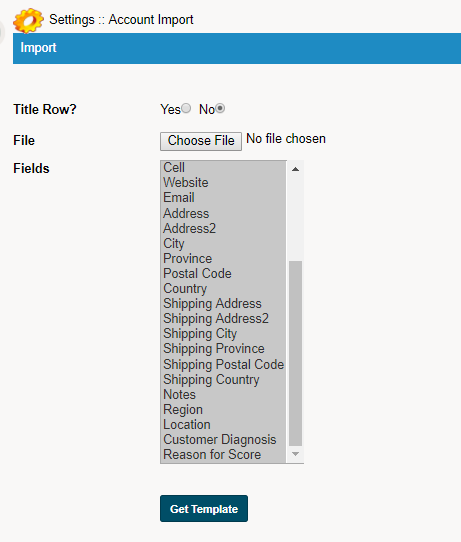
Next, set up your import template. Use the Fields listed to create the headings of your customer import. To Add and Delete fields click on the Field in the list, hold the (Control [Ctrl]) button down to select multiple fields.
Fields that are highlighted in blue will be pushed on to your Account/Customer import template.
To retrive the template, click on the Get Template button. A down load of the CSV template will download to your computer.
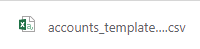
Open the template and copy and paste your information into the correct columns in your Account/Customer template.

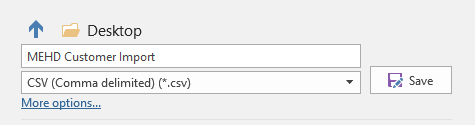
Once you have gone over the columns and rows to verify the information about to be uploaded is correct, save the file as a CSV.
Next, in your GO Business / MEHD system import the selected file by first choosing the file from your computer system.
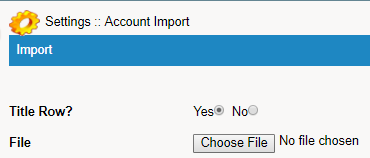
To finalize the import, click on (Upload) a verification of the upload will appear. Simply type in your GO Business / MEHD URL to log back into your system.

Click Here to view an Example of Account/Customer Import
Column Notes
Number: Foundation for imports, customer will automatically be assigned a customer number if they are not assigned one. Duplicates will be rejected.
Name:
Name of Businesses.
Example: Marks Automall
First Name:
First name of individual customer.
Example: Cindy
Last Name:
Last name of individual customer.
Example: Bentsworth
Group:
Exact name of customers groups set up in your system.
Example: ICBC Customers
Contact:
Exact name of the default contact of the business
Phone(s):
List all phone number with no brackets, and no leading (1). Example 230-134-1411
Website:
List exact website URL.
Example: www.marksautomall.com
Customer Address(es):
Use customer address and customer address 2 to list the exact address of the customer
Examples:
Address: 141 Ocean Way
Address 2: Unit 2
Customer City:
Be sure that the correct spelling of the city is listed, correct names so they are the same.
Example: Vancouver and Vancover, change the 2nd name to Vancouver.
Province:
All provinces and states must be listed as the full name.
Example: BC should be written out as British Columbia.
Postal:
List the customers Postal Code or ZIP Code
Example: R3R 0Z3
Country:
Be sure to type out the entire country name.
Example: USA would be United States of America.
Shipping:
If the customers shipping address differs from their original address type in the new contents, if not copy and paste from the customer's address.
Notes:
Type in or copy any additional notes needed in the customer's profile.
Example: Buzzer number (5003) at apartment.
Region:
List the customer's region from the regions set up in your system.
Use the exact spelling of the region, do not use the region's code.
Example: British Columbia
Location:
List the location from which the customer purchases from, locations should be set in your system.
Use the exact spelling of the location, do not use the locations' code.
Location: Winnipeg
Notes
- You MUST import the file in CSV format
- You MUST select the fields you wish to import
- You MUST ensure that the order of your import file matches the order (from top to bottom) of the field selection box
-
Be sure to check over your data before importing. Use the Filter feature in Microsoft Excel or Google Sheets to view all data in a column. Verifying that all data is in the correct format and in the correct cell ensures seamless data transfer.
Comments
0 comments
Please sign in to leave a comment.